Contact Form Design That Converts in 2026
You've paid for the ad, improved the SEO and rewritten the homepage. A visitor finally clicks through, reads about your service, reaches the contact form, hesitates at a field they don't understand and closes the tab. No error message reaches you. No enquiry lands in your inbox. That quiet exit is where good contact form design earns its keep, because the form is often the only place where interest has to turn into action.
Table of Contents
- Why Your Contact Form Is the Real Conversion Point
- The UX Principles Behind Forms People Actually Complete
- Field Strategy, Validation and Inclusive Design
- Mobile, Layout and Interaction Patterns That Work
- Privacy Cues and Trust Signals That Lift Completion
- WordPress Form Options and Real Layout Examples
- Launch Checklist and Common Questions Answered
Why Your Contact Form Is the Real Conversion Point
A Weymouth trades firm can have strong reviews, clear prices and a tidy homepage, then lose the job at the last step. Someone with a leaking boiler lands on the site from a phone, scrolls to Get in touch, sees a long wall of fields and a mandatory phone number, and chooses the competitor whose form asks for a name, an email and a short description of the problem. Nothing was wrong with the offer. The handover failed.
That's why this isn't a minor widget you add on launch day. For a retailer, solicitor, builder or community organisation, the form is often the only transactional moment on the whole site. Reading about what conversion rate optimisation actually covers helps frame it correctly. Every pound spent getting someone there is either recovered in that moment or wasted.
What a Good Form Does in Seconds
A strong form reduces work, signals that you're trustworthy and respects the visitor's time. It tells people what you need, why you need it and what happens next. A poor one does the opposite. It cancels out decent copy, good photography and solid rankings by asking too much, too early, in language nobody would use out loud.
Some visitors will always prefer to ask a quick question first rather than commit to a form. For those cases, offering a conversational route alongside the form, such as Expressify AI's live chat solution, can catch people who aren't ready to write a full enquiry. It doesn't replace the form. It gives hesitant visitors a lower pressure way in, while the form remains the structured record your team can act on.
The rest of this guide stays practical. You'll get field level decisions, mobile patterns, WordPress trade offs and a launch checklist you can work through on Monday morning.
The UX Principles Behind Forms People Actually Complete
Open two enquiry forms side by side. The first asks for full name, company, address, phone, website, company size, budget, how you heard about us and a message, all marked required. The second asks for your name, your email, what you need help with and anything else you'd like to add. The second one feels finishable before you've typed a word. That feeling drives completion more than any visual polish.
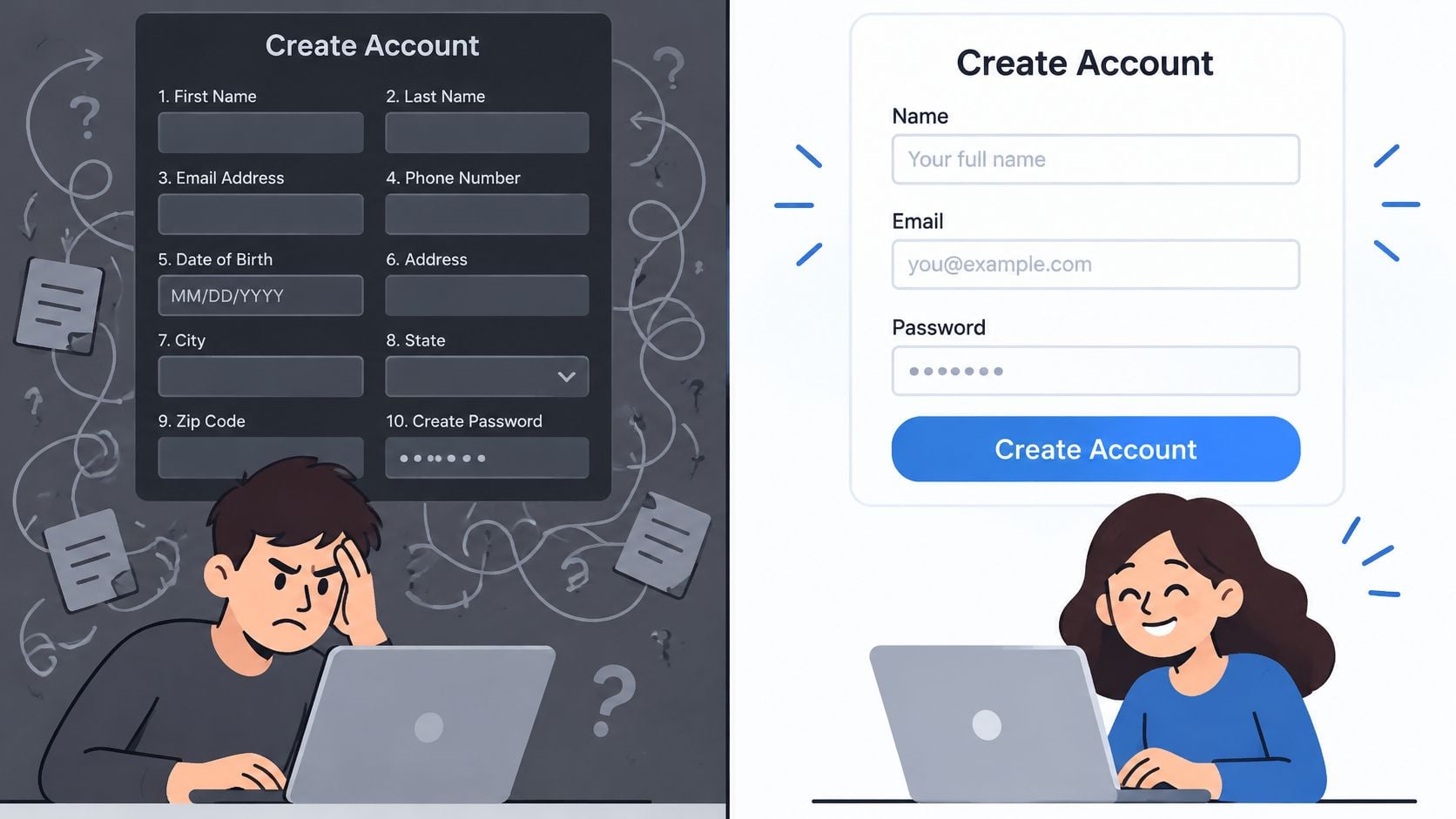
Every field is a small request. Each one competes with the visitor's next tab, their train arriving or their child asking for tea. Friction isn't just length. It's also uncertainty. Vague labels, unexplained asks and a submit button that says only Submit all force people to guess. Guessing slows them down, and slowed visitors leave. The principles behind user experience design that reduces effort apply here in concentrated form, because there's nowhere for confusion to hide.
Order, Grouping and Momentum
Start with the easiest, most expected questions. Name and email first, then the substance of the enquiry. Group related choices together so people can process one idea at a time. Put the sensitive asks last, if you need them at all. A phone number requested on line two feels like a sales ambush. The same field, optional and explained near the end, feels reasonable.
- Lead with value: Use a clear heading and one line that reminds people what they'll get, such as a quote, a callback or an answer.
- Use plain labels: Write Your email address, not Electronic mail identifier. People scan, they don't decode.
- Make the button specific: Send my enquiry or Request my quote describes an outcome. Submit describes nothing.
- Space things out: Generous spacing and one question per row make a form look shorter than it is.
Practical rule: If you can't explain in one sentence what you'll do with an answer, you don't need the field yet.
Visual hierarchy does quiet work too. The heading should be the loudest element, the fields should read in a single downward path, and the primary button should be unmistakable. When that structure is right, the specific field choices get much easier to make.
Field Strategy, Validation and Inclusive Design
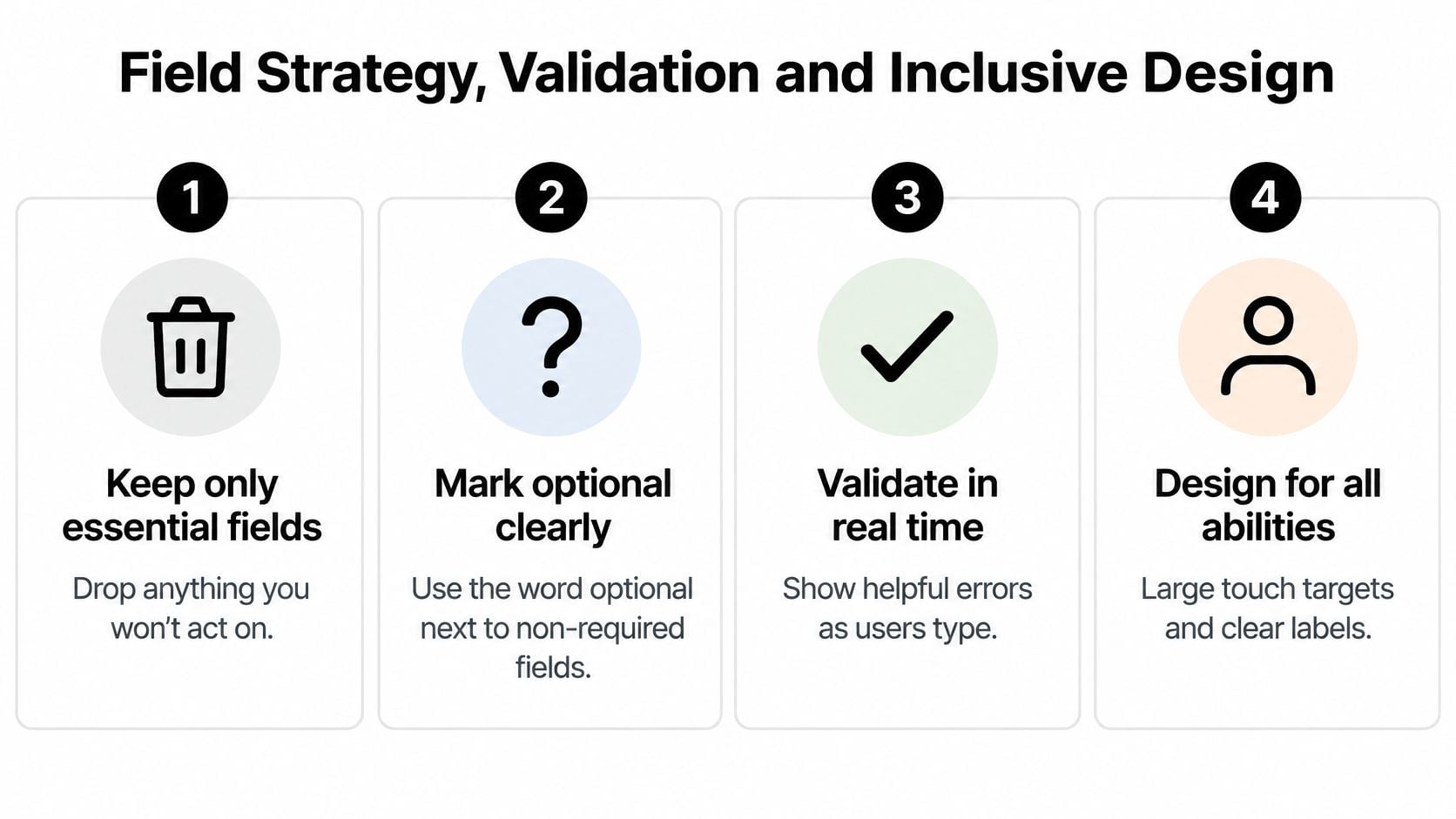
Field strategy starts with a blunt question for each input. What decision does this answer change? If nobody on your team acts differently because of it, cut it or make it optional. That discipline is data minimisation used as a design tool, not just a compliance task. Fewer, justified fields mean less typing for the visitor and less personal data sitting in your inbox.
The UK evidence gives this real weight. The UK Government monitoring programme recorded 29,787 accessibility issues across public sector websites and apps assessed between 1 January 2022 and 1 September 2024, and in detailed testing of 52 websites, none achieved initial compliance, with an average of 53 issues per site as reported in UK accessibility testing statistics. Those tests covered whole websites, but the common barriers read like a form audit. Unclear labels, poor error messaging and weak keyboard support all stop an enquiry dead, even when the form looks fine on screen.
Labels and Grouped Choices Done Properly
Build to WCAG 2.2 Level AA with semantic HTML. Give every control a visible label connected through the label and for mechanism, so screen readers announce the right purpose and clicking the label focuses the field. Don't use placeholder text as a label. It disappears as soon as someone types, and it doesn't reliably tell assistive technology what the field is for. Use placeholders only for a short example format, with the actual label sitting above the field.
For grouped choices, such as enquiry type or preferred contact method, wrap them in fieldset and legend so the group's context is announced correctly. These inclusive design principles for everyday interfaces aren't special treatment. They help disabled users, older users, people zooming on a tablet and anyone completing your form in bright sunlight.
Validation as a Conversation
Treat errors as guidance, not punishment. Name the field, say what went wrong in plain English and explain how to fix it. Enter an email address in the format name@example.co.uk beats Invalid input every time. Add an error summary at the top after submission, with links that move keyboard focus straight to each problem field. That pattern saves screen reader and keyboard users from hunting through the form again.
Inline checks as someone leaves a field can catch simple mistakes early, but don't scold people mid typing. A balanced approach validates gently on blur, then gives a complete, linked summary on submit. Choose input types deliberately too. An email field should behave like one, a phone field should accept spaces without complaining, and a message needs a multi line textarea rather than a cramped single line box.
Audit your own form in twenty minutes. Tab through it without a mouse. Check that focus is always visible, labels are read aloud correctly, errors make sense out of context and every required field earns its place. If you get stuck, your visitors already have.
Mobile, Layout and Interaction Patterns That Work
Design the phone version first, because that's where most small business enquiries are typed, often one handed and in a hurry. A desktop form squeezed into a narrow column isn't a mobile design. Fields need room, buttons need to sit where a thumb naturally rests, and the submit action needs to stay reachable without awkward stretching or hunting.
Input types do more than validate. Mark a field as email and the device shows an email keyboard with the @ symbol to hand. Mark it as telephone and a dial pad appears. Add proper autocomplete attributes for name and email, and the browser offers remembered details, so the visitor taps once instead of typing everything. These details matter for mobile conversion optimisation across the whole journey, but the form is where they pay off most directly.
Single Column Almost Every Time
A single column layout wins for short enquiry forms. It creates one clear path downward, keeps labels close to their fields and survives small screens without anything overlapping. Two columns look efficient in a desktop wireframe, then break down when fields stack unpredictably on a phone and the reading order stops matching the tab order.
Multi step forms need a genuine reason. They help when you need detailed quote information, because breaking questions into stages with a visible progress indicator feels manageable. They hurt when a simple enquiry gets chopped into screens for the sake of it, adding taps and back button confusion. A sticky submit button can help on longer forms, provided it doesn't cover the field someone's typing in.
| Pattern | Form type | Layout | Steps | When to use |
|---|---|---|---|---|
| Simple enquiry | Short enquiry | Single column | One step | Name, email and message are enough to reply usefully |
| Qualified enquiry | Short enquiry | Single column with grouped choices | One step | You need an enquiry type to route the message |
| Staged quote | Longer quote or booking | Single column per stage | Multiple steps with progress shown | You need measurements, dates or service details |
| Booking request | Longer quote or booking | Single column with clear sections | One or more steps | The visitor expects to give scheduling preferences |
Test on a real phone before launch. Simulators miss keyboard behaviour, autofill quirks and the simple question of whether your thumb can reach the button.
Privacy Cues and Trust Signals That Lift Completion
People decide whether to submit based on what's around the form as much as what's in it. A bare form asks for personal details and offers nothing in return. A form wrapped in clear reassurance lowers the perceived risk, and lower risk means more completed enquiries.
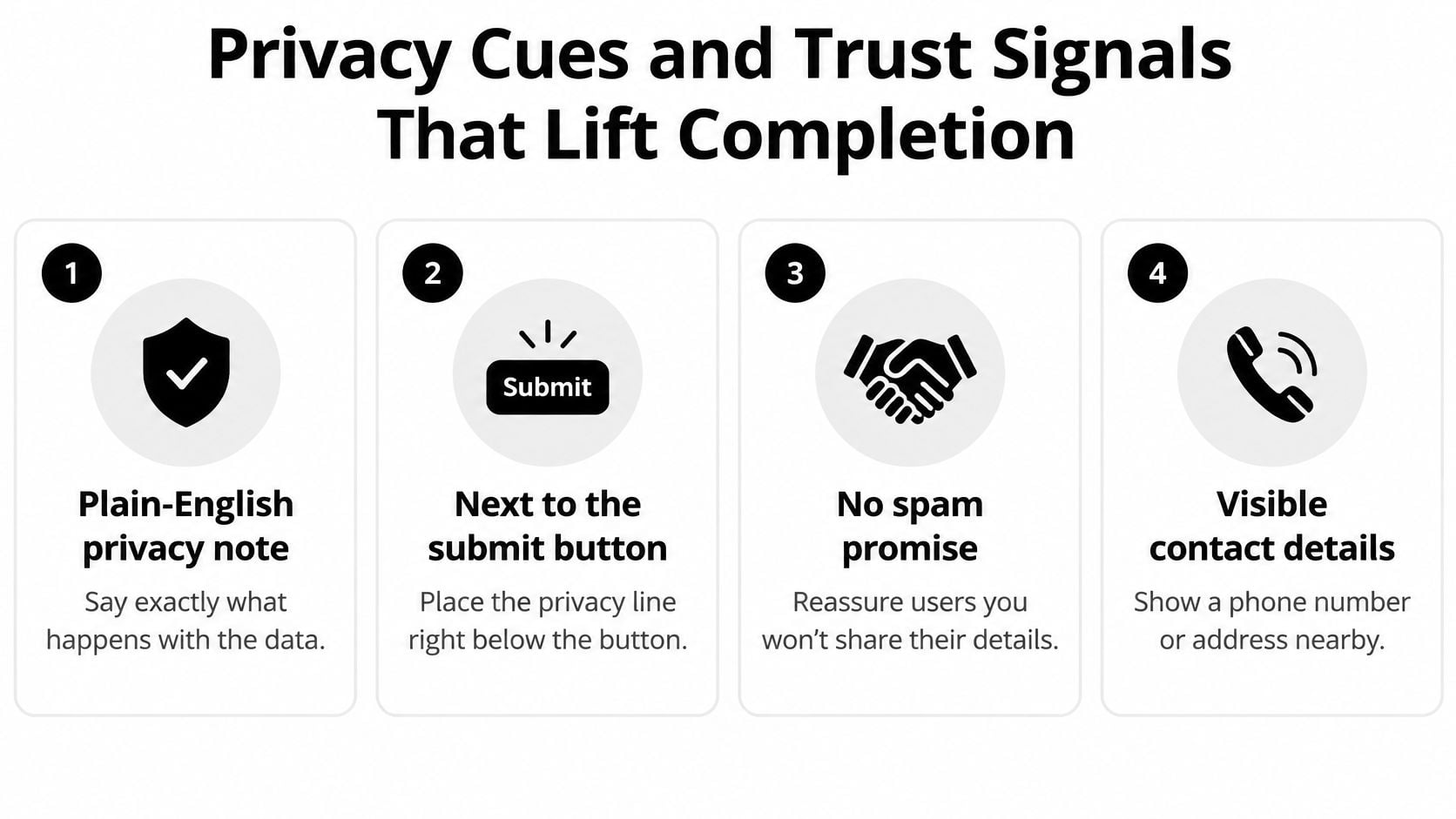
UK guidance is direct here. Businesses must limit collection to data that's necessary and relevant, and privacy information must be freely available wherever personal data is collected, including in or next to the form itself, as set out in UK government data protection guidance for businesses. So write a short plain English note beside the button. Say you'll use the details only to reply to the enquiry, link to the full policy, and keep it human. If you need wording to start from, privacy policy templates give you a structure you can adapt rather than copy blindly.
Separate the Enquiry From Marketing
Never bundle marketing consent into a service enquiry. If you'd like to send a newsletter, add a separate, unticked opt in with its own clear label. Preselecting it undermines trust and muddies your lawful basis. For each field, document its purpose and how long you'll keep the data, whether submissions land in a CRM or a shared inbox. Then check the invisible collection too. Spam tools, analytics and server logs may capture data your form never asks for, so know who can access submissions and when old enquiries get deleted.
Trust signals above and below the form complete the picture. State when people can expect a reply. Show a real phone number or address nearby for anyone who'd rather not use a form at all. A named contact, a relevant accreditation or a short review snippet all tell visitors a real business sits behind the button.
The short video below is a useful way to sense check how your own form's presentation compares with what visitors expect to see.
Privacy done well isn't a legal footnote. It's a conversion tool, because it answers the worry people have in the exact moment they have it.
WordPress Form Options and Real Layout Examples
Most UK small businesses we work with run WordPress, so the practical choice is usually between four routes. None wins outright. The right one depends on how much control you need and who'll maintain the site.

A page builder form module is fastest to set up and styles itself to match your theme, but validation options and accessibility controls can be limited. A dedicated form plugin gives you conditional logic, routing to different inboxes, spam protection and stored entries, at the cost of another plugin to update and sometimes a subscription. A custom coded form in the theme offers the cleanest markup and full control over labels and error handling, but every change needs a developer. An embedded third party service is quick and handles storage for you, yet the styling often looks borrowed, the data sits elsewhere and an iframe can create keyboard and focus headaches.
DesignStack builds website forms as part of its WordPress design and development work, with responsive behaviour and technical testing included in the build process. That's one route among several. What matters is matching the tool to the job, not collecting features you'll never switch on.
Three Layouts That Cover Most Needs
- One field lead capture: An email field and a specific button, used where the offer is simple and the follow up does the qualifying.
- Standard enquiry form: Name, email, enquiry type and message in a single column. This handles most Dorset retailers, trades and professional services.
- Quote request form: Contact details first, then grouped service questions across stages, so your first reply can include something specific.
Shortlist in five minutes. If you need routing or conditional fields, choose a dedicated plugin. If accessibility control matters most and you have developer support, go custom. If it's one simple form on a brochure site, the builder module is probably enough, provided you test its labels and errors properly.
Launch Checklist and Common Questions Answered
Run this checklist in the week your form goes live, not after someone tells you enquiries have gone quiet.
Before You Publish
- Test the full journey: Submit a real enquiry, confirm it arrives in the right inbox, check the autoresponder fires and look in the spam folder.
- Check accessibility basics: Complete it keyboard only, then with a screen reader, then zoomed in. WCAG 2.2 Level AA requires at least a 4.5:1 contrast ratio for normal text and 3:1 for large text, and controls should use visible labels through the label and for mechanism, as explained in the GOV.UK guide to understanding WCAG.
- Use a real phone: Test on a slow connection, accept the autofill suggestions and tap every field one handed.
- Review the data: Confirm every field has a documented purpose, retention is set and marketing consent is separate and unticked.
Questions Small Businesses Ask
How many fields is too many? You're over the line when a field exists because it might be interesting rather than because your reply depends on it. Ask for the minimum that lets you respond usefully, then earn the rest in conversation.
When does multi step help? When the enquiry needs detail, such as a quote or booking, and you can show progress clearly. For a simple hello, it only adds taps.
How do I stop spam without hurting completion? Start with a honeypot or built in spam filtering before reaching for a visible challenge that frustrates real people. Then monitor what gets through and adjust.
How do I know the new form works? Track form starts, completions and where people drop out, and read the enquiries themselves. Better quality messages with fewer follow up questions is a result worth having. Review the form whenever your services change, and treat it as a living part of the site rather than a finished deliverable.
If your current form is losing enquiries you'd never know about, we can audit it, rebuild it properly in WordPress and test it with real devices and assistive technology before it goes live. Visit DesignStack to see how we handle contact forms as part of complete small business websites, and tell us what's not working with yours.