Graphic Design for Business Cards: How to Get It Right
You've just finished explaining what you do. The other person smiles, takes the card, and the room moves on. Later, that card is the thing on a kitchen table or a passenger seat, not your pitch and not your homepage. Graphic design for business cards is the work of making that small object readable, recognisable, and useful after the conversation ends. Most guides stop at colour and paper. The harder part is what happens next, and whether someone can still reach you when the offer or the phone number changes.
Table of Contents
- Why Business Cards Still Matter for UK Small Businesses
- Choosing a Layout That Reads at a Glance
- Matching Typography and Colour to Your Brand
- Preparing Print-Ready Files with Bleed and CMYK
- Choosing Finishes and Briefing Your Printer
- Adding a QR Code or NFC Link That Earns Scans
- Bringing It Together and Taking the Next Step
Why Business Cards Still Matter for UK Small Businesses
You're in a busy room with a card in your palm. A networking breakfast, a client meeting, a community event. You hand it over, the chat moves on, and that rectangle is often the only physical brand piece the other person keeps.
Printed.com customer research reported by Print Monthly collected responses from more than 730 customers across the UK, and in that group 65% said they use printed products to promote their brand, 80% were sole traders, most of the remaining respondents operated teams of fewer than five people, business cards sat among the most commonly printed items alongside flyers, brochures, packaging, and stickers, and approximately 65% said the business they print for was their main source of income.
Where a card still does real work
These aren't leave-behinds from a large marketing team. Owners share them at trade shows, shop counters, site visits, and local groups. One card may be the only branded object a prospect takes away, so it has to work without a salesperson standing next to it.
Hierarchy and accurate details beat decoration. The name has to be obvious, the contact route has to be correct, and the look should agree with everything else you publish, including the wider practice of branding and graphic design. A clever pattern that hides the phone number is a failed card, however nice the paper feels.
Put the decisions in a sensible order:
- Readability: a stranger finds the name in a few seconds.
- Consistency: type and colour match your other materials.
- Print files: nothing important sits where a cutter can remove it.
- A next step: one digital action, not a row of competing marks.
Practical rule: Design the card for the person who reads it later, alone, not for the moment you hand it over.
Choosing a Layout That Reads at a Glance
Start with information order, before you touch colour or a finish. On an 85 × 55 mm card there isn't room for a desktop layout shrunk to fit. If you paste a homepage header, a tagline, three addresses, and two social rows onto that rectangle, nothing wins.
Build the stack in this sequence. Name and role come first, large enough to read at arm's length. One primary contact route comes second, usually a mobile number or a short email, not both fighting for the same weight. Website, location, and an optional social handle or QR code come after that, smaller but still clear. Give the card one call to action. "Book a visit" and "follow us everywhere" can't share the same visual priority.
UK Government Communication Service guidance recommends a minimum 12-point size for clear print, accessible sans-serif type, restrained italics and underlining, and approximately 1.2 line spacing, with related public-sector advice favouring stronger contrast and warning against light type weights. That 12-point figure isn't a universal commercial minimum, but it's a defensible target for the name and the main contact line.
What usually breaks the read
- Thin type on a photo: essential details disappear as soon as the image has any texture.
- All-capital contact lines: postcodes and emails become harder to parse.
- Two or three QR codes: the eye doesn't know which one is the job.
- Low contrast: pale grey on white looks elegant on screen and fails under indoor lighting.
The same habits that help a screen also help a card. The user experience design principles of clear order, one action, and enough space apply at this tiny size too. Print a proof at true size, or hold the file at 100% zoom next to a ruler, and read it under ordinary room light. If you squint, the hierarchy isn't finished.
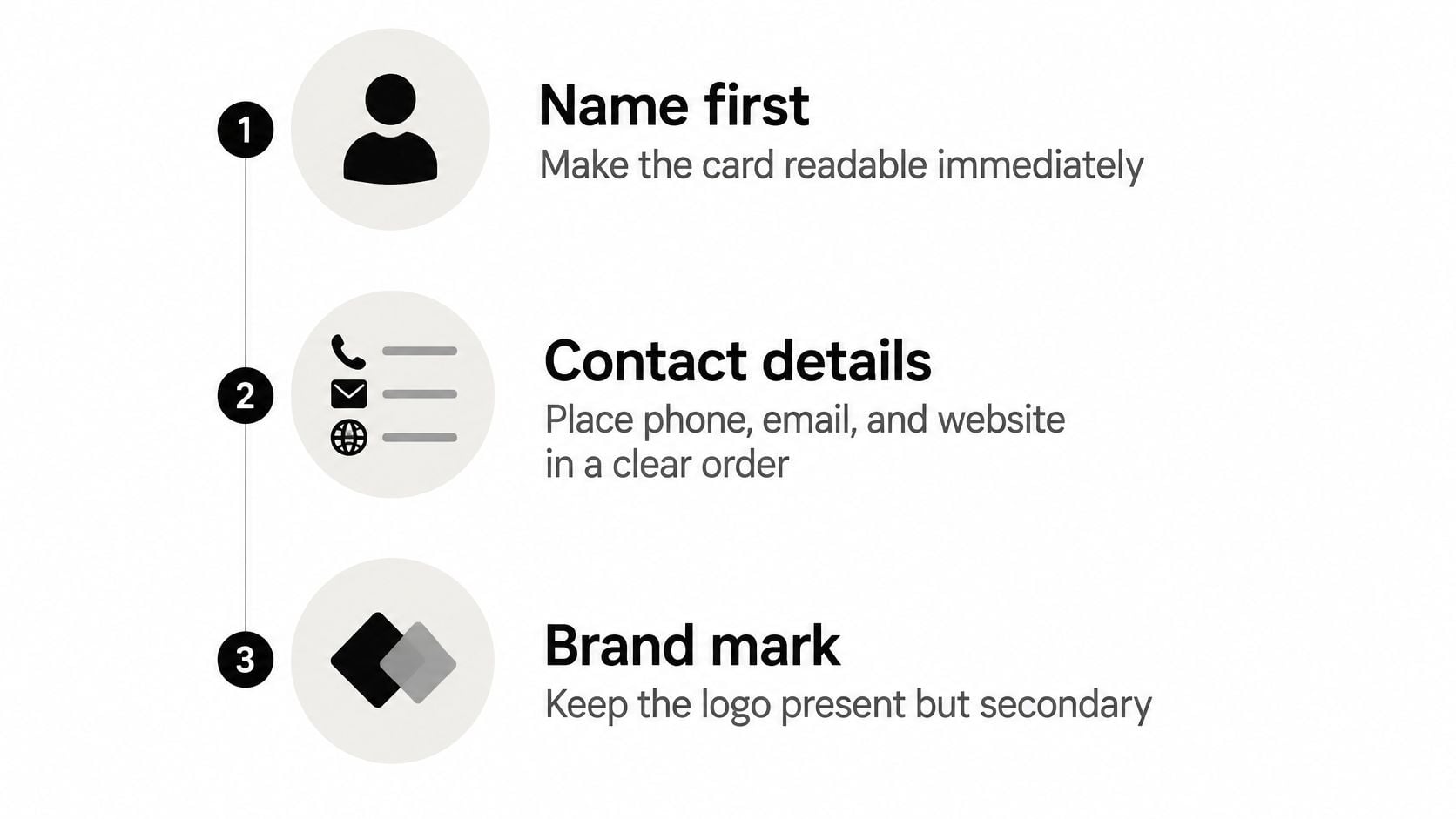
A logo can be present and still lose. If the name isn't the first thing a stranger reads, the layout is working for the brand file, not for the person holding the card.
Matching Typography and Colour to Your Brand
A customer picks up your card after a meeting, then searches your name online later. Matching the card's type and colours to your website makes that recognition easier, and gives them a familiar place to continue the conversation.
A small system, not a new look
Use one or two typefaces from your existing brand. A display face can suit your name or logo, while a plain, readable face works better for email addresses and other details. On an 85 × 55 mm card, try 10–12 pt for contact details and 14–18 pt for your name, then print a proof at actual size. If a long email address needs to shrink below 9 pt, edit the layout before reducing the type.
Keep the palette to two brand colours, plus black or a near-black for text. Check the colour values against your website and existing print materials rather than sampling from a screenshot, where display settings can shift the shade. For a practical contrast check, aim for a ratio of at least 4.5:1 between normal-sized text and its background. Dark text on a light ground is usually the easier read; reversed white type needs enough weight to hold up in print.
A full-bleed dark background may suit the brand, but it uses more ink and can show scuffs more readily. A light card with a coloured logo is often easier to read and cheaper to reprint.
Whether the logo leads
Let the logo take the lead if customers already recognise it and can read it at a glance. For a new business, an abstract mark, or a person-first practice, give the name more room and keep the logo secondary. A logo that dominates while the name sits tiny in a corner makes the card harder to use.
Record the typefaces, colour values, logo size, and clear space in a business style guide. That keeps the next card reorder aligned with your website and other materials. It also helps when a QR code or NFC link takes someone from the printed card to a digital profile: keep that destination current, and use a trackable link if you need to see whether people scan.
Preparing Print-Ready Files with Bleed and CMYK
A handsome layout still fails in the guillotine if the file is the wrong size, the wrong colour mode, or missing its fonts. UK print specifications treat 85 × 55 mm as the standard finished card. Build the artboard at 91 × 61 mm, which gives 3 mm of bleed on every edge, and keep logos, contact details, QR codes, and any other critical element at least 3 to 4 mm inside the trim. Convert artwork to CMYK, place raster images at 300 dpi, embed or outline fonts, and export a print-ready PDF, preferably PDF/X-1a:2001 where the printer supports it. Instantprint's business card specifications set out that same production sequence.
Standard UK business card file specifications
| Specification | Value | Why it matters |
|---|---|---|
| Finished trim | 85 × 55 mm | Fits wallets and standard UK holders |
| Artboard with bleed | 91 × 61 mm | Colour runs past the cut so you don't get white slivers |
| Safety margin | 3 to 4 mm inside the trim | Trim can wander, and this keeps type and codes intact |
| Colour mode | CMYK | Stops the shift you get when an RGB file is converted late |
| Raster images | 300 dpi | Holds detail in photos, patterns, and placed logos |
| Fonts | Embedded or outlined | Prevents the printer substituting a different face |
| Export | Print-ready PDF, PDF/X-1a:2001 if supported | Packages colour and fonts in a form presses expect |
Failures each setting prevents
- No bleed: a background stops a fraction short and a white line appears on one edge.
- Type in the bleed: a phone number loses its last digit when the cut varies.
- RGB left in the file: a bright screen blue prints duller, and brand colours drift apart.
- Live fonts, not outlined: a missing face becomes a default, and the line lengths change.
- A 72 dpi logo stretched up: edges stair-step once the card is in the hand.
A preflight pass should check page size, bleed, safety, colour, resolution, overprint, and font handling before you upload. On-screen RGB won't predict ink, so a physical proof is worth it for dark palettes, fine reversed type, metallics, and small text. Check that any QR code still scans at the printed size, not at the size it looked on your laptop.
Choosing Finishes and Briefing Your Printer
Paper changes the design. A matte board softens colour and hides fingerprints. A gloss coat makes photographs punchier and can glare under shop lighting. Foil and spot UV catch light, but they hate hairline detail. If your logo depends on a 0.2 mm line, a metallic finish will thicken it or drop it.
Dark brand colours are the usual surprise. A navy that looks flat on screen can go patchy on an uncoated sheet, and white type can fill in if the weight is too light. That's why a physical proof earns its place for reversed text, metallic effects, and anything set small. A PDF approval only tells you the layout is in the right place.
What to put in the brief
Write the brief before files go to press, not in the email thread afterwards. A clear design brief saves both you and the printer from a reprint.
- Size and sides. State 85 × 55 mm, single or double sided, and which face is the front.
- Stock and finish. Name the weight if you know it, then matte, gloss, soft-touch, foil, or spot UV. Say where the special finish applies.
- Colour and files. CMYK, print-ready PDF, fonts outlined, bleed already in the file.
- Quantity, proof, and date. How many, whether you want a posted proof, how many revision rounds you expect, and the day you need cards in hand.
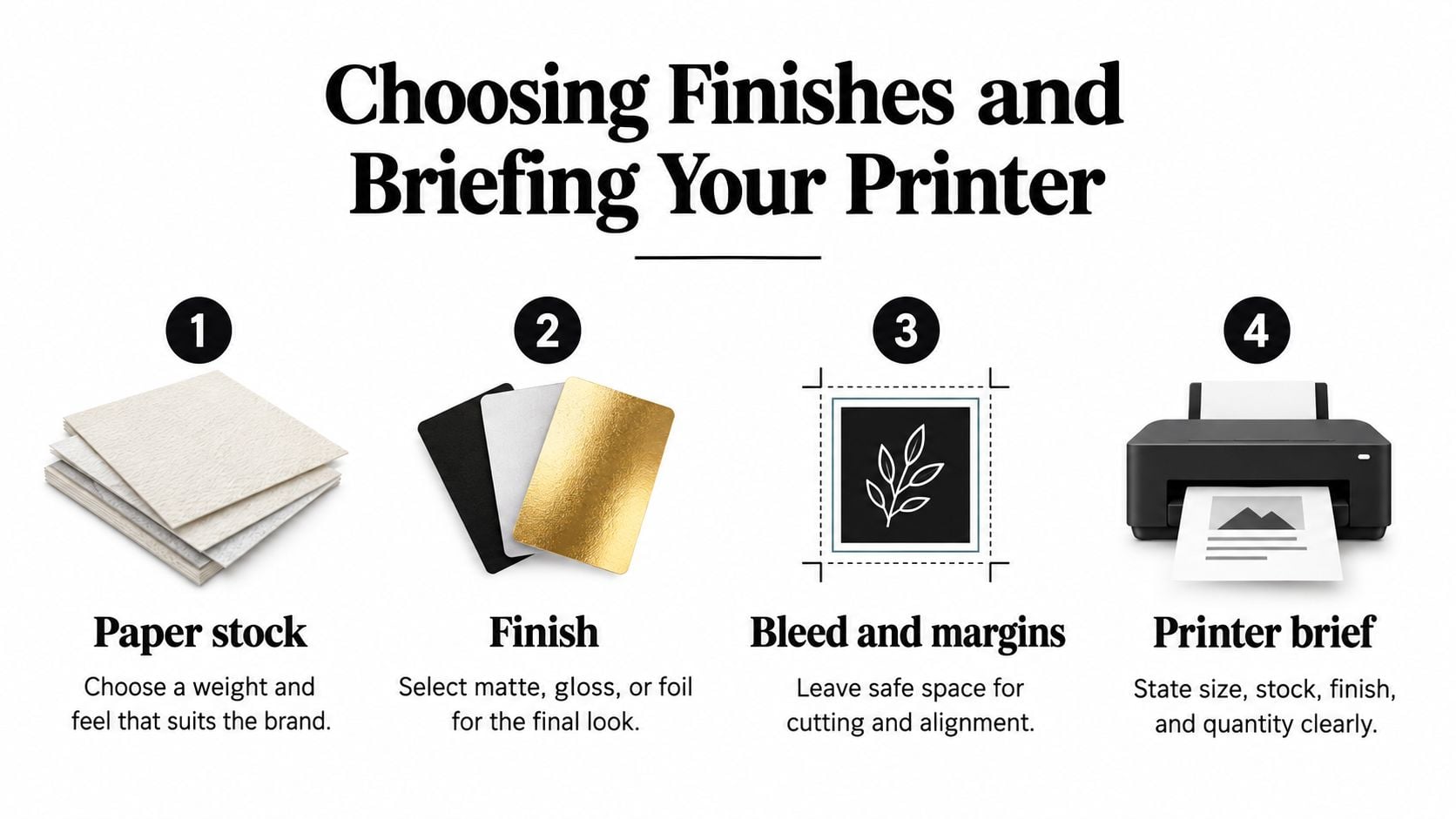
Skip the proof only when the job is simple. Black text, one solid colour, no fine reverses, a stock you've printed before. Ask for one when the back is a full dark colour, the type is light, or you're paying for foil. A proof costs less than a box of cards you can't hand out.
Agree the finish while the layout can still change. Foil and tiny type rarely survive each other, and finding that out after the plates are made is an expensive way to learn.
Adding a QR Code or NFC Link That Earns Scans
The card's job isn't finished when it leaves your hand. Someone has to do something with it. A code that opens a dead page, or a pretty URL nobody can read, wastes the attention you just earned.
Among surveyed UK and European smartphone users, 86.66% had scanned a QR code at least once and 36.40% scanned one weekly, according to Electroiq's QR code statistics. Familiarity isn't the same as trust. A cramped code, a link that looks random, or a mobile page with no obvious action will make people put the card down.
Three ways off the card
| Route | Comfort | Setup | Keeping it current | Tracking |
|---|---|---|---|---|
| QR code | High for people who already scan, awkward in poor light or for some users | Low cost, needs quiet space and enough size | Use a short link you can edit when staff or offers change | Scan counts by event or by person, if each card has its own link |
| NFC chip or sticker | Easy for people happy to tap, invisible to everyone else | Higher unit cost, and the chip must be programmed | Destination can be updated if you control the link | Taps can be counted, but many readers never try |
| Memorable web address | Works without a phone camera or a tap | Just a short URL set in clear type | You still need the page itself kept up to date | Weaker unless the address is unique to the card or the event |
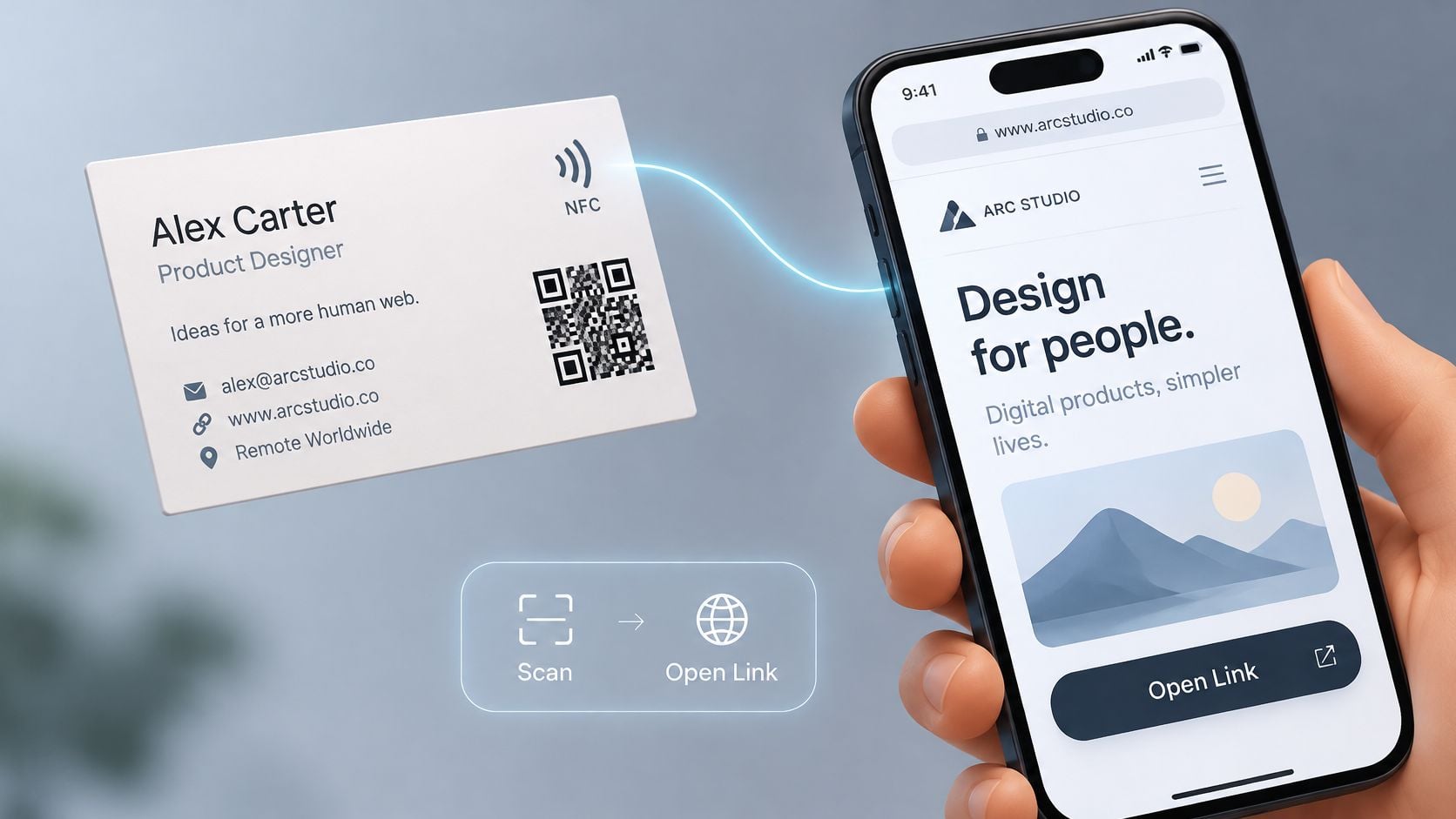
Pick one primary route. A QR code plus a short human-readable address is a fair pair, because scanning isn't always possible. NFC on its own leaves out anyone who won't tap a stranger's card. I've watched people ignore a cluster of three codes and just type the company name into a search bar instead.
Where the scan should land
Choose a single destination with one job. A vCard for saving a contact. A booking page. A portfolio. A review page. A campaign page for a specific event. Don't send people to a homepage and hope they hunt.
Make the code large enough to scan at the printed size, with clear space around it and no pattern running underneath. Test it on a cheap phone, in indoor light, after the card is printed, not only in the design file. Point it at a page built for a thumb, in the spirit of small business web design, with the action visible before any long story.
If the card is meant to bring people back, BonusQR loyalty card tools can sit behind that code so offers or stamps stay editable instead of being frozen in ink. Keep analytics modest. You need to know which event or which staff card earned the scan, not a dossier on the person who tapped.
A static code printed straight to a personal mobile number will go stale the day someone leaves. An editable link, plus the phone number in plain type, survives that change without a reprint.
Bringing It Together and Taking the Next Step
The cards that work aren't the ones with the most processes on the paper. They're the ones where each decision has a job, and the jobs don't fight.
The order that avoids reprints
- A hierarchy someone can read at a glance. Name, role, one contact route, then the rest.
- A look that matches the brand you already use. Same type logic, same colours, logo present but not greedy.
- Files a printer can cut. Bleed, safety, CMYK, sharp images, fonts that can't go missing.
- A finish chosen for the job. Matte, gloss, or foil only where the artwork can survive it, with a proof when the risk is real.
- One digital step that stays current. A code, a tap, or a short address, aimed at a page with a single action.
Miss the first item and the rest is polish on a card people can't use. Miss the last item and you have a handsome object that can't tell you whether the networking evening was worth the train fare.
Handing the job to a studio
If you'd rather not carry the file setup and the print briefing alone, a Dorset studio can take the card as part of a wider identity. DesignStack, based in Weymouth, designs for print and for screen, with fixed-cost pricing, three design revisions as standard, and regular project updates so a deadline doesn't drift. The useful starting point isn't a mood board of other people's cards. It's your current card, who receives it, and what you want them to do next.
Bring three things to that conversation. The card you hand out now, even if you dislike it. The audience, whether that's trade-show buyers, local clients, or members of a community group. The single action you want after the handover, such as a call, a booking, or a saved contact. With those, the layout, the finish, and the link can be decided in the right order instead of being patched after the first box arrives.
DesignStack designs business cards as part of branding and print for UK small businesses, from a readable layout through to files a printer can run and a digital step that stays current. If your card is due a proper version rather than another template tweak, visit DesignStack and send the card you use now, who it's for, and the one action you want after it's handed over.