WordPress Website Free Hosting: A Step-by-Step Guide
The usual advice on free WordPress hosting is to pick a provider, run its installer and upgrade when traffic grows. That skips the more important question: what happens when something breaks? A quiet website can still lose its files, miss enquiries or leave its owner unable to fix an accessibility problem.
For a WordPress website, free hosting can be a sensible testing tool. Treat it as an operational decision, though, not just a way to avoid a bill. Before publishing, you need to know who maintains the server, whether you can recover the site and whether the platform lets you make necessary improvements.
Table of Contents
- Free WordPress Hosting Options Compared
- Checks to Run Before You Sign Up
- How to Install WordPress on a Free Host
- Speed Limits and How to Test Them
- Security, Privacy and Accessibility Risks
- Signs Your Site Has Outgrown Free Hosting
- How to Migrate Your Site Off Free Hosting
Free WordPress Hosting Options Compared
Free WordPress hosting is real, and it can work well for a test site, brochure page or community project. BuiltWith's technology-tracking estimate, reported by DiviFlash, identifies approximately 1,412,923 live WordPress websites in the United Kingdom, meaning detected sites rather than an official census of installations.
Every free route trades something away. The useful comparison isn't just storage space, it's how much control and responsibility you're accepting.
Free WordPress hosting options compared
| Option | Best for | Custom domain | Plugins and themes | Updates and backups |
|---|---|---|---|---|
| WordPress.com Free | Quick personal page or short test blog | No, subdomain only | No third-party plugins or custom themes | WordPress.com handles platform maintenance and backups; check your recovery access |
| Free shared host with one-click installer | Learning and brochure test pages | Often subdomain only; check terms | Full WordPress plugin support within resource quotas | Mostly you; confirm whether host backups are included |
| Free cloud VM tier, such as Oracle Cloud Always Free | Developers comfortable running a server | Yes, via DNS | Full control | You, including server patching |
| Managed host free trial | Testing a build before paying | Usually unavailable during the trial | Usually full access | Host, within the trial's terms and duration |
| Local or private staging install | Building and testing before launch | No public address required | Full control | You; keep the environment private |
Read the responsibility columns first
A custom domain and a recoverable backup matter more than a generous headline allowance. A provider-controlled subdomain is convenient for experimenting, but it's a poor address to print on packaging or business cards. WordPress.com Free may also display advertising, so check how the finished page looks to visitors who aren't logged in.
Full plugin support doesn't mean unrestricted resources. A shared host may let you install WooCommerce while limiting the CPU time, memory or file count needed to run it comfortably. A cloud VM removes many application restrictions, but replaces them with server administration, firewall configuration and recovery work.
Use a broader WordPress website hosting comparison when the project needs capabilities that the free plan excludes. Check current terms before committing, particularly cloud eligibility, resource availability and trial expiry.
Free hosting removes the hosting invoice. It doesn't remove the maintenance work.
For learning, choose a local installation or a disposable shared-host account. For a short campaign, use a public free option only when its branding, recovery arrangements and restrictions are acceptable. For a revenue-generating website, I would usually skip free hosting and choose accountable support from the start.
Checks to Run Before You Sign Up
A successful installer proves that WordPress can start. It doesn't prove that the host can support your website reliably.
The managed WordPress hosting guidance from 1stNet highlights the UK benchmark that 43% of businesses reported a cyber breach or attack during the previous twelve months. Treat recovery and security controls as acceptance requirements, not optional extras.
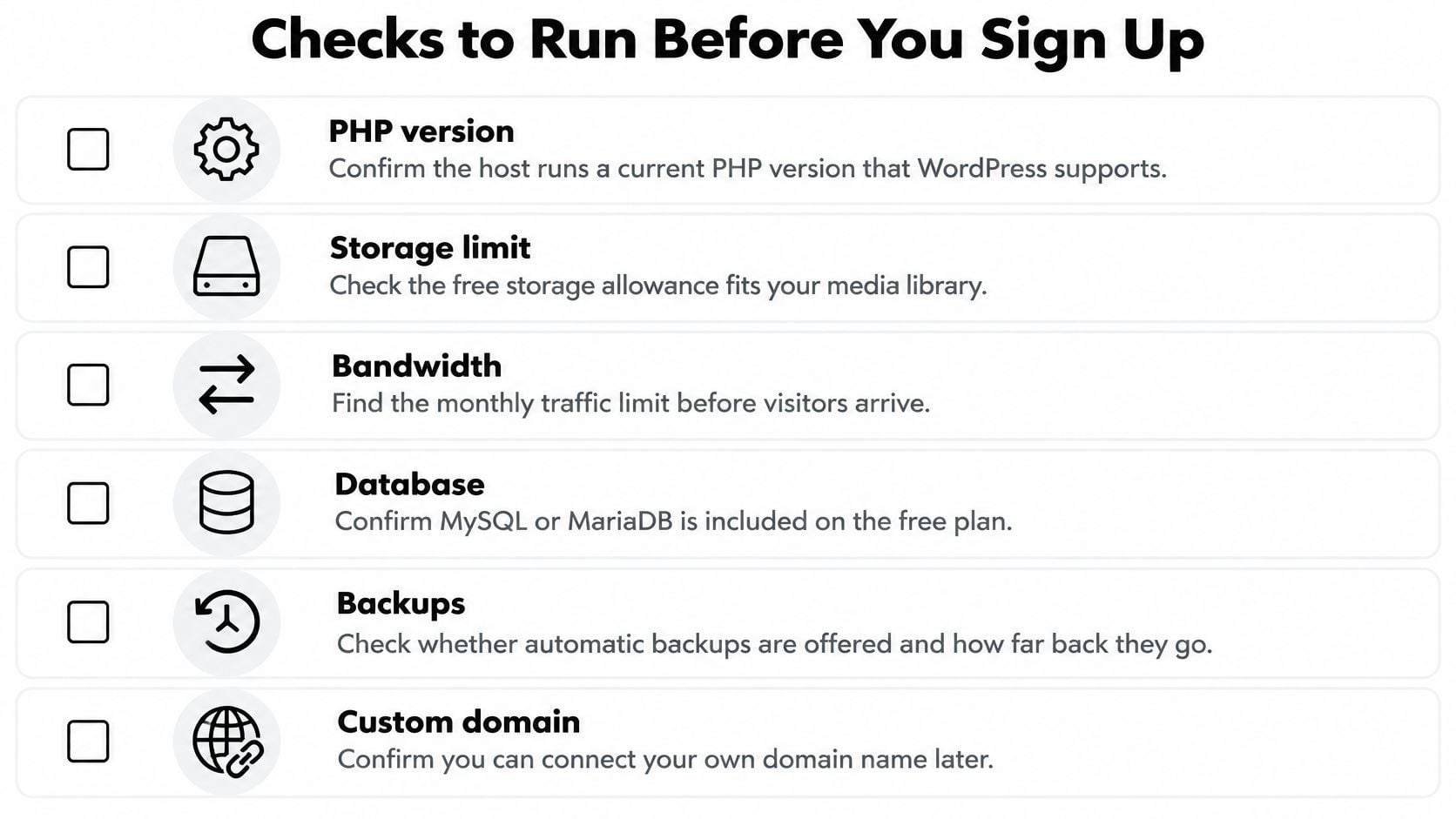
Use this checklist to screen a provider before committing your build.
Require evidence, not reassuring labels
- Software compatibility: Confirm that PHP and MySQL or MariaDB support your chosen WordPress release.
- HTTPS and domain control: Check automatic certificate renewal and whether you can manage your domain connection.
- Scheduled tasks: Verify that cron jobs can run scheduled posts and background maintenance.
- Email delivery: Send a contact-form message and password reset to a real Gmail or Outlook inbox.
- Resource limits: Record storage, bandwidth, file-count, memory and CPU restrictions.
- Application access: Check prohibited plugins, themes and file operations before designing around them.
Reject the provider if it can't demonstrate independent backups, automatic TLS renewal, account isolation, abuse support and a documented exit path. For anything beyond a disposable prototype, establish whether automated patching and malware monitoring are included.
Copy the relevant terms into your project notes, including suspension and inactivity policies. Send a support request asking a specific technical question, then assess both the response time and whether the answer actually resolves it. A quick sales reply isn't evidence of effective incident support.
Go/no-go rule: If you can't explain how you'll recover the site without access to the hosting account, don't launch it there.
Use these checks alongside a fuller guide to choosing a web hosting provider. Only proceed to installation when the answers are clear enough to record, not merely implied by marketing copy.
How to Install WordPress on a Free Host
These instructions suit a self-hosted WordPress installation with control-panel access. WordPress.com uses its own setup process, while a cloud VM requires server preparation before the application installer can run.
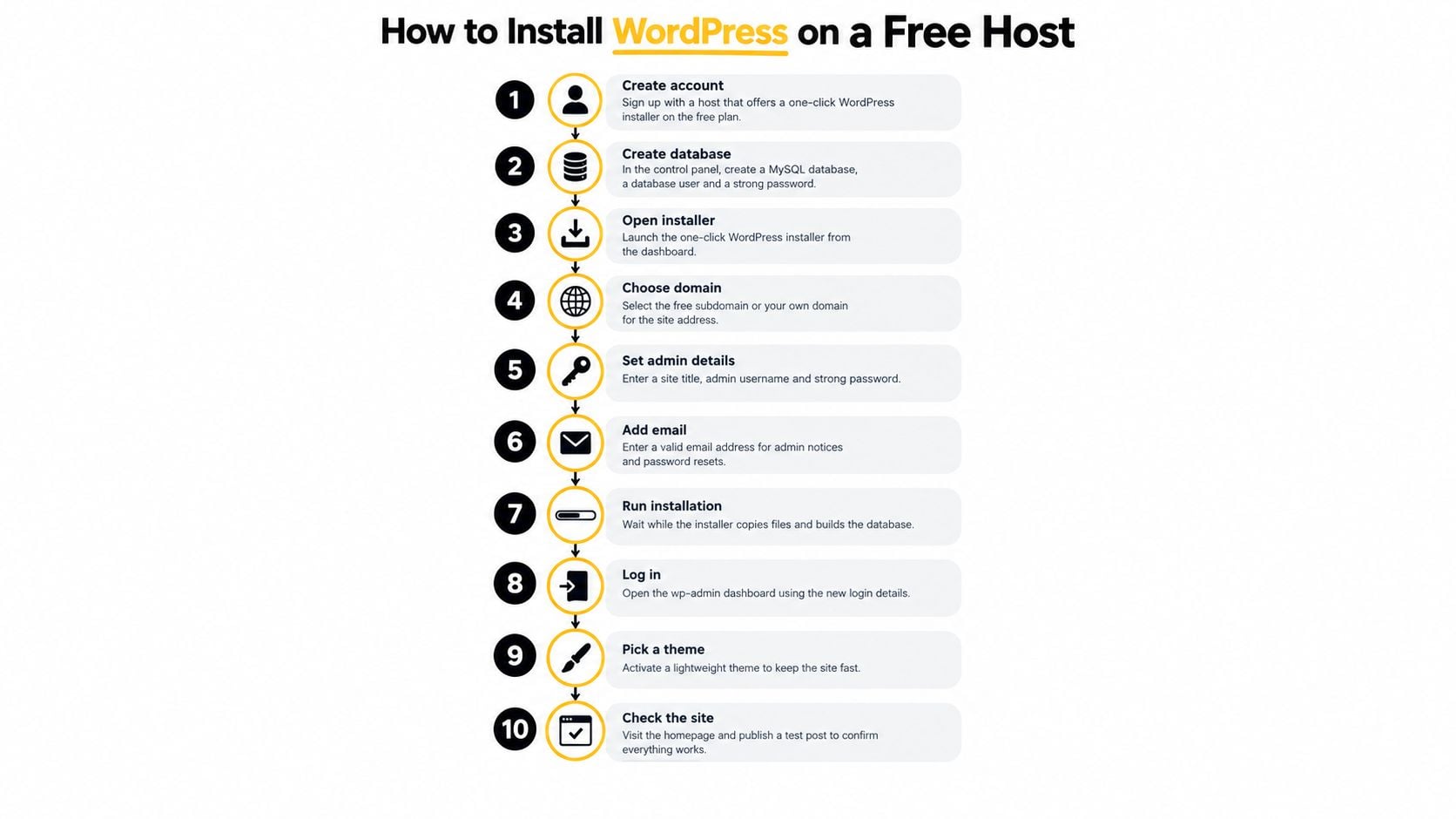
The visual guide outlines the account and installation workflow.
Build a recoverable installation
Create the hosting account. Select the free plan explicitly and choose the intended site address, checking that you haven't selected a paid trial instead.
Create a MySQL database, database user and strong password in the control panel, then save the credentials in a password manager. If the installer creates these automatically, record where you can retrieve or reset them.
Run the WordPress installer, or upload the application files and enter the database details manually. If WordPress reports a database connection error, verify the database hostname as well as the credentials, because the hostname isn't always
localhost.Choose a unique administrator username, an unused password and an email address you actively monitor. Don't share the administrator account with collaborators; give each person their own login with appropriate permissions.
Under Settings, Permalinks, choose Post name before publishing content. Changing the URL structure after people start linking to the site creates avoidable redirect work.
Enable Discourage search engines from indexing this site under Settings, Reading while building. This setting isn't access protection, so password-protect private staging environments and keep real customer information out of them.
Activate a lightweight theme and install only necessary plugins, including suitable security controls and an off-site backup tool. Use a single page-caching solution only if the host doesn't already provide equivalent caching, and check that excluded pages include login and checkout.
Create a staging copy, locally if the provider doesn't offer staging. Make configuration and design changes there first, then practise restoring your backup before trusting the process.
Test the contact form, password reset and email notifications, and inspect HTTPS in a private browser window. Follow the complete enquiry journey, including the confirmation message and the reply address received by the business.
Remove the search-engine discouragement setting only after your launch checks pass, then submit the sitemap in Google Search Console. Check that the live site is publicly accessible and that staging remains private.
Keep the starting build small
Don't install several page builders and overlapping caching plugins before you've added meaningful content. Each extra component adds configuration and compatibility work, making it harder to identify the cause of a slow or broken page.
Start with the WordPress block editor unless your layout genuinely needs another builder. Add functionality to solve an identified requirement, then test the result before adding anything else.
For a video walkthrough alongside the written process, use the installation tutorial below.
Speed Limits and How to Test Them
Free hosting is an operational risk, not just a way to cut costs. Test the pages visitors rely on, then decide whether the host can support them. Include the contact form and a representative product or service page, using both mobile and desktop profiles.
DesignStack's website stress-testing guide recommends at least three runs for each performance measurement and reports that roughly 29% of UK websites fail Core Web Vitals overall. Keep the median and worst result, not just the fastest run, so one unusually quick test does not mask inconsistent performance.
Read the correct performance signals
Use PageSpeed Insights for available real-user information, and Lighthouse or Chrome DevTools for controlled diagnostics. A new test site may not have field data. A Lighthouse navigation test alone does not establish real-user Interaction to Next Paint.
Core Web Vitals thresholds for pass or fail
| Metric | Good | Needs improvement | Poor |
|---|---|---|---|
| Largest Contentful Paint (LCP) | 2.5 seconds or less | More than 2.5 seconds and up to 4 seconds | More than 4 seconds |
| Interaction to Next Paint (INP) | 200 milliseconds or less | More than 200 milliseconds and up to 500 milliseconds | More than 500 milliseconds |
| Cumulative Layout Shift (CLS) | 0.1 or less | More than 0.1 and up to 0.25 | More than 0.25 |
These limits are judged at the 75th percentile of field data. Use the tool's current bands, rather than treating an overall performance score as a Core Web Vitals pass. A missing result isn't a passing result, especially on a new site without enough visitor measurements.
Separate application problems from hosting limits
Keep device and network profiles consistent. Retest after theme or plugin changes, and compare results with page caching disabled and after a period without requests, when database caches may be cold.
- Reduce page weight: Resize images and use WebP or AVIF where appropriate.
- Simplify rendering: Choose a lightweight theme and defer non-critical JavaScript.
- Check server behaviour: Look for long waits, failed requests and resource-limit messages.
- Test interactions: Exercise forms and checkout with concurrent requests, within the provider's testing rules.
Aim for Good across the Core Web Vitals on important mobile journeys once field measurements are available. Before launch, combine lab diagnostics with hands-on interaction testing. Measure the contact form and checkout as well as page loads, since a fast-looking homepage does not show whether key actions work under load.
If delays persist after optimisation, investigate CPU throttling, disk access and database latency rather than adding plugins without a clear reason. A free host is suitable for testing when the pages remain responsive and the host's limits do not block the work. Move before launch if it cannot supply the resources your build needs.
Security, Privacy and Accessibility Risks
Security on a free plan is a division of labour. You need named responsibilities, not just a security badge in the hosting dashboard.
The UK Government's Cyber Security Breaches Survey 2025 found that 37% of UK businesses reported phishing attacks in the previous twelve months. Protect your hosting account and administrator email with unique passwords and two-factor authentication where available.
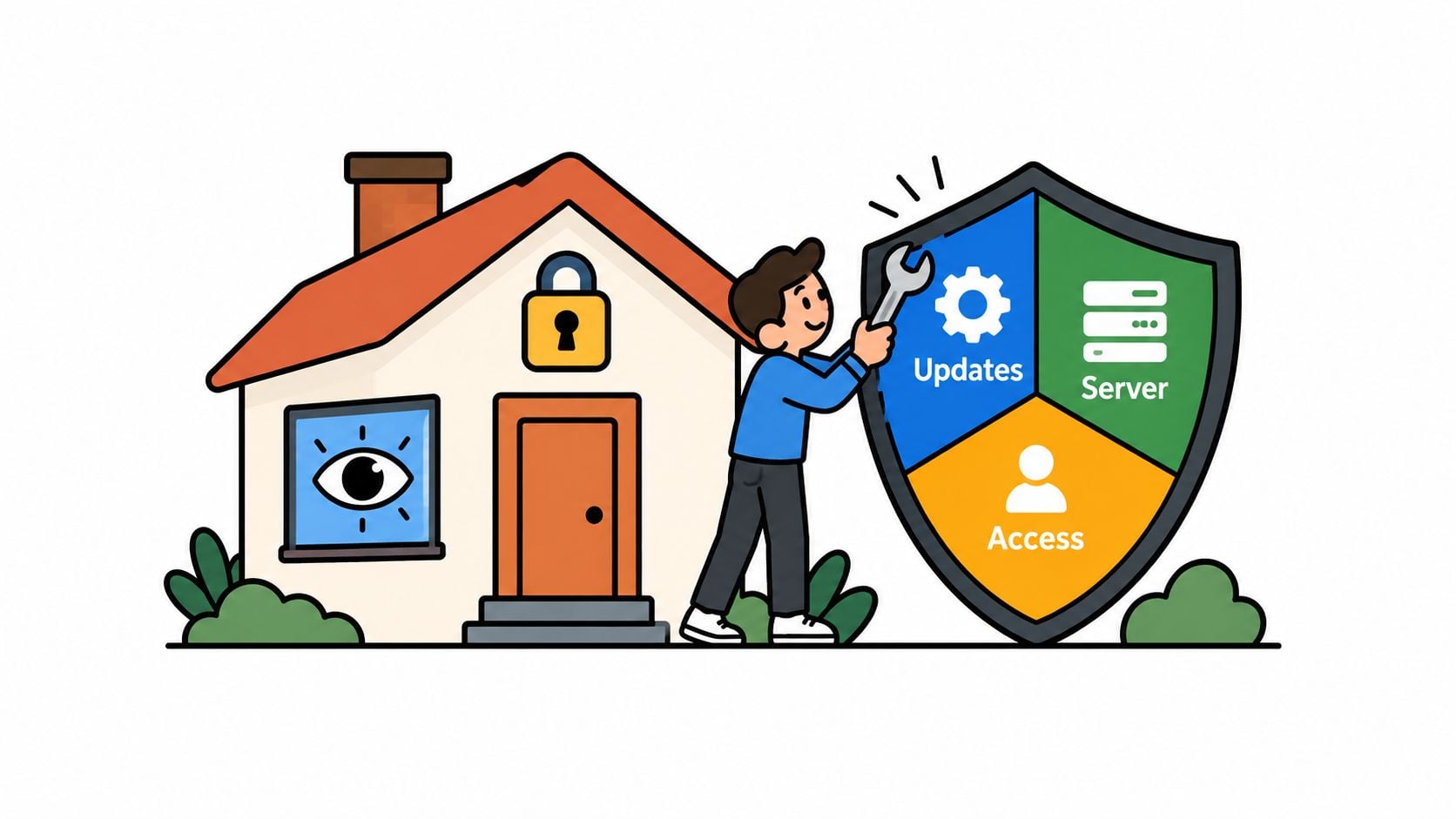
Hosting protection requires ongoing maintenance, not just an initial setup.
Assign ownership before an incident
- WordPress maintenance: Establish who updates core, themes and plugins, and who checks for failures afterwards.
- Hosting security: Confirm who patches the server, monitors malware and investigates suspicious activity.
- Recovery: Name the person authorised to restore the site and the route they'll use if the account is suspended.
A documented WordPress website maintenance arrangement should distinguish these jobs. A plugin update service doesn't automatically include server administration or incident recovery.
Ask where visitor information and backups are stored, what privacy documentation the host supplies and which other providers process information. Contact forms, analytics and newsletter tools affect your GDPR responsibilities; adding a cookie banner doesn't settle those questions by itself.
Make sure you can fix accessibility barriers
WebAIM's analysis, discussed by Oxford Web Services, found detectable WCAG failures on 94.8% of the world's top one million home pages in 2025; the same guidance explains the Equality Act 2010 reasonable-adjustment duty and the European Accessibility Act's enforcement from 28 June 2025.
For UK private service providers, don't reduce the legal position to a blanket claim that every site must meet an identical WCAG requirement. Public-sector obligations are distinct, and businesses serving EU customers should check whether their activities fall within the European rules and applicable exemptions.
Free hosting isn't automatically inaccessible. It becomes unsuitable when restrictions prevent necessary fixes to scripts, forms, cookie controls or performance.
Before launch, move through the site using only the keyboard, check visible focus and logical headings, inspect text contrast, and provide appropriate image alternatives. Complete any purchase without a mouse, and verify that form errors explain what needs correcting.
Signs Your Site Has Outgrown Free Hosting
You don't need a large audience to outgrow a free plan. A change in what visitors expect from the website can be enough.
Upgrade triggers and the right next step
| Signal | Why it matters | Upgrade to |
|---|---|---|
| Taking payments or storing customer accounts | Personal information and transactions need dependable recovery and secure HTTPS | Managed WordPress hosting with daily off-site backups and a verified payment provider |
| Slow forms or checkout during campaigns | Shared free resources may throttle concurrent requests | Paid hosting with higher CPU and memory allowances |
| Need your own domain and business email | The current plan may exclude domain connections or mail services | A paid domain, business email service and compatible host |
| A missed backup or a suspended account | You can't rely on the existing recovery or support arrangements | A host with a support SLA and documented restore process |
| Site represents a client's brand or revenue | Someone must be accountable when service fails | Managed or agency-run hosting with an agreed maintenance scope |
Buy the service you need
Managed WordPress hosting is the middle ground between a basic hosting account and handing the whole website to an agency. Look for explicit commitments on off-site backups, restore assistance, security monitoring and technical support. Don't assume that the word managed includes every maintenance task.
Agency-run hosting can also include application updates, troubleshooting and coordination with the people maintaining your content or design. That suits owners who don't have the time or technical confidence to investigate problems themselves, provided the agreement makes responsibilities clear.
Compare the proposed service with the cost of losing enquiries, not just with a hosting bill of nothing.
Say a Dorset retailer prepares a seasonal campaign and the enquiry form becomes unreliable under load. The useful upgrade is a tested increase in available resources and support, not just more storage.
For a professional-services website, a named support contact and dependable recovery may matter more than raw capacity. Choose the plan around the failure you need to prevent, then ask the provider to demonstrate how its service addresses it.
How to Migrate Your Site Off Free Hosting
A migration should be a controlled copy-and-test exercise, not a hurried cancellation. Keep ownership of the domain, backups and destination account clear throughout.
Move in a safe order
Back up files and the database, then restore them into a private environment. A completed download isn't proof that the backup works.
Prepare the destination using the WordPress and PHP versions your build has been tested with. Avoid combining the move with a major redesign or software overhaul.
Copy the files and import the database. If the address changes, use a WordPress-aware search-and-replace tool that preserves serialised data, rather than editing database text indiscriminately.
Test the destination privately. Check login, forms, payment-provider test transactions, downloads and important pages on a mobile device.
Ask the domain administrator to prepare the DNS transition in advance. Preserve existing email settings, and arrange a brief content freeze or final synchronisation so new orders and enquiries aren't stranded on the old site.
Create permanent redirects for changed addresses wherever you control the old address. A provider-owned free subdomain may not let you redirect visitors, so resolve that limitation before abandoning it.
Submit the valid sitemap in Google Search Console and monitor indexing, errors and incoming enquiries. Remove any staging access restrictions from the live destination.
Keep the old installation available as a temporary fallback, without allowing competing orders or edits. Cancel only after the destination works and you've retained independent backups.
Use a WordPress website migration service if database access, redirects or synchronisation fall outside your comfort zone.
This week, write down which upgrade signal applies to your site. If none applies, build a disposable staging version and test the intended visitor journey before choosing a public home.
DesignStack offers WordPress hosting, maintenance and migration support for businesses that need an accountable alternative to a free plan. Visit the team to discuss your current setup, the checks it hasn't passed and a practical route to a supported live website.