Stress Testing Websites How to Plan Run and Fix Issues
You're usually not thinking about stress testing websites on a quiet Tuesday. You're thinking about it the week before a sale goes live, after a decent press mention lands, or when your WooCommerce shop starts behaving oddly with a full basket and three tabs open.
That's when the weak spots show up. Not on the homepage in perfect conditions, but on the pages that make money. Product filters stall. Search starts timing out. Cart fragments pile up. Checkout goes from acceptable to painful. On WordPress and WooCommerce sites, that's often the difference between a strong trading day and a support inbox full of “I couldn't pay”.
Table of Contents
- Why Stress Testing Matters Before Your Next Traffic Spike
- Planning Realistic Scenarios and Preparing Your Test Environment
- How to Run a Stress Test Without Risking Your Live Site
- Reading Your Results and Knowing What Good Looks Like
- Fixing Common WordPress and eCommerce Bottlenecks
- Your Retesting Plan and Next Steps for Confident Launches
Why Stress Testing Matters Before Your Next Traffic Spike
A lot of business owners still treat this as a speed test problem. It isn't.
A homepage can look quick in a single synthetic check and still fall over when real people hit category pages, run searches, add products to basket, and hammer checkout at the same time. Stress testing is about finding out where the site breaks, how it breaks, and what customers experience just before that point.

The UK already treats this as part of a bigger resilience picture. The National Cyber Security Centre describes cyber resilience testing as a structured way to build confidence that internet-connected products and services can withstand attack, and it applies that thinking to technology connected to public or less trusted interfaces such as the internet. It has also developed a UK assurance methodology so resilience can be demonstrated in a structured and consistent way through its NCSC assurance and resilience services.
That matters even if you're “just” running a website.
What stress testing actually tells you
A useful stress test answers practical questions:
- Can revenue pages cope: Product, category, basket, checkout, and enquiry pages often behave very differently under load.
- What fails first: PHP workers, database queries, third-party scripts, search, session handling, or payment callbacks.
- How ugly failure gets: Slow pages are one problem. Blank carts, duplicate add-to-basket actions, and payment errors are far worse.
- Whether hosting is the limit: Decent managed WordPress hosting can mask some problems, but it won't fix bad queries or bloated plugin stacks.
Practical rule: If you only test the homepage, you're mostly testing your cache.
There's also a confidence piece that's easy to underestimate. A proper run in a safe environment lets you launch with a known ceiling instead of a guess. You know which paths have margin, which don't, and what needs fixing before traffic arrives.
What this looks like in the real world
Before busy seasonal periods, the first cracks on WordPress builds are rarely dramatic at first. The site doesn't always “go down”. It just starts doing expensive things slowly. A search page with layered filters becomes erratic. Cart updates hang. A promo banner script blocks rendering. Payment steps become inconsistent.
That's why this work is best framed as scenario-based resilience, not a vanity performance exercise. You're not chasing a pretty score. You're checking whether the parts of the site that earn leads or revenue still function under pressure.
Planning Realistic Scenarios and Preparing Your Test Environment
The sites that get useful results from stress testing are usually the ones that planned the scenarios properly before anyone clicked “run”. The ones that get nonsense results tend to test the wrong journey, from the wrong place, in the wrong environment.
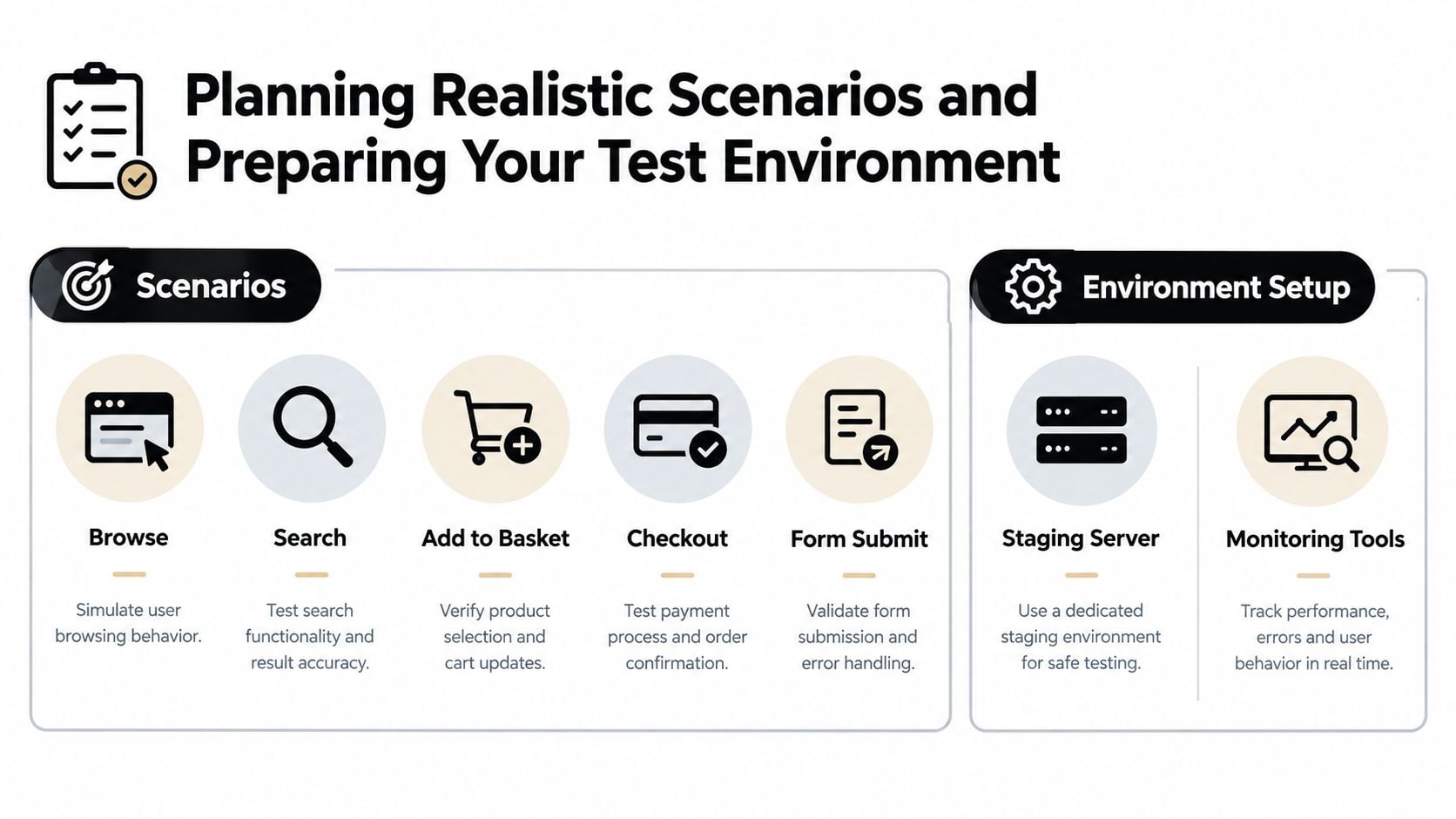
UK government guidance is clear on the sequence. Do capacity planning first, then run regular performance tests in pre-production with realistic traffic and traffic above expected levels, gradually increase load until the service breaks, and record the breaking point, failure mode, and monitoring alerts. The same guidance says the environment should resemble production closely, stay isolated from production, and reports should capture concurrent users, requests per second, HTTP response codes, and timings through the GOV.UK service performance testing workflow.
Start with journeys, not pages
If you sell products or generate enquiries, use scenarios that map to business risk:
- Browse category pages: Include filters, sorting, pagination, and image-heavy layouts.
- Search for products: Search often exposes database and indexing problems before anything else.
- Add to basket: This tests sessions, fragments, stock checks, and plugin interactions.
- Reach checkout: Guest checkout, logged-in checkout, and coupon use can all produce different load patterns.
- Submit an enquiry form: Service businesses often ignore this path, even though it's the whole point of the site.
Don't script all of these as identical actions. Real users pause, browse, backtrack, and abandon. Build in sensible think time and a mix of short and long sessions.
Mirror production properly
Many small businesses cut corners. A half-finished staging site with five products, no caching layer, and missing third-party integrations won't tell you much.
A test environment should include:
- The same theme and plugin stack as production.
- Representative content and product data, including variations, images, and categories.
- The same payment, shipping, search, and tracking integrations where safe to do so.
- Monitoring tools switched on so you can see PHP, database, memory, cache, and HTTP behaviour.
- Isolation from the live site so no test traffic touches real customers.
A fast empty staging site proves almost nothing. A realistic one usually tells the truth quickly.
If you're reviewing providers before doing this work, the basics of staging support, isolation, and server visibility matter more than shiny marketing pages. That's why it helps to understand how to choose a web hosting provider before you begin.
Test from the UK and split by device type
A generic cloud endpoint from another country can hide the wrong problem or exaggerate the wrong one. UK-oriented guidance increasingly points to testing from locations such as London or Manchester and checking field data alongside lab tools, rather than trusting a single synthetic run. That same UK-focused summary reports median load times of 1.8 seconds on mobile and 1.6 seconds on desktop, and says 29% of UK sites still fail Core Web Vitals overall in its UK website performance guide.
That's a reminder to separate:
- Mobile and desktop
- UK endpoints and non-UK endpoints
- Lab tests and real-user behaviour
- Homepage and conversion pages
Mobile often exposes pain first, especially on WooCommerce pages carrying product galleries, reviews, upsells, tracking scripts, and payment widgets.
How to Run a Stress Test Without Risking Your Live Site
Once the environment is ready, keep the execution boring and repeatable. That's a compliment. The worst runs are the theatrical ones where someone blasts traffic at a site with no baseline, no monitoring, and no notes.
Use a simple run order
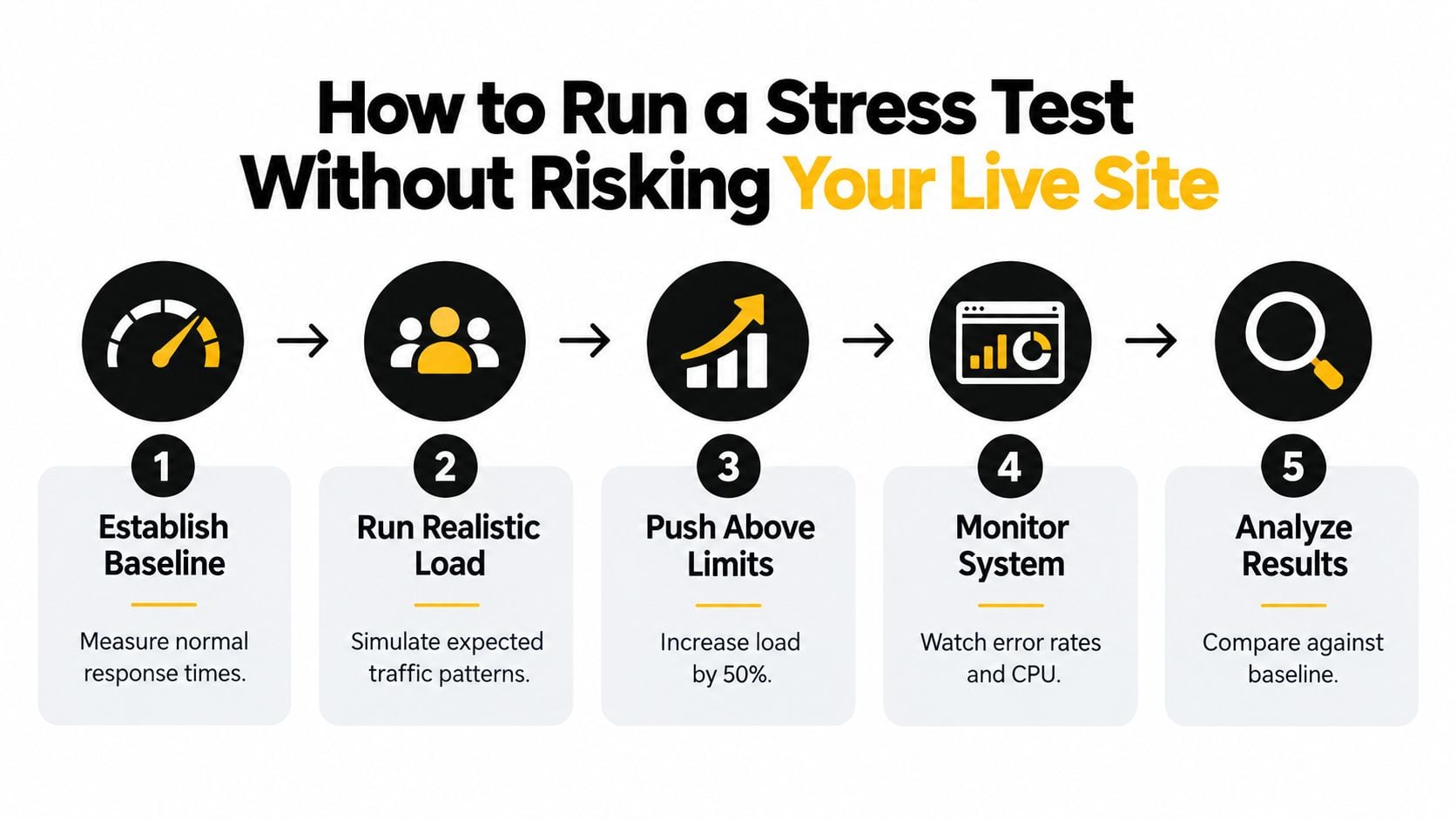
For small and medium businesses, this sequence works well:
Establish a baseline
Run each scenario with light traffic first. Check normal response behaviour for category pages, product pages, basket actions, checkout, and forms.Apply expected load
Simulate the sort of traffic you think you might see during a campaign or busy period.Push beyond expected load
Increase gradually. Don't jump straight to chaos. Ramped traffic shows where degradation starts.Continue until failure
The point is to find the ceiling safely, not to stop at “it seemed fine”.Record exactly what happened
Note the breaking point, failure mode, and any monitoring alerts.
That gradual increase matters. If a site only fails when hit with a sudden wall of traffic, that tells you something different from a site that steadily gets slower, then starts throwing server errors.
Choose tooling that matches the site
You don't need a giant enterprise setup to do useful work. For many WordPress and WooCommerce shops, teams use tools like k6, JMeter, or Locust for protocol-level runs, then supplement with browser-level checks when they need to see what a real user path feels like under pressure.
What matters most is not the badge on the tool. It's whether you can:
- repeat the same scenario cleanly
- ramp traffic gradually
- separate journeys by page type
- capture timings and failure patterns
- compare one run against another after changes
What to monitor during the run
Stress testing websites is only useful if you watch the whole stack. A pass or fail at the browser alone won't tell you what to fix.
Track these during each run:
- Concurrent users
- Requests per second
- HTTP response codes
- Timings across each step
- Server resource pressure
- Database response behaviour
- Cache hit and miss patterns
- Third-party failures or slow callbacks
A few warning signs tend to repeat on WordPress builds:
| Symptom | What it often points to |
|---|---|
| Category pages slow first | Heavy queries, filter plugins, uncached fragments |
| Add-to-basket becomes erratic | Session handling, cart fragments, PHP worker limits |
| Checkout stalls but browsing is fine | Payment scripts, uncached checkout, external calls |
| Error spikes appear suddenly | Resource exhaustion or a component hitting a hard limit |
Don't trust a single successful run. Repeat the same scenario after a short pause and see if the pattern holds.
Protect the live site at all costs
This sounds obvious, but it's where avoidable mistakes happen. Never run an aggressive stress test against production unless there's a tightly controlled reason and everyone involved understands the risk.
Safer habits include:
- Lock testing to pre-production: Keep simulated traffic off the live domain.
- Use test payment modes: Real payment workflows can be represented without real transactions.
- Disable outbound customer comms: You don't want test orders firing live emails or alerts.
- Label test data clearly: Orders, users, and form submissions should be easy to identify and purge later.
The output you want at the end isn't “the site survived”. It's a clean record of how each scenario behaved at each load level, so the next round of fixes can be measured properly.
Reading Your Results and Knowing What Good Looks Like
The hardest part for many teams isn't running the test. It's interpreting the mess afterwards.
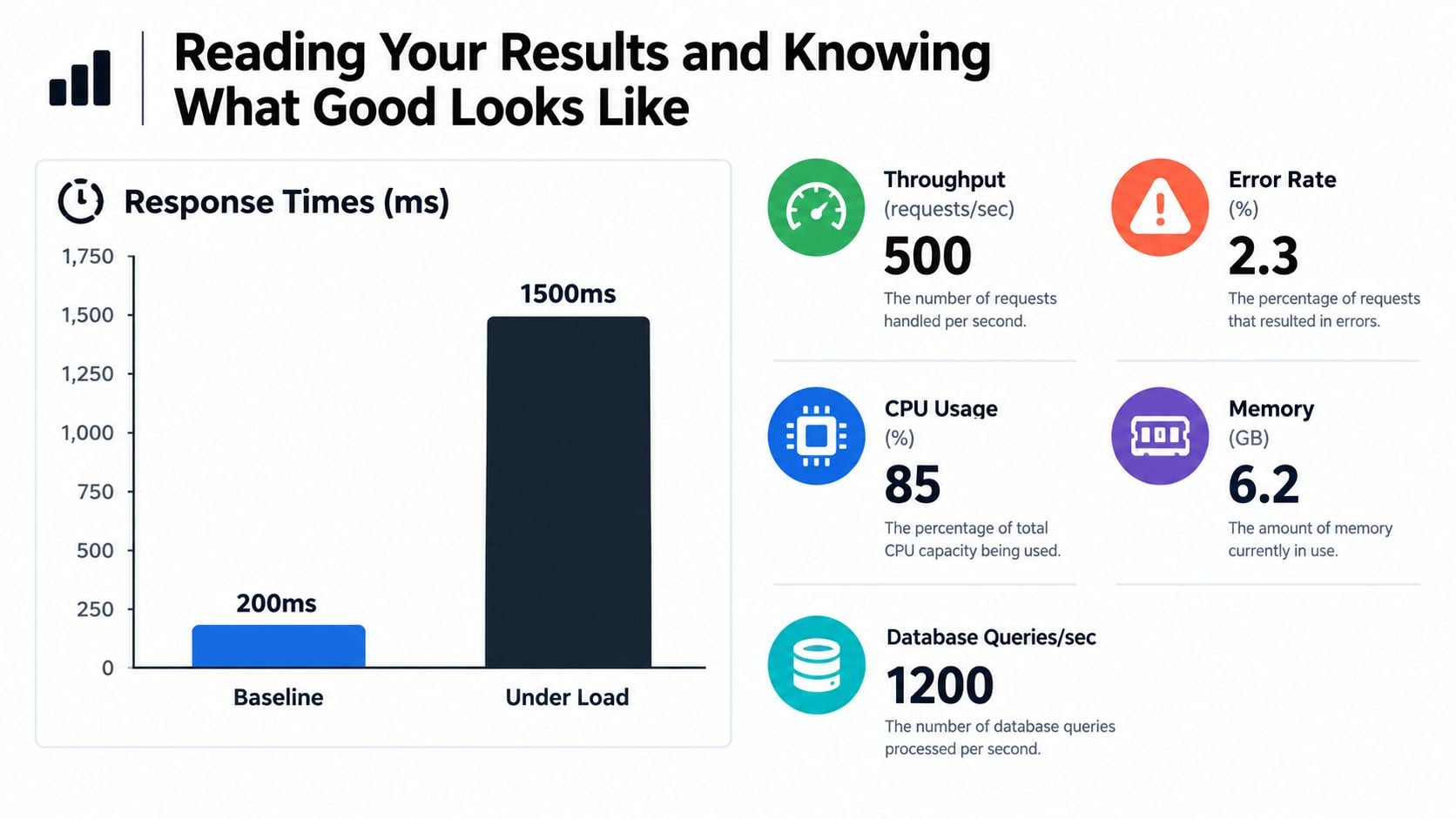
A graph spikes, someone spots a few 5xx errors, somebody else says the server CPU looked fine, and suddenly no one agrees on whether the site passed. The only way through that is to read results in relation to the user journey, not as isolated server trivia.
Read the shape, not just the average
Averages can hide ugly behaviour. One path can stay fine while another collapses.
Look for patterns such as:
- Timings that climb steadily as load rises. That usually means the site is degrading before it visibly fails.
- Sudden jumps in server errors at a specific point. That often points to a hard resource ceiling or a failing dependency.
- Healthy cached pages with failing dynamic pages. Common on WooCommerce where the catalogue looks fine but the basket and checkout don't.
- Slow first byte on key transactions. That can indicate database or application bottlenecks rather than front-end assets.
Use benchmarks carefully
Public-sector benchmarks are useful as reference points, not as universal pass marks. GOV.UK has published examples showing the value of measuring before and after changes. Its move to HTTP/2 cut start render time by 2.5 seconds and First CPU Idle by 4 seconds, and another update reported a 13% reduction in page load time on high-end 4G devices and a 50% reduction in Speed Index. GOV.UK also reported a median page load time of 0.455 seconds for all pages and devices in April to May 2022 in its HTTP/2 performance write-up.
That doesn't mean your WooCommerce site should behave exactly like GOV.UK. It does mean teams should care about measured before-and-after changes, median results, and user-visible outcomes.
Compare medians across repeat runs
Single-run optimism is common. You get one decent pass and assume the problem has gone.
The better habit is to run the same scenario multiple times and work from the median result. That lines up with the UK-oriented guidance mentioned earlier and stops one lucky run from steering technical decisions.
A short review framework helps:
| Result pattern | How to read it |
|---|---|
| Stable median, small variation | Usually a predictable path |
| Good first run, weak later runs | Warm cache or resource exhaustion may be hiding underneath |
| Homepage stable, checkout unstable | Revenue risk is higher than the headline suggests |
| Mobile much worse than desktop | Front-end weight or script behaviour is likely contributing |
If the site looks good in lab tests but support tickets say otherwise, trust the users enough to investigate further.
Real-user monitoring belongs in this conversation too. If your analytics and monitoring stack shows trouble on category or checkout pages after launches or promotions, that evidence should sit alongside synthetic test runs. A sensible website analytics setup makes the test data much easier to interpret after release.
Fixing Common WordPress and eCommerce Bottlenecks
Once you know where the site bends, the next job is resisting random fixes. WordPress performance work goes wrong when teams change six things at once, flush all caches, retest badly, and then claim victory because one page looked quicker.
Most bottlenecks fit familiar patterns.
What usually breaks first
On brochure sites, you often see heavy assets, builder overhead, and plugin clutter. On WooCommerce, the weak points are usually more specific. Dynamic pages can't rely on full-page caching in the same way. Sessions matter. Stock logic matters. Search matters. Third-party services matter.
Here's a compact way to map symptoms to likely causes and fixes:
| If you see this | Look at this first | Then retest |
|---|---|---|
| Category pages slow under browse load | Product queries, filter plugins, image payloads | Category and search scenarios |
| Basket updates lag | Cart fragments, session storage, PHP worker contention | Add-to-basket and mini-cart paths |
| Checkout degrades sharply | Uncached checkout, payment scripts, external calls | Full checkout with realistic pauses |
| Admin and front end both struggle | Hosting limits, PHP version, object caching gaps | Mixed traffic including logged-in actions |
| Random delays across pages | Third-party tags, chat widgets, tracking scripts | Mobile product and checkout flows |
Fix the expensive path before the cosmetic one
The homepage often gets attention because it's visible. It's rarely the first place I'd start.
Prioritise in this order:
- Checkout and basket: If these pages are unstable, fix them first.
- Category and search: They carry browsing demand and often trigger poor queries.
- Product pages: Especially variable products with reviews, related products, and third-party widgets.
- Homepage cosmetics: Only after the conversion path is under control.
A few practical fixes come up again and again:
Hosting and PHP worker pressure
If performance collapses only when several dynamic requests arrive together, worker limits or general hosting constraints may be the bottleneck. More server headroom can help, but only if the application is reasonably efficient.
Slow database behaviour
Product filters, search, and poorly written plugins can hammer the database. That's when query review, indexing strategy, object caching, and general database optimisation start paying off.
Uncached dynamic areas
Cart, checkout, account areas, and some personalised components can't just be cached away. Reduce what they need to do. Strip non-essential scripts, simplify calls, and remove anything that doesn't help the transaction complete.
Third-party scripts and tag clutter
This one gets ignored because each script looks harmless on its own. Add enough live chat, review widgets, A/B testing, tracking, consent layers, and marketing tags, and mobile performance starts to wobble under load. If an external provider slows down, your page can inherit the problem.
What not to do
Some “fixes” create confidence without solving the issue:
- Adding more plugins to optimise plugins: Usually counterproductive.
- Testing only cached anonymous traffic: Useful for one slice of the site, misleading for eCommerce.
- Compressing images and calling it done: Helpful, but rarely enough if checkout logic is the problem.
- Changing hosting before diagnosing the app: Sometimes right, often expensive guesswork.
Current UK-facing coverage is also shifting toward more realistic resilience scenarios. One recent UK eCommerce summary says the median UK eCommerce site has an LCP around 3.8 seconds on mobile, which sits in Google's “Needs Improvement” range, and cites research that even a 100 ms delay can reduce conversion rates by up to 1% in its UK website speed and resilience discussion. That's why failure testing needs to include third-party script issues, peak demand, and the pages closest to conversion.
Your Retesting Plan and Next Steps for Confident Launches
The best result from stress testing isn't a one-off report. It's a repeatable loop.
Sites change constantly. Plugins update. product ranges grow. marketing scripts get added. seasonal banners appear. payment settings change. A site that passed comfortably a month ago can become fragile without anyone noticing.
Use a tight remediation loop
Keep the cycle simple:
Rank fixes by business impact
Start with what threatens revenue or leads first.Change one meaningful thing at a time
If you alter hosting, caching, plugins, and scripts together, you won't know what helped.Run the same scenario again
Use the same page mix, location, device split, and ramp pattern.Compare medians, not lucky peaks
Consistency matters more than a single impressive run.Record the new practical limit
Teams need to know what the site now handles and where caution starts.
A retest isn't admin. It's the only way to prove the fix was real.
When to schedule testing
For most SMEs, regular stress testing websites doesn't need to become a weekly ritual. It does need to happen at the right moments.
Good trigger points include:
- Before major campaigns
- Ahead of Black Friday or seasonal peaks
- After switching hosting or infrastructure
- After adding major plugins or integrations
- Before relaunching a redesigned store
- After changing checkout, search, or filtering behaviour
If your team has a launch process, fold this into it. A proper website launch checklist should include performance and resilience checks, not just broken-link sweeps and visual sign-off.
Know when specialist help is worth it
There's a point where DIY testing stops being efficient. If results are noisy, the stack is complex, or the cost of failure is high, bring in someone who can isolate the problem properly. That's especially true when the issue could sit across hosting, theme architecture, WooCommerce customisation, database load, and third-party services all at once.
Perfection isn't the goal. Confidence is.
A good stress-testing process tells you the difference between “this should be fine” and “we've seen the site handle this journey under pressure, we know what fails next, and we've already dealt with the weak point”. That's a much better place to launch from.
If you need help pressure-testing a WordPress or WooCommerce site before a campaign, seasonal rush, or relaunch, DesignStack can help with the practical side of performance, hosting, and build fixes. We work on the parts that usually break first, then retest properly so you know what the site can handle. Have a look at DesignStack if you want a Dorset-based team that understands both the design side and the technical reality of keeping a site stable under load.