Social Media Login Integration: How to Set It Up Safely
A customer reaches checkout, chooses “Continue with Google”, then gets sent back to the login page. Or they sign in successfully, only to find their old order history missing because the site created a second account. These are common ways a seemingly simple social login button can create work rather than remove it.
Social media login integration can make sign-up quicker, but the button is only the visible part. Your provider settings, callback URL, account-linking rules, cookies and fallback route all need to work together. Get those decisions right before launch and the sign-in experience can stay simple without making your customers' accounts or personal data less secure.
Table of Contents
- Choose Your Providers and Register Your Apps
- Choosing Between a Plugin and Custom Code
- How the Login Flow Works and How to Build It
- How to Add Social Login to WordPress Step by Step
- Security and Privacy Rules to Set Before Launch
- Testing and Fixing Login Errors Before Users Find Them
- Keep an Email Fallback Before You Launch
Choose Your Providers and Register Your Apps
For many small UK businesses, Google and Apple are a sensible baseline. Add Facebook if your audience uses it, and consider LinkedIn if your customers are mainly business professionals. Microsoft can also be a practical choice if your users already rely on Microsoft accounts.
Each provider needs an application registered in its developer console, a callback URL that matches your site exactly and a deliberate choice about the profile information you request. That URL is where the provider sends the user after authentication. A difference as small as www, the protocol or a trailing slash can cause the sign-in to fail.
| Provider | Register at | Email returned | Main catch |
|---|---|---|---|
| Google Cloud Console (OAuth client) | Yes, with an email verified flag | Configure and publish the consent screen before outside users can sign in | |
| Facebook (Meta) | Meta for Developers app | Yes, only if the email permission is granted | Email is an explicit permission; some users have no email and app review may apply |
| Apple | Apple Developer account (paid membership) | Yes, but it may be a private relay address | Name and email arrive only on the first sign-in, so store them then |
| LinkedIn Developer app | Yes, via Sign In with OpenID Connect | Enable the OpenID Connect product on the app before login works | |
| Microsoft | Microsoft Entra admin centre (app registration) | Yes, when the email claim is requested | Choose single-tenant or multi-tenant access to set which accounts can sign in |
The table is a starting point, not a promise that every provider returns the same profile data on every login. Apple's first-sign-in behaviour is an easy detail to miss: if you need the user's name, save it when it's supplied. For Facebook, request the email permission explicitly and plan for users who don't grant it. LinkedIn sign-in won't work until the relevant OpenID Connect product is enabled.
Google's consent screen also needs attention before launch. A configuration that works for your own test accounts may not allow customers outside the test list to sign in. Check the app's publishing status rather than assuming that a successful developer test proves the public flow is ready.
Before coding, gather the client ID, the client secret, the callback URLs for staging and live, a public link to your privacy notice, and a test account for each provider you plan to offer. If you're planning wider social media features as well as login, DesignStack's social media integration service is one related service to consider.
Choosing Between a Plugin and Custom Code
For a brochure site or a WooCommerce shop using a few common providers, start with a well-maintained WordPress plugin. A custom application, unusual profile-data requirements or strict data-minimisation rules are stronger reasons to build the integration yourself.
| Criteria | WordPress plugin | Custom code |
|---|---|---|
| Typical set-up time | An afternoon for one or two providers on a healthy site | Often a day or two, including testing and staging |
| Upfront cost | Plugin licence, often free for basic providers and modest yearly fees for premium features | Developer time, usually the larger cost |
| Control over scopes and fields | Limited to what the plugin exposes in its settings | Full control over scopes, fields and data storage |
| Consent and script loading | Check that the settings prevent provider scripts loading before consent | You decide when scripts and cookies load |
| Account linking rules | Often defaults to email matching; check whether you can switch it off | You choose linking by stable subject ID from day one |
| Ongoing upkeep | Follow plugin updates and watch for abandoned plugins | You own provider API changes and library updates |
| Best fit | Brochure sites, small shops and membership sites with standard needs | Custom apps, unusual data needs or strict data-minimisation rules |
Set-up time and licence cost can make a plugin look like an obvious choice. Control and consent handling matter more once customers start using the flow. A plugin may expose a provider button but give you little say in when provider scripts load, which fields are saved or how existing accounts are matched.
Before installing one, check its latest update, compatibility with your PHP version and the quality of support replies in reviews. Look for a setting that stops provider scripts loading before consent where that's required for your site. Check whether you can disable email-based account matching. If you can't inspect or change those behaviours, a quick setup may leave important security and privacy decisions out of your hands.
Custom code gives you more control, but it isn't a one-off task. Use a maintained OAuth client library rather than writing cryptographic checks yourself. Budget for library updates and provider changes, and make sure someone owns the integration after launch.
A useful test: If you can't explain where every profile field goes and why you keep it, you're not ready to build either route.
If you're already adjusting a WordPress site, keep authentication changes separate from theme presentation work. A guide to WordPress theme customisation can help you think about the visual side without treating theme code as the place to store login secrets.
How the Login Flow Works and How to Build It
The user goes to the provider, comes back with a one-time code, and your server swaps that code for proof of identity. For a UK website, build this as an OAuth 2.0 authorisation-code flow with OpenID Connect, not as a trust decision based on a profile identifier alone. The Okta UK identity experience guide recommends PKCE, server-side code exchange, token validation and account creation or linking using a stable provider subject identifier.
Build the authorisation-code flow
Create a random
statevalue and a PKCE code verifier. Store both in the server session, then send the user to the provider with your client ID, exact redirect URI, minimal scopes and the PKCE code challenge. The verifier stays on your server.Receive the callback. After the user approves, the provider returns the browser to your callback URL with a short-lived code and the state value.
Check
statebefore continuing. Compare the returned value with the one in the session and reject the request if they differ. This helps stop cross-site request forgery.Exchange the code on your server. Send the code and verifier to the provider's token endpoint from the server, not the browser. The code is for a single exchange, and a client secret mustn't be exposed in front-end code.
Validate the identity token. Check its issuer, audience, signature, nonce and expiry, as well as the redirect URI used in the flow. Don't accept a token just because it came back in the expected format.
Find or create the local account using the provider's stable
subidentifier. The subject identifier is a better account key than an email address, which can change. A verified email can help prompt a customer to link an existing account, but don't use an unverified email as the sole account-linking key.Start your own session and discard tokens you don't need. Your site should create its own authenticated session after validating the provider response. Don't retain provider access tokens unless the site genuinely needs them for a defined purpose.
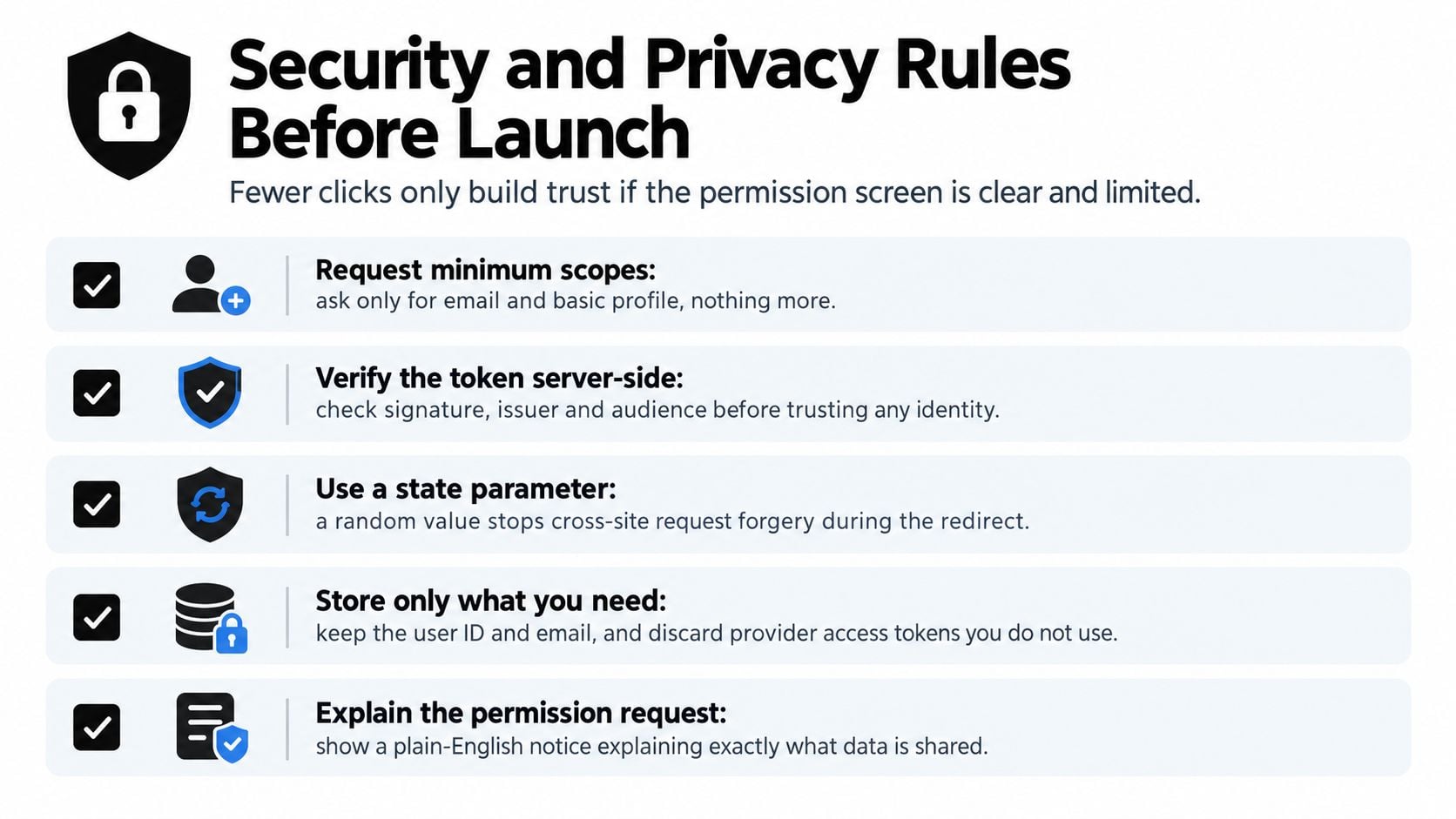
A minimal scope reduces the amount of data you handle. Ask for an email address only if the site needs it. Don't add access to unrelated profile details just because the provider offers them.
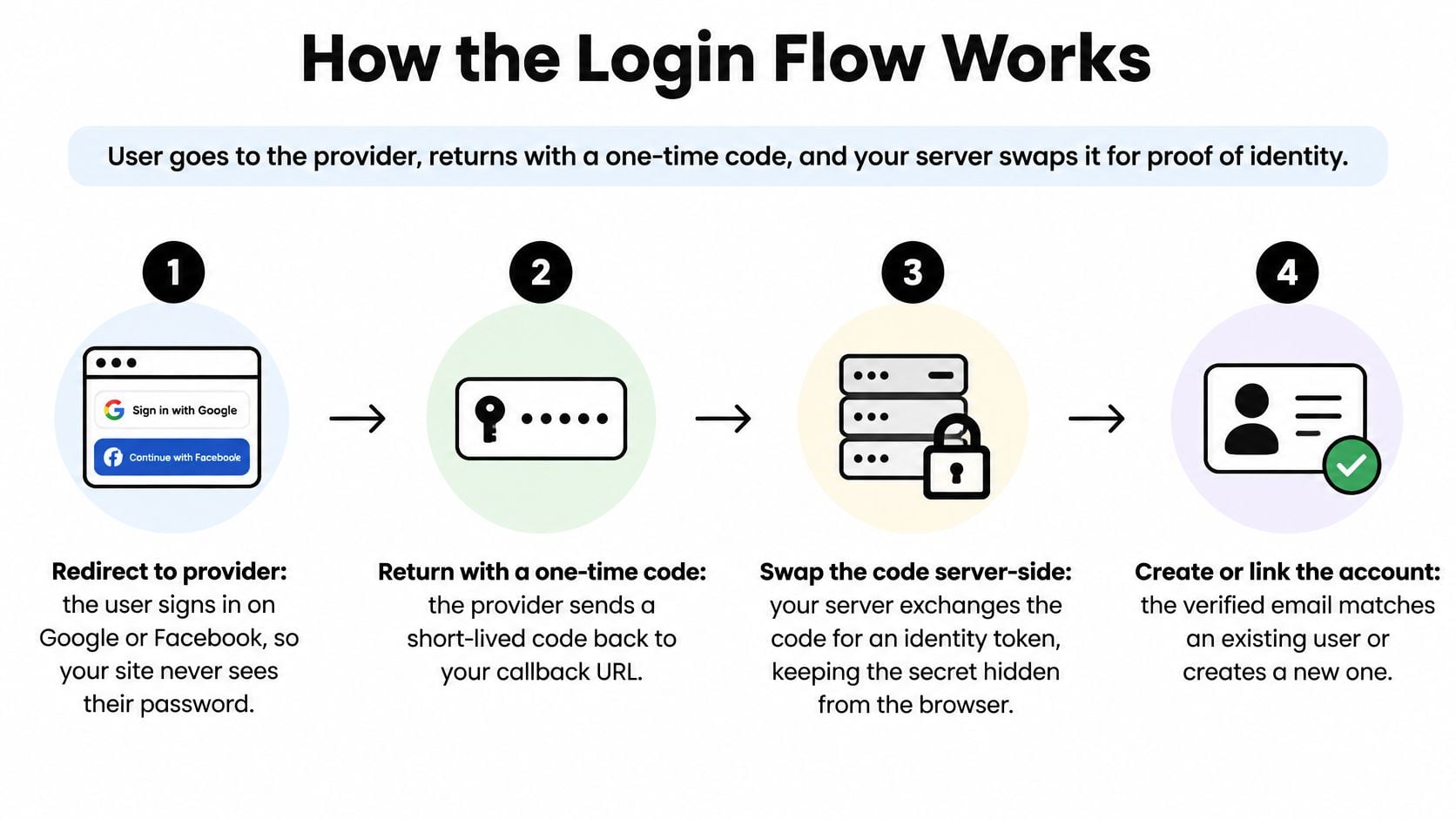
The flow in plain text is:
Browser → your site (state, PKCE) → provider (consent) → your callback (code, state) → provider token endpoint (ID token) → local session
The provider proves the user's identity; your site remains responsible for its local account and session. Offer a conventional email route alongside social login, and measure completion rate, callback errors, account-link conflicts and abandonment separately by provider and device. An overall healthy result can otherwise conceal a broken experience on one device or with one provider.
How to Add Social Login to WordPress Step by Step
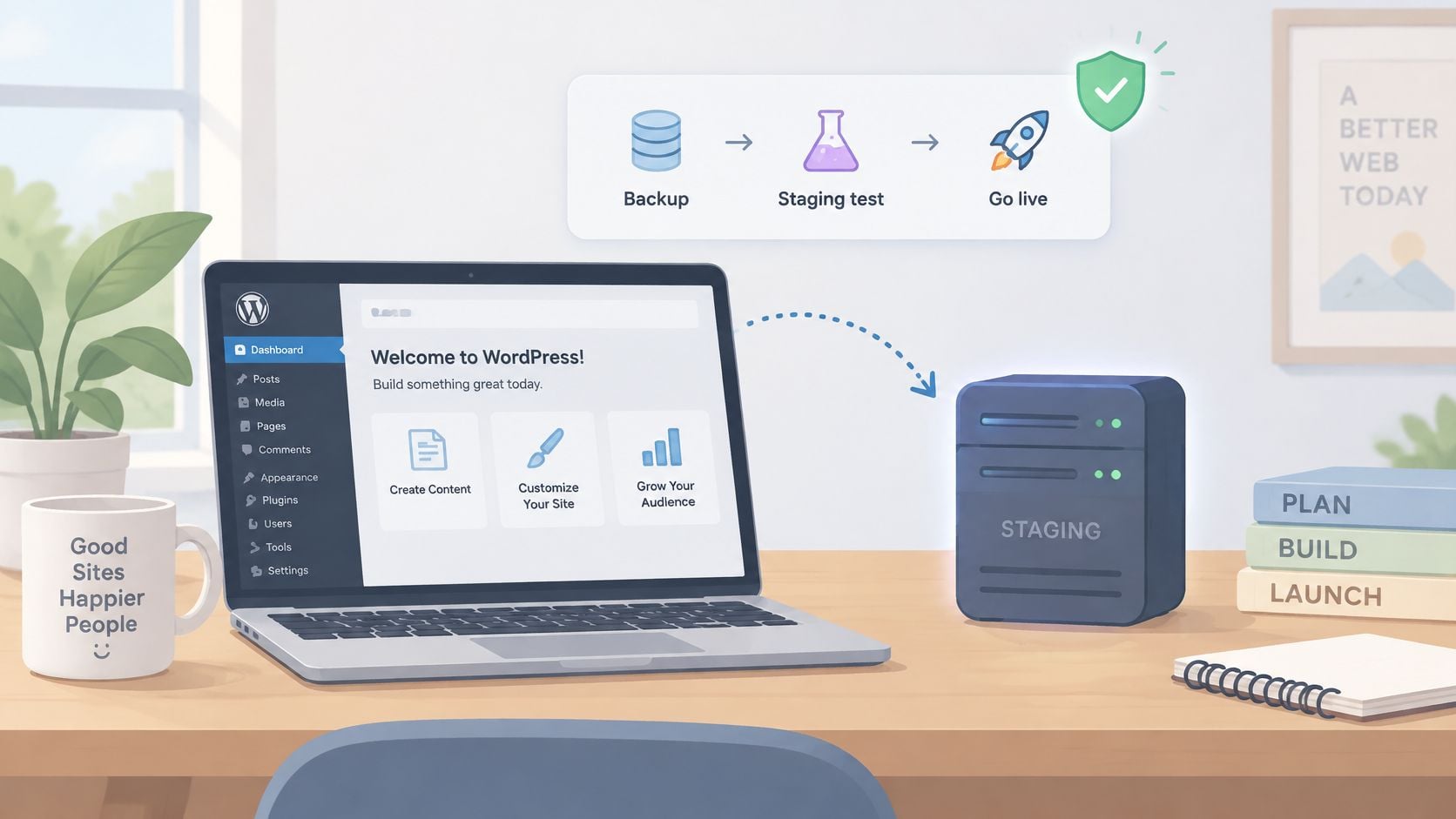
On a healthy WordPress site, the plugin route can take an afternoon if you test on staging first. Don't start by switching it on for customers. A staging copy lets you check callback settings, account creation and checkout behaviour without risking the live sign-in journey.
Set up the provider and plugin
Back up the site and work on staging. Confirm you can restore the backup before changing authentication.
Choose a maintained plugin. Check its recent update history, PHP compatibility, documentation and support responses. Nextend Social Login and miniOrange Social Login are examples to compare, not substitutes for checking a plugin's current fit.
Enter the provider credentials. Add the client ID and client secret from your provider registrations to the plugin's provider settings.
Protect the secret. If the plugin supports it, store the secret in
wp-config.phpor an environment variable rather than a theme file. Never commit a live secret to version control.Copy the callback URL exactly. Use the URL displayed by the plugin in the provider console, including the correct protocol, domain and trailing-slash form. Don't assume staging and live share a callback address.
Choose where the buttons appear. Add them to login and registration pages. For WooCommerce, decide whether they belong at checkout and under My Account, then test both paths.
Map only the fields you need. Name and email are often enough for a basic account. Leave extra provider data unmapped unless you have a clear use for it.
Set a safe default role. New accounts should receive the appropriate low-privilege role, such as subscriber or customer, not an administrative role.
Choose account matching deliberately. If matching accounts using a verified email, make sure the plugin handles verification safely. Otherwise, turn email matching off and link with the provider ID.
Test as a logged-out customer. Use a private browser window on mobile and desktop, and test with a real account from each provider. Confirm that sign-up, repeat sign-in, sign-out and recovery all work.
Apple's first-sign-in data behaviour can catch you during this test. Check that the user's name and email are saved on the first login, rather than expecting Apple to send the same details again later. For work that involves broader site changes, keep login settings separate from design adjustments such as WordPress theme customisation so you can isolate problems.
A short walkthrough can help you find the relevant WordPress dashboard settings. Watch it after you've reviewed the staging checklist, not as a substitute for testing the live provider configuration.
Security and Privacy Rules to Set Before Launch
Reducing login friction can increase trust friction if a permission screen asks for more than the user expects, or doesn't explain what the site will do with the information. A provider button isn't a blanket agreement to use someone's profile for marketing. Keep the request narrow and explain it in plain English.
Protect the credentials and session
Keep client secrets out of public theme files and version control. Use HTTPS for the site and callback, and allowlist the exact callback URI at the provider. A general domain match is not a replacement for an exact redirect URI.
Set authentication cookies with Secure and HttpOnly, an appropriate SameSite value such as Lax, and the narrowest practical domain scope. Secure limits transmission to HTTPS, HttpOnly prevents scripts from reading the cookie, and SameSite helps control when browsers send it with cross-site requests.
Map data and explain its use
Write down every field the provider returns, such as name, email, profile photo or locale. For each one, record why the site needs it, where it is stored and how long it is retained. Name the provider and explain the processing in your privacy notice. A privacy policy template for UK businesses can help you organise the wording, but it still needs to describe your actual data use.
The ICO advises organisations to map the information they receive, document its purpose and retention period, and explain the processing clearly. Its guidance also says an authentication cookie can be an online identifier that constitutes personal data. PECR needs to be considered before UK GDPR when a service stores or accesses information on a user's device, and consent is generally required unless an exception applies. That's why you should check whether a plugin injects Google or Facebook scripts sitewide before a valid consent decision, rather than assuming the login button loads only when clicked. These points are covered in the ICO's guidance on storage and access technologies.
Sign-in and marketing are separate choices. Don't pre-tick a newsletter box because someone signed in with Google, and don't make optional marketing consent a condition of authentication.
Plan for withdrawal and ongoing checks
Review processor contracts, access permissions, encryption, logging and incident response on a regular schedule. Keep a recovery route for users who lose access to their provider, and check that your technical and organisational measures work in practice.
If someone removes your app from Facebook, Google or Apple settings, that action doesn't automatically delete their account on your site. Offer a clear deletion request route and explain what happens to stored profile data and the local account. Don't claim that revoking provider access has erased information your site still holds.
Testing and Fixing Login Errors Before Users Find Them
Before launch, test replayed authorisation codes, invalid state, nonce mismatches, mismatched redirect URIs, expired tokens, provider outage, revoked consent and duplicate-email linking. Repeat the checks after plugin or provider updates. The ICO's security guidance calls for appropriate technical and organisational measures, testing their effectiveness and maintaining availability.
| Symptom | Likely cause | Fix |
|---|---|---|
redirect_uri_mismatch error |
Callback URL differs by protocol, www prefix or trailing slash |
Copy the exact callback URL from the plugin or code into the provider console |
| Login loops back to the login page | Session cookie blocked by wrong domain, missing Secure flag or SameSite setting | Check cookie domain and flags, then test on the canonical domain only |
| Invalid state or session expired errors | Session lost between redirect and callback, often through caching or two domains | Exclude login URLs from page cache and keep one canonical domain |
| Customer gets a second, duplicate account | Account matched on a different email, or social account linked after first sign-up | Link by subject ID and offer a merge prompt when an existing email matches |
| No email returned on sign-in | User declined email permission, or Apple shared a private relay address | Treat email as optional and collect it in a follow-up form when missing |
| Works for you but fails for some users | App still in testing mode, or consent screen isn't approved for public use | Publish or approve the app and check the provider's review status |
| Token expired or invalid token errors | Server clock out of sync, or an old token reused | Sync server time and exchange each code immediately |
Log the provider's error code and the step that failed, not just a generic “login failed” message. A callback mismatch needs a different fix from a lost session or rejected token. Keep logs useful for diagnosis without recording secrets or full tokens.
Track completion rate, callback error rate and account-link conflicts separately by device and provider. That makes it easier to spot an issue affecting iPhone Safari or a particular provider instead of letting it disappear inside a healthy site-wide average. Also test with accounts outside the developer test list. A consent screen that works for your own account can still block customers if the app remains in testing mode.
If you need someone to handle site updates and investigate issues, WordPress maintenance and support is one option to consider.
Keep an Email Fallback Before You Launch
Social login isn't a complete authentication strategy. A customer can lose access because a provider locks their account, changes its API or isn't an identity they want to connect. An independent email route gives them another way to sign in or recover access.
The ICO's 2025 UK Public Attitudes Survey found that 29% of UK adults had shared social-media login details with someone else, up from 27% in 2024, and 72% had shared at least one type of security information. Those figures make user behaviour part of the design problem, not an afterthought. The ICO's 2025 survey report supports treating recovery as a core part of the login journey.
| Option | Strength | Weakness | Role in your build |
|---|---|---|---|
| Social login | One click, provider verifies identity | Lockout if provider locks the account or changes its API | Convenience layer |
| Email magic link | Works without any provider | Depends on access to the email inbox | Independent recovery route |
| Passkey | Phishing resistant, no shared secret | Device and browser support varies | Optional upgrade for returning users |
| Email and password | Familiar to every user | Passwords need careful storage and reset flows | Default fallback for users who decline linking |
The practical choice for many small businesses is a hybrid: offer social login for convenience, keep an independent email or magic-link route for recovery, and request minimal permissions. Whichever route you use, handle account linking explicitly. For example, a customer may sign up with Google, then later use email with the same address and land in a second account. Check for an existing account when they try to link and offer a secure merge prompt rather than creating a duplicate without warning.
If someone reports that their social account has been compromised, a support script can keep the response clear: verify their identity through the independent email route, unlink the affected provider, then require a password reset if the account uses one. Don't let support staff link a new provider based on an email match alone.
A practical launch sequence
- Confirm your platform and audience. Choose providers your customers use, rather than adding every available button.
- Choose plugin or custom code. Base the decision on your data needs, consent controls and linking rules.
- Build on staging with the email fallback enabled. Make recovery part of the first implementation, not a later patch.
- Run the full test list. Fix each failure using the symptom table before you publish.
- Publish and review the journey. Watch completion and error rates for a sustained period, then decide whether every provider is earning its place.
A website launch checklist can help you organise the final checks across the rest of the site as well as login. If you'd rather hand the build and privacy checks to a team, DesignStack is a Weymouth agency that builds responsive WordPress sites and handles social media integration.
DesignStack offers responsive WordPress and eCommerce builds, including social media integration and practical launch support. If you need help setting up social login with secure callbacks, clear privacy choices and a working recovery route, visit DesignStack to discuss your website.