WordPress Responsive Menu: How to Build One That Works
You're checking your own website on your phone in the car park before opening. The menu that looks fine on your laptop wraps onto two lines, the last link is missing, and tapping the hamburger icon does nothing useful. That's the version most customers see.
A good WordPress responsive menu isn't a CSS trick that hides links on small screens. It's an interaction with a state, open or closed, and with focus that has to go to the right place every time.
Table of Contents
- Choose the Right Responsive Menu Method
- How to Build a Responsive Menu Step by Step
- Accessibility Checks Every Menu Needs
- Keeping the Mobile Menu Light and Fast
- Testing Breakpoints on Real Devices
- Fix Common Menu Breaks Before You Publish
Choose the Right Responsive Menu Method
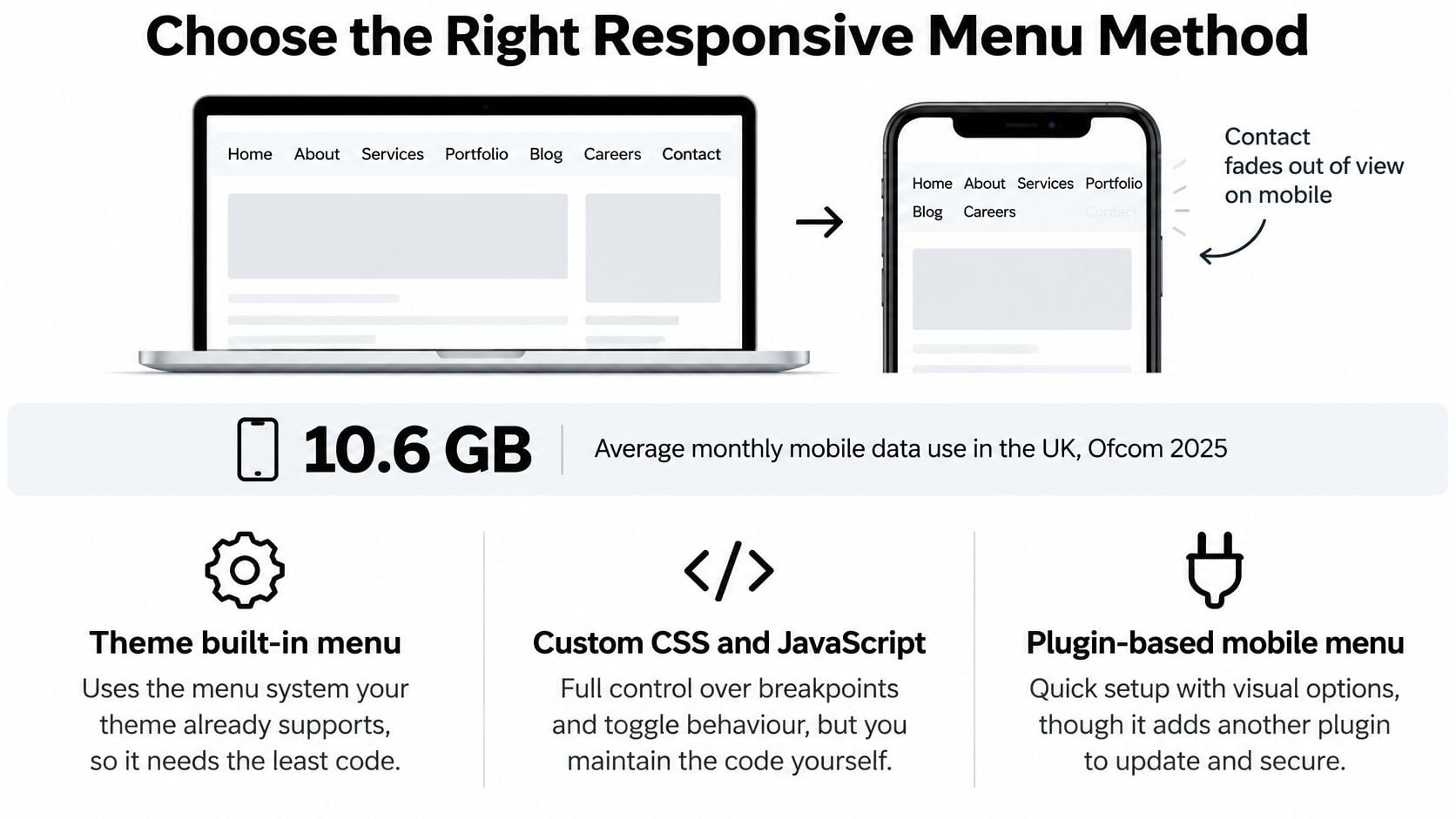
A phone visitor may need your opening hours, booking page, or contact details while standing outside your business. If a desktop navigation bar wraps or sends links off screen, those pages become harder to reach. Choose a menu method that fits the way your header and visitors really work.
Start with the navigation already included in your theme. The government guidance on accessibility requirements for websites and apps is a useful reference when checking whether a menu can be used by people with different access needs. Whichever option you choose, treat it as an interaction with open and closed states, not just a set of styles.
Compare the four routes before adding a plugin or custom code.
Responsive Menu Routes Compared
| Route | Best for | Setup effort | Accessibility by default | Performance cost |
|---|---|---|---|---|
| Block navigation or theme overlay | Sites with five to seven top-level links | Low | Usually sound, but check focus and labels | Low |
| Dedicated mobile-menu plugin | Centred logo, off-canvas panel, device-specific items | Medium | Varies by plugin, test the toggle | Medium, extra CSS and JS |
| Mega-menu plugin | Large catalogues with deep submenus | Medium to high | Often weak on keyboard, test every submenu | High, large scripts and styles |
| Hand-written CSS and JavaScript | Developers who want full control and minimal weight | Medium to high | Only as good as your code | Lowest when kept small |
For a typical local business site with five to seven top-level links, the built-in overlay is often enough. In block navigation, look for an Overlay menu setting with Always, Never, and Mobile options. In classic themes, the equivalent control is usually under Appearance then Menus, or in the Customizer.
Check the header on the exact theme you plan to use, not just its demo. A responsive WordPress theme can include menu collapse behaviour without adding another plugin. Still, confirm how its toggle, panel, and focus behave with your own logo and navigation labels.
When a Heavier Route Earns Its Place
A plugin or custom code makes sense when the built-in menu cannot support a real requirement:
- Centred logo layouts: The logo sits between links and needs a different mobile arrangement.
- Sticky headers: The bar follows visitors and must not cover page content or the open menu.
- Different items per device: For example, a phone-only call button or account links hidden on mobile.
- Large submenu trees: Deep service or catalogue menus need clear grouping and usable submenu controls.
A six-page business site rarely needs a mega menu. Extra scripts and ongoing maintenance are a poor trade if its features go unused. A dedicated plugin can be worthwhile when it solves a specific header problem, but test its keyboard behaviour and compatibility with the theme before relying on it.
Practical rule: Count your top-level links, identify any device-specific items, then choose the lightest route that covers both.
Before publishing, test the selected menu on your own setup: the active theme, installed plugins, and the header variant your visitors see. Open and close it, follow the links, and check where keyboard focus goes. A menu that works in a plugin preview may behave differently once it is part of your site.
How to Build a Responsive Menu Step by Step
A mobile menu can look fine and still fail when someone opens it, tabs through its links, or closes it. Build it as an interaction with clear states and focus behavior, then test it in the exact theme and header setup the site uses. Keep the navigation as real HTML links, so visitors can still reach pages if the script fails.
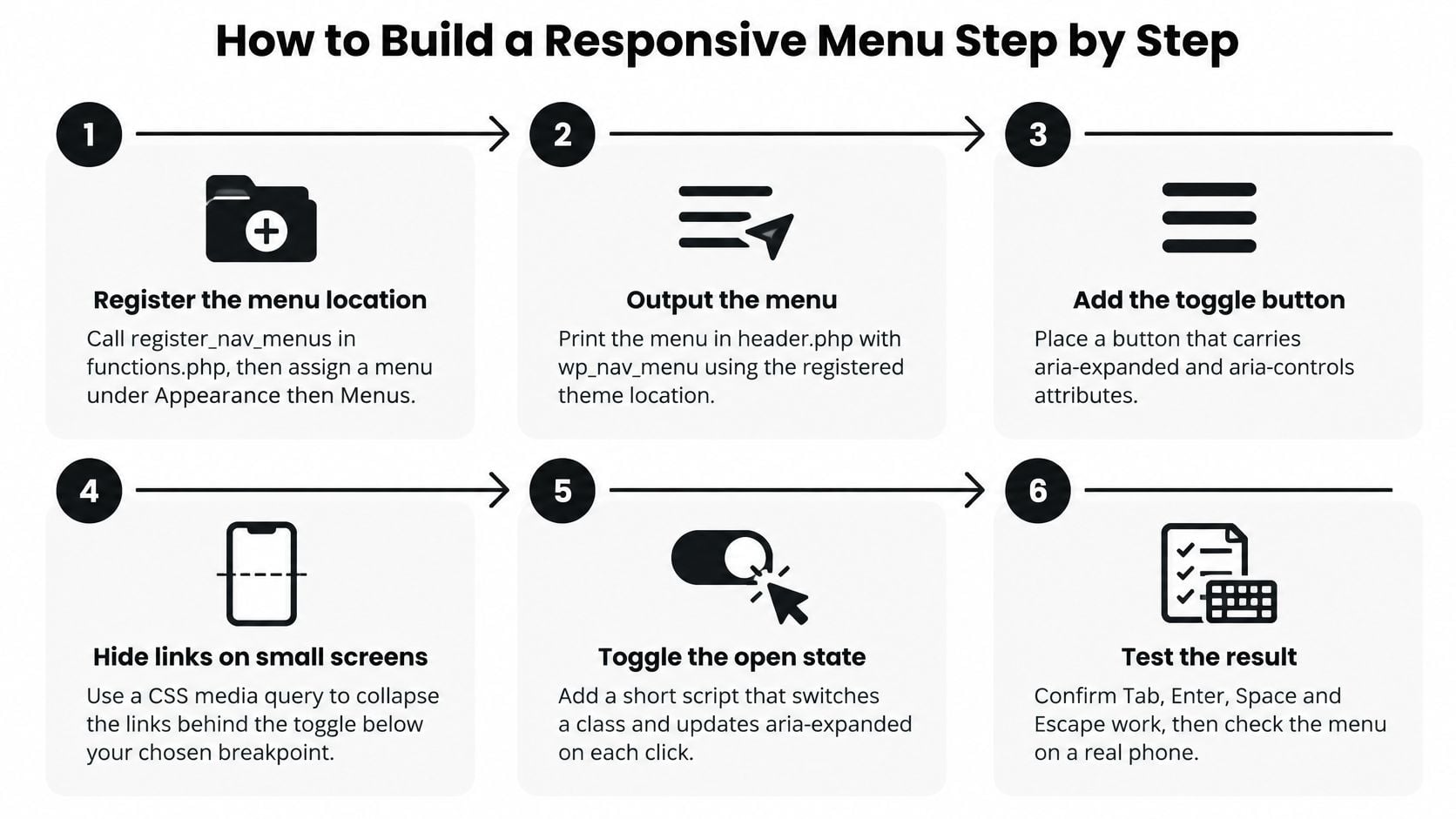
The infographic follows the same eight steps as the build below.
Set Up the Markup First
Register the location: Add
register_nav_menusinfunctions.php, then assign a menu under Appearance, then Menus. Without an assigned menu, WordPress can fall back to a page list that may not match the intended navigation.Output the menu: Put
wp_nav_menuinside anavelement with a uniquearia-label, such as Main menu, and give the list an ID. The label helps screen reader users distinguish this navigation from other navigation landmarks on the page.Add the toggle: Place a semantic
buttonafter the logo. Settype="button", pointaria-controlsto the list ID, and start witharia-expanded="false". Give the button a visually hidden Open menu label, so it has a useful accessible name as well as an icon.
Use a real button, not a div or link. Buttons already support keyboard activation, so you don't need to recreate that behavior.
If the menu needs several levels, group related items before styling them. Good mega menu design starts with clear groups, not animation. Many small business sites don't need that depth.
Write the Mobile Styles Before the Desktop Ones
Collapse on small screens: Below the chosen breakpoint, hide the list with
visibilityand height rules where practical. The collapsed links must also stay out of the tab order. Check both states, because a visually hidden link that still receives focus leaves keyboard users in a confusing spot.Toggle the state: Use a small script to update
aria-expanded, switch the label between Open menu and Close menu, and close the menu on Escape. Return focus to the button when it closes. The visible panel and its announced state must agree.Close when focus leaves: Check when focus moves beyond the menu, and close the panel once the visitor tabs past its last link. Otherwise, it can remain open over the content the visitor has already reached.
Watch the interaction in the browser, not just the code. That makes state and focus mismatches easier to catch.
Finish the Desktop Layout and the Details
Switch to horizontal: At 768px and above, change the menu to a horizontal flex layout and hide the toggle. Show dropdowns on
focus-withinas well as hover, so keyboard users can open the same submenus as mouse users.Protect anchor links: Set
scroll-padding-topto match the sticky header height, so jumped-to headings aren't hidden beneath it. Load the script withdeferin the footer to avoid blocking page rendering.
Check the header in both logged-in and logged-out states. The WordPress admin bar is 46px tall on small screens, so a fixed header can appear positioned correctly while you're logged in, then sit differently for visitors. A private window is a quick way to test without the admin bar.
If the menu only works when JavaScript loads perfectly, it doesn't work. Links first, enhancement second.
Accessibility Checks Every Menu Needs
A neat hamburger icon tells you nothing about accessibility. It tells you a designer placed three lines in a corner. Whether anyone can operate the menu behind it is a separate question, and it's the one that matters.
Treat the WordPress responsive menu as a complete interaction. Someone has to reach it, open it, move through it, see where they are, and close it without losing their place.
Keyboard and Screen Reader Checks
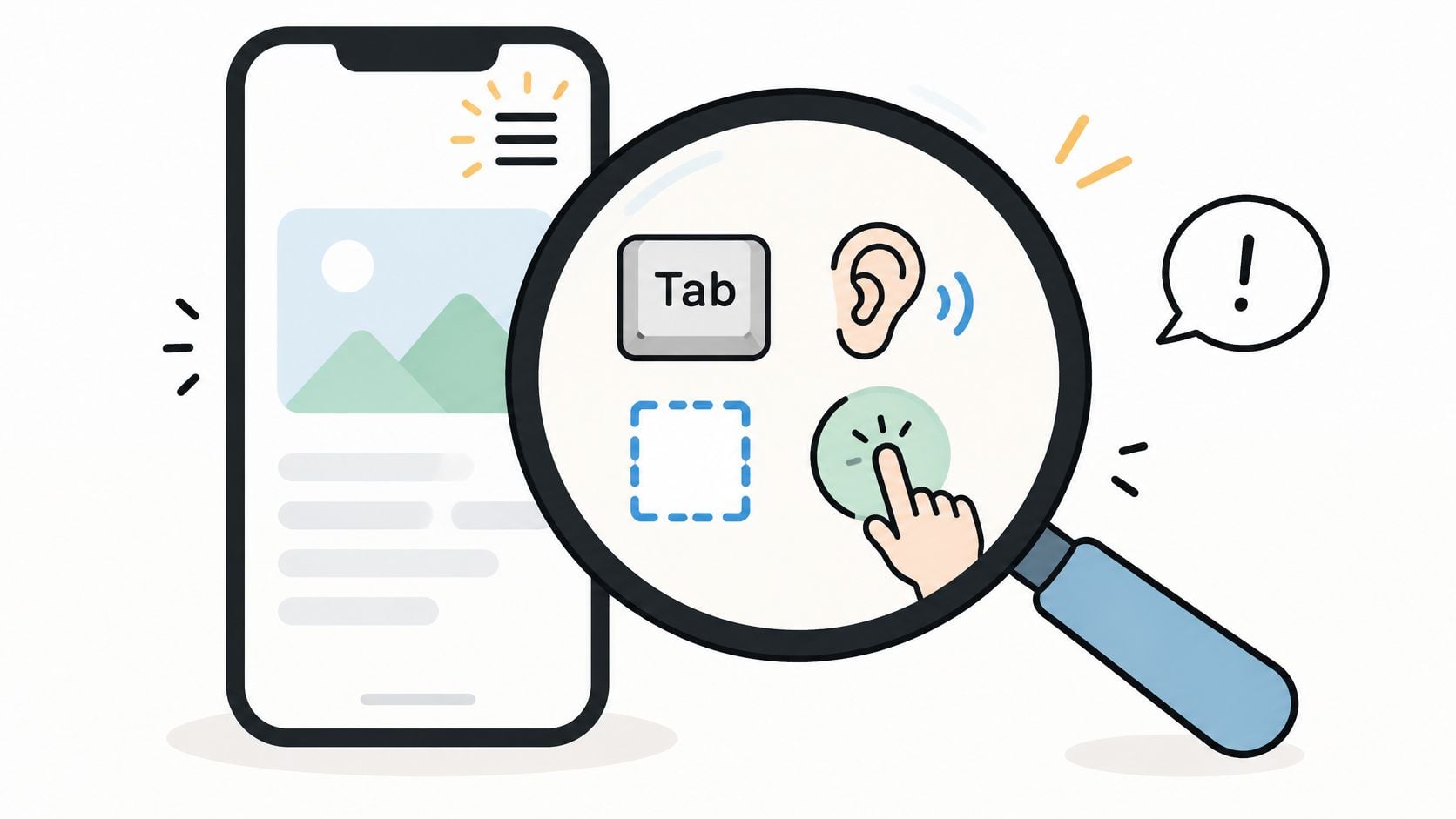
- Reach the toggle: Tab from the top of the page and confirm the button is in a logical order.
- Open it two ways: Both Enter and Space should open the menu.
- Reach every link: When open, Tab should move through all links in order, with visible focus at each stage.
- Close and return: Escape closes the menu and puts focus back on the toggle, not at the top of the page.
- Hear the state: The toggle announces its name and whether it's expanded, and the name changes between Open menu and Close menu.
When the menu is collapsed, its links must be out of the tab sequence. Focus moving through links nobody can see is one of the most confusing failures a keyboard user can hit.
If you'd rather have this checked systematically, a website accessibility audit will run the same sequence against your live header. It's worth it if you have several header variants or a sticky bar layered over the menu.
Layout and Touch Checks
- Zoom without clipping: At 200% and 400% zoom, nothing should be cut off or forced off-screen, with the menu open and closed.
- Keep focus visible: An expanded menu must not cover the item currently focused. That's the WCAG 2.2 Focus Not Obscured requirement, and sticky headers break it often.
- Size the targets: Touch targets should be at least 24 by 24 CSS pixels, with spacing between links so a thumb doesn't land on the wrong one.
The UK context is worth knowing even if you're a private business. The Public Sector Bodies Accessibility Regulations 2018 came into force on 23 September 2018, and government guidance identifies WCAG Level AA as the technical benchmark, describing accessible content as perceivable, operable, understandable, and compatible with assistive technologies, as explained in the government accessibility statement guidance. Many small firms adopt the same benchmark largely because it's the clearest standard available.
A Quick Test You Can Run Today
Unplug your mouse. Tab from the top, open the menu, reach the last link, press Escape, and note where focus lands. Then repeat with NVDA in Firefox or Chrome on Windows, VoiceOver with Safari on an iPhone, and browser zoom at both settings.
The failure that surprises owners most is a menu that stays open after focus has left it. It looks fine in a screenshot. It feels broken the moment you try to use it.
Keeping the Mobile Menu Light and Fast
A customer taps the menu on a phone, but nothing happens straight away. The delay may come from scripts or styles loaded with the header, not from the menu links themselves. Keep the menu usable while its JavaScript loads, and check how the open and closed states respond on the phones your customers use.
Where the Weight Usually Hides
- Oversized icon libraries: Replace a full icon library with a few inline SVGs for the toggle and close controls.
- Render-blocking scripts: Defer scripts that do not need to run before the page appears. Keep the menu's basic links available if its interaction script is delayed.
- Mega-menu stylesheets: Load heavier submenu styles only on pages that use those submenus.
- Hover-only dropdown JavaScript: Use CSS for hover and
focus-withinwhere appropriate. Use JavaScript to manage the menu's open state, keyboard interaction, and focus.
Keep menu-specific CSS and JavaScript small. Reserve space for the header in CSS so opening the menu does not push page content down and cause layout shift. Treat performance as part of the interaction: a fast-looking header still fails if the toggle does not update its state or the menu stays open after it should close.
These changes complement broader WordPress optimisation tips. Check the header separately too, because it appears across the site and its scripts may load on every page.
Check It, Then Measure What Changed
Run Lighthouse or PageSpeed Insights with a mobile profile, then try the menu on a real mid-range Android phone over 4G. Check the response to a tap, not only the page-load score. Emulation can help spot layout problems, but it cannot fully reproduce how the menu feels on a particular handset.
Compare results before and after each change. Watch whether visitors open the menu, tap a phone number or booking button, and reach key pages. Also test the menu's open and closed states with the exact theme, plugins, and header variant the business runs. Confirm that the toggle's state stays in sync, links remain usable if a script is delayed, and focus and screen reader announcements still work. Defer a script only if those checks pass.
Testing Breakpoints on Real Devices
A header can look correct at standard phone and desktop widths, yet break where its layout changes. Test the menu through that transition, checking whether it opens, closes, and keeps focus in the right place. A responsive menu is an interaction with state, not just a set of CSS widths.
Breakpoint Checks for the Responsive Menu
| Viewport width | Typical device | What to check |
|---|---|---|
| 320px | Older small phones | No horizontal scroll, wrapped labels still fit |
| 375px to 390px | Common iPhone and Android widths | Overlay fills the screen, close control sits above the fold |
| 600px | Large phones and small tablets | Toggle switches at the intended point with no half-open state |
| 768px | Tablet portrait | Desktop layout starts here or the menu stays collapsed |
| 1024px | Tablet landscape and small laptops | Full menu fits and dropdowns do not clip at the edge |
| 1280px and above | Desktop monitors | Dropdowns open on keyboard focus as well as hover |
At 320px, try a long label such as “Services for Landlords.” If it wraps across three lines and remains easy to read, it fits. If it overflows, shorten the label rather than shrinking the text.
Check the middle widths too. At 600px, some themes show the desktop bar with mobile spacing, or display the toggle and links together. Drag the browser window slowly from wide to narrow and watch the header for clipped content, duplicated controls, or a brief half-open state.
Understanding what responsive web design involves helps set the right breakpoint: choose the width where your actual content stops fitting, rather than treating a device size as a fixed rule. Seven long labels need more room than five short ones.
Throttle the Connection and Retest After Updates
Use your browser's developer tools to throttle the connection to 4G, then reload the page. Try opening the menu as soon as the header appears. If the toggle does not respond until its script loads, someone on a slow connection may tap it twice or leave. Check that the menu opens once, closes with its control, and returns focus to the toggle when dismissed.
Menu scripts add to page load time. Use Google's Core Web Vitals guidance or PageSpeed Insights to measure performance on the site itself; avoid treating a general benchmark as a result for your pages. Keep the menu's interaction lightweight, but confirm it still works when the network is slow.
Retest after each WordPress, theme, or plugin update. Check every breakpoint where the layout changes, then open and close the menu using touch and keyboard. Repeat the checks on the exact theme, plugins, and header variant your business runs, since each combination can affect the menu's state and focus behavior. A menu that passes that repeatable test is ready for your visitors.
Fix Common Menu Breaks Before You Publish
The calls I get about menus are rarely about design. They're about a menu that won't open on touch, one that won't close, or one that worked last month and doesn't now. Most of those have a short list of causes.
Responsive Menu Symptoms, Causes and Fixes
| Symptom | Likely cause | Fix |
|---|---|---|
| Menu will not open on touch | Hover-only dropdown or script not loaded | Use click or tap handlers and confirm the script loads |
| Menu stays open after a tap | No close on link click or page change | Close the menu on link activation and on navigation |
| Focus disappears behind the overlay | Focus never moves into the menu on open | Move focus to the first link when the menu opens |
| Header covers content after an anchor jump | Sticky header with no scroll offset | Set scroll-padding-top to the header height |
| Menu flashes on page load | Menu styles injected late | Inline the critical menu CSS in the head |
| Menu breaks after an update | Script conflict between theme and plugin | Check the console, then disable plugins one at a time |
Start with the first row if your menu won't open at all. Open developer tools, reload, and look at the Console. A red error naming a plugin file usually stops every script after it, including the one that opens your menu.
Optimisation plugins cause this often. Minify, combine, defer, and delay settings can reorder or postpone your toggle script. Turn those off for JavaScript, clear the cache, and test again before you blame the theme.
One page, one pass: Pick a single live page and run every check on it before you touch anything else.
Do that now. Choose your busiest page, run the keyboard sequence, the screen reader check, both zoom settings, and each breakpoint. Write down every failure in order, fix those, and retest the same page.
Don't spread fixes across the whole site first. Your header is shared, so one page tested properly tells you what's wrong everywhere. That's your repeatable acceptance test, and you can rerun it after every update in about fifteen minutes.
If your mobile menu is hiding pages, trapping focus, or breaking after every update, DesignStack can rebuild your header so it collapses cleanly, keeps its state straight, and stays light on phones. Tell us what's misbehaving and we'll test it on real devices before proposing a fix. Start the conversation at DesignStack.