WordPress Website Maintenance: The Complete Guide
A Dorset holiday cottage owner finds the booking site missing the night before the busiest part of the season. The cause is ordinary: a plugin update conflicts with the theme. The homepage breaks, the booking form stops working, and every hour spent tracing the fault is an hour without new reservations.
That is why WordPress website maintenance belongs in a business continuity plan, not a tidy-up routine. Updates, backups and compatibility checks protect the parts of a site that keep enquiries and sales moving. The work also has a real cost. Small-business support commonly sits around £50 to £150 per month, e-commerce sites around £150 to £400, and more complex setups can exceed £500, according to this UK website maintenance pricing guidance.
A small business owner should not need to live inside wp-admin. A workable routine uses a short daily glance, a focused weekly review, deeper monthly checks, and a quarterly restore and risk review. That rhythm makes problems visible while they are still manageable, rather than after an update turns into a late-night recovery job.
DIY maintenance keeps direct costs down, but it demands reliable time, testing discipline and a backup process that has been checked. An agency retainer costs more, yet gives you a defined response path when a site fails outside office hours. For ongoing technical support, see DesignStack's WordPress website support and maintenance service.
Table of Contents
- Why WordPress Website Maintenance Matters for UK Businesses
- What You Are Maintaining Inside a WordPress Site
- Daily and Weekly Maintenance Routine
- Monthly and Quarterly Maintenance Tasks
- Staging, Testing and Safe Update Workflows
- DIY Maintenance Versus Hiring a UK Agency
- Your WordPress Maintenance Checklist and Next Steps
Why WordPress Website Maintenance Matters for UK Businesses
A website can fail at the worst possible moment, during a campaign, after a hosting change, or just before a customer submits an enquiry. The visible symptom might be a blank page, yet the business impact can include missed leads, failed purchases, confused customers and lost confidence.
Maintenance protects continuity
Security deserves attention because WordPress sites depend on constantly changing third-party software. Patchstack recorded 7,966 new WordPress vulnerabilities in 2024, followed by 11,334 in 2025, representing a 34% year-on-year increase and a further 42% rise, according to this UK WordPress security guide. In the 2024 breakdown, 96% were in plugins, 4% were in themes, and only 7 vulnerabilities were in WordPress core.
Those figures give maintenance work a practical order. Core updates still need applying, but the plugin inventory calls for closer review because third-party components account for most reported exposure. A delayed patch can leave a known weakness available to attackers. An untested patch can break a form, layout or checkout, so updates should be checked against backups and, where possible, a staging copy.
Performance usually drifts rather than collapses. Unused plugins, stale transients, oversized media, database clutter and cache conflicts can make a site slower without creating one obvious error. A monthly performance check, database clean-up and broken-link sweep can identify that decline before visitors start reporting it.
Reputation is part of the risk
A defaced homepage, spam landing page or suspicious redirect can damage trust quickly. Customers expect the site to show accurate information and behave consistently, while search visibility can suffer when pages become compromised. Malware scans, user-account reviews and verified backups reduce the time and uncertainty involved in dealing with an incident.
Practical rule: Prepare the recovery steps before an outage, so fewer decisions are needed under pressure.
A small business owner does not need to spend every day inside wp-admin. Allow a few minutes for a daily check that the site and key business actions appear normal, then use a weekly review for updates and backups. Set aside a monthly safety-net session and a quarterly restore test. Businesses that need a defined response path can consider DesignStack's WordPress website support and maintenance service. The aim is a repeatable routine that protects revenue, trust and recoverability.
What You Are Maintaining Inside a WordPress Site
A WordPress site is a connected stack, not one application file. The core files provide the platform, PHP runs the application, hosting serves it, the theme controls presentation, plugins add functions, and the database stores content, settings and user records. A fault in one layer can appear as a problem somewhere else, so maintenance starts with knowing what each layer does.
The layers behind a failure
WordPress core needs security and compatibility updates. PHP must remain on a version that receives security fixes and works with the active plugins. Unsupported PHP can become a quiet source of future breakage, especially when a plugin update assumes a newer runtime. Hosting adds its own variables, including storage limits, server configuration, backup jobs and available resources.
The active theme can introduce template conflicts or outdated code. Plugins are often the most changeable layer, with different developers releasing updates on different schedules. A plugin can be well maintained and still conflict with a theme, payment gateway or form tool after an update.
The database rarely fails without warning. It can accumulate revisions, spam, expired transients and abandoned settings, making administration slower and fault-finding harder. These are maintenance issues rather than reasons to run a risky clean-up without a backup.
A risk-weighted view helps decide where limited maintenance time should go. The figures in Patchstack's 2024 data are documented in the WordPress vulnerability analysis.
| Site component | Share of incidents | Primary failure mode |
|---|---|---|
| Plugins | 96% of vulnerabilities | Vulnerable or incompatible third-party code |
| Themes | 4% of vulnerabilities | Outdated templates, insecure functionality or conflicts |
| WordPress core | 7 recorded vulnerabilities | Delayed core patches or compatibility issues |
| PHP and hosting environment | Not quantified in the cited breakdown | Unsupported runtime, resource limits or server changes |
| Database | Not quantified in the cited breakdown | Bloat, corrupt data, failed queries or poor housekeeping |
These figures do not make every plugin unsafe. They show why a green uptime monitor is not enough if inactive plugins, outdated premium extensions or unsupported PHP are being ignored.
Work from the highest-risk layer outward
Start with a plugin inventory. Record each plugin's purpose, maintainer, licence status and ongoing need. Remove dormant components rather than leaving them installed indefinitely, but check what depends on them before deletion.
Then check PHP compatibility, hosting backup arrangements, theme support and database health. The site is a managed application built on a content management system explained in plain language, so maintenance must cover both the editing interface and the infrastructure underneath it.
For a small business owner, this risk order keeps the work contained. Confirm backups and review plugin changes before spending time on minor visual polish. If a change affects enquiries, bookings or payments, test that path before considering the update complete.
Daily and Weekly Maintenance Routine
A maintenance routine works best when it fits around the business rather than competing with it. For a typical small-business site, a UK-focused checklist estimates 10 to 20 minutes per week, 45 to 60 minutes per month and 1 to 2 hours per quarter, as outlined in this WordPress maintenance checklist for UK SMEs. A daily glance can be even shorter, provided it checks the things that matter commercially.
The daily glance
Spend roughly five minutes looking for signals rather than trying to diagnose every notification.
- Check availability: Open the homepage and one important conversion path, such as the enquiry form, booking flow or shop basket. A monitoring email or dashboard should confirm whether the site has been reachable.
- Confirm the overnight backup: Look for a successful completion, not merely an enabled schedule. A backup that failed because storage is full won't help during recovery.
- Scan security activity: Review the security log for unusual administrator activity, repeated failed logins or a new user you don't recognise. Blocked attempts aren't automatically incidents, but unexplained successful access deserves attention.
- Review business activity: Check recent enquiries, orders or registrations. An empty feed might be normal, but a sudden pattern of failed payments or form errors needs investigation.
This isn't about refreshing the site repeatedly. It's about spotting a broken customer journey before a customer has to tell you.
The weekly review
Reserve 20 to 30 minutes for a more deliberate check. Apply pending updates on staging where available, starting with plugins and themes, then confirm that core auto-updates behaved as expected. Test the homepage, contact forms, mobile navigation and any revenue-critical workflow after changes.
Review the comments queue, remove obvious spam and check recently created user accounts. Confirm available disk space with your host, particularly if the site stores images, backups or customer uploads. A lightweight homepage check with GTmetrix or Pingdom can reveal a sudden slowdown, while a comparison over time is more useful than chasing a single score.
If the week gets away from you: Don't skip backup confirmation and security review. Defer cosmetic content tidy-up, but don't leave a known update, failed backup or suspicious account unexplained.
Use low-traffic windows for updates and make a backup before changing anything. The small amount of organisation matters because an update that takes minutes can still create a serious problem if nobody notices the broken checkout until the next morning.
Monthly and Quarterly Maintenance Tasks
Weekly checks catch visible problems. The monthly and quarterly layers test whether the systems behind the site would support recovery. This is insurance work, not housekeeping, and it deserves a calendar slot rather than whatever time remains after client work.
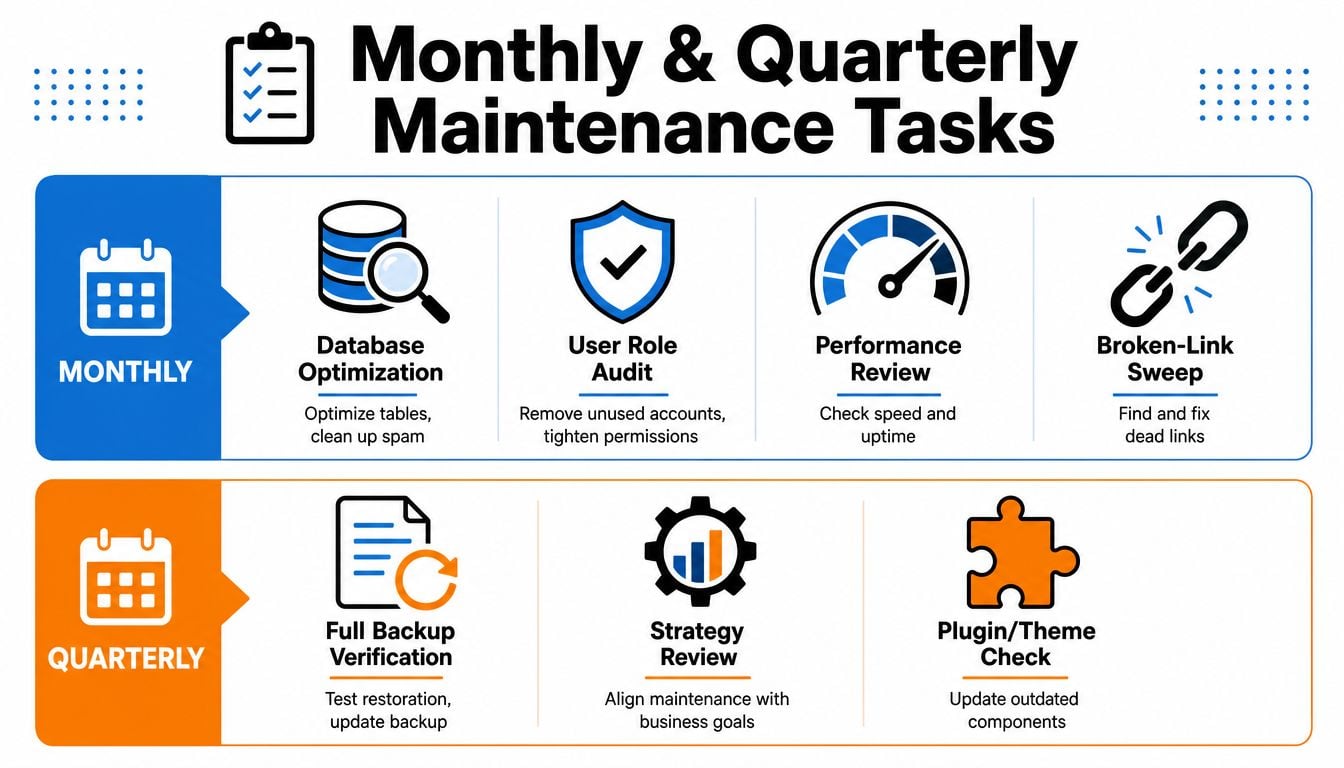
Monthly safety-net work
Allow roughly 90 minutes for a proper monthly session.
- Verify a full backup. Check that files and the database are included, that the archive is stored away from the live hosting account, and that the timestamp is recent. Then restore it to a staging subdomain or isolated environment. A successful restore proves far more than a green backup notification.
- Optimise the database. Use a controlled tool such as WP-Optimize to clean revisions, expired transients and spam comments. Take a backup first and avoid aggressive settings on a busy e-commerce database. DesignStack's guide to WordPress database optimisation covers the purpose of this work in practical terms.
- Audit users and permissions. Remove inactive accounts, confirm administrator access is justified and check that editors have only the access they need. Old administrator accounts are easy to overlook and difficult to defend.
- Review performance and links. Use PageSpeed Insights or GTmetrix, compare the current result with the previous months, and investigate a sustained decline. Run a broken-link sweep and repair links that lead customers to missing pages.
Quarterly resilience review
Set aside half a day each quarter. Review the PHP version and hosting roadmap, rotate security keys where appropriate, confirm theme and plugin licences, and remove components that are dormant or no longer supported. Check whether maintenance still reflects the business, especially after adding a new payment method, membership feature or marketing integration.
A quarterly review should also ask whether the recovery plan is usable by somebody else. Document where backups live, who receives alerts, how to contact the host and what must be tested after a restore. If the usual person is away, the site shouldn't depend on their memory.
The test is simple: could you recover the site, identify the last safe version and confirm the booking form or checkout without guessing? If not, the monthly and quarterly work hasn't finished.
Staging, Testing and Safe Update Workflows
Pressing “update” on a live site is quick. Proving that the update won't damage a customer journey takes more care. A staging environment creates a working copy where changes can be checked before they reach visitors.
A safe release sequence
Use WP Staging, BlogVault staging or a host-managed environment such as staging on Kinsta or SiteGround. The exact tool matters less than the workflow.
- Clone the live site: Include the database, media and current configuration so the test resembles production.
- Record the starting point: Note the plugin versions and take a fresh backup before changing anything.
- Apply updates in staging: Update WordPress, the theme and plugins in a controlled order. Don't change several unrelated settings at the same time.
- Test the customer path: Check the homepage, key landing pages, navigation, forms, email notifications, checkout, account login and important admin actions.
- Inspect mobile layouts: A desktop page can look fine while a mobile menu, button or payment field has shifted.
- Promote and recheck: Push the tested changes to production, then repeat the critical checks on the live site.
If a problem appears, keep the previous plugin package where licensing permits, retain the pre-update backup and document what changed. A developer may also use a Git branch for custom theme or plugin code. Rollback is not a substitute for testing, because restoring an older database over newer orders or enquiries can create its own damage.
The UK guidance cited earlier recommends backing up before changes, using low-traffic windows and testing restores. Those habits turn an update from a gamble into a controlled release.
Choosing a staging approach
| Approach | Best for | Cost | Rollback ease |
|---|---|---|---|
| Host-managed staging | Sites whose host provides cloning and promotion tools | Depends on hosting plan | Usually straightforward |
| WP Staging | Owners wanting a familiar WordPress-based workflow | Depends on the chosen edition | Practical for smaller sites |
| BlogVault staging | Sites needing managed backup and staging features | Depends on subscription | Strong when backups are current |
| Manual clone and backup | Experienced developers with bespoke environments | Staff time and hosting resources | Dependent on documentation |
A low-traffic brochure site may accept a calculated risk for a minor update, particularly when a verified backup exists and the owner can test the important pages immediately. That trade-off is less sensible for WooCommerce, bookings, memberships or regulated information. Document the runbook, including who approves updates, what gets tested and how to escalate a failure. Cover should still be possible when the person who normally maintains the site is on holiday.
For related planning during a rebuild or platform move, use this website migration and SEO checklist before changing the live environment.
DIY Maintenance Versus Hiring a UK Agency
At 2am, a failed update does not care whether you chose DIY because it was cheaper. You still need a working backup, a recovery route and enough time to find the fault. DIY maintenance suits a simple brochure site, an owner with technical confidence and a business that can tolerate a slower response. It becomes harder to justify when technical work is unpaid spare-time labour and the owner carries every recovery decision.
Calculating the cost of doing it yourself
Start with time, not subscription fees. An owner spending four hours per month on maintenance at an effective rate of £50 per hour has a time cost of £200, before the disruption caused by switching between sales, operations and troubleshooting. This is an illustration rather than a universal price, but it makes the hidden cost visible.
UK pricing varies with scope. Basic care can sit around £30 to £80, while plans with human support, testing and response commitments commonly fall around £80 to £250 or more, according to this WordPress maintenance package comparison. A separate UK pricing benchmark records basic maintenance averages rising from £69.83 to £102, mid-range work from £167.43 to £232, and high-end work from £404.20 to £550 between 2018 and 2025. Scope, site complexity and response expectations account for much of that spread.
| Factor | DIY owner | UK agency retainer | Hybrid setup |
|---|---|---|---|
| Site revenue | Suitable where interruption has limited impact | Better where downtime directly affects sales | Owner handles low-risk content, specialists protect revenue paths |
| Technical confidence | Requires comfort with backups, updates and diagnosis | Agency supplies technical process and escalation | Owner learns routine checks, agency handles complex changes |
| Transaction value | Lower-risk forms and brochure enquiries may be manageable | Bookings, payments and memberships justify stronger controls | Agency protects checkout, owner manages catalogue or content |
| Compliance needs | Owner carries the review and record-keeping burden | Clearer process for security, access and incident response | Responsibilities must be written down |
| Out-of-hours failure | Owner investigates alone | Retainer may include defined response terms | Serious incidents are escalated, routine content stays in-house |
Choose based on risk, not labels
An agency retainer is only as useful as its scope. Check backup frequency, off-site storage, restore testing, staging, security monitoring, update testing, response times and exclusions for premium plugins or custom code. An “updates only” package can leave diagnosis and recovery outside the agreement, precisely when the site is losing enquiries or orders.
The hybrid model often fits Dorset SMEs. The owner manages products, posts and images, while a specialist handles security, uptime, backups, compatibility and core maintenance. DesignStack's WordPress website development service is an option for businesses that want development work and ongoing technical decisions handled together.
Choose the arrangement that reflects the cost of failure. A modest monthly fee may be poor value for a low-risk brochure site, while DIY can be expensive for a shop, booking system or membership site when recovery depends on one already-busy owner.
Your WordPress Maintenance Checklist and Next Steps
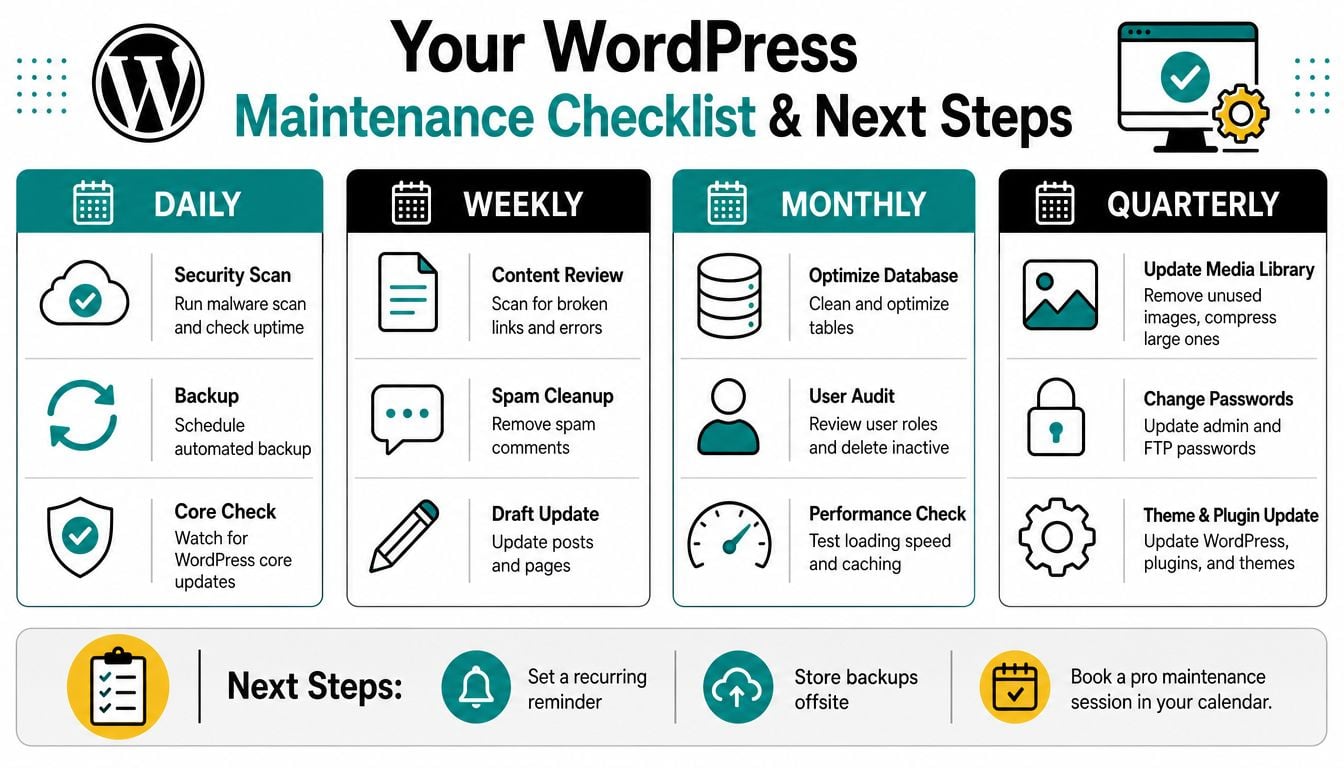
A useful checklist gives each task an owner, a time budget and a clear success signal. Without those details, maintenance gets pushed aside until a failed update or missed enquiry makes the cost obvious.
A one-page operating checklist
| Cadence | Owner and time | Actions | Success signal |
|---|---|---|---|
| Daily | Business owner, around five minutes | Check uptime, security alerts, backup status and recent enquiries or orders | Key pages and business activity look normal |
| Weekly | Owner or site manager, 20 to 30 minutes | Review updates, test staging changes, inspect accounts, comments, storage and homepage performance | Updates are tested, backups are confirmed and no unexplained access appears |
| Monthly | Site manager or developer, around 90 minutes | Restore-test a backup, clean the database, audit roles, review performance and sweep broken links | A known backup restores and important journeys work |
| Quarterly | Developer or agency, half a day | Review PHP, licences, dormant plugins, security keys, hosting and the recovery runbook | The stack is supported and another person could follow the recovery process |
Roll it out without creating another project
During the first week, check the backup schedule, confirm where archives are stored and write down the current update process. In the first month, set up staging if the hosting supports it and configure uptime monitoring. In the second month, run a restore test and record a baseline for homepage speed and the main conversion path. By the third month, review maintenance time, incidents and near misses, then decide whether DIY, agency support or a hybrid arrangement matches the site's risk.
Do not measure success by how often you enter WordPress. Measure whether updates are applied deliberately, backups restore successfully and customers can complete the actions that matter to the business. That is the difference between routine housekeeping and continuity work.
Book a restore drill this week, compare two maintenance retainers, or reserve a recurring maintenance slot in your calendar. Pick one action and record the result. An untested backup and an undocumented process will not protect a Dorset business when its site fails at the worst possible time.
DesignStack provides WordPress maintenance and support covering updates, backups, security monitoring, performance checks and technical assistance for businesses that need dependable continuity. Visit DesignStack to discuss your site's maintenance risks and arrange a practical support plan.