WordPress Org Website Builder: Build a Site Step by Step
You bought the domain, paid for hosting, and the site still isn't live. The welcome email is full of buttons you don't recognise, and you're not sure whether WordPress.org is free software or a paid website service. That stuck point is common for shop owners, professional firms, and community groups who want customers to find them.
A WordPress.org website builder is software you install on hosting you pay for and control. You own the pages, the files, and the choice of who looks after the site once it is public. The install can be an afternoon's work. The decision that costs more later is who handles accessibility fixes, updates, and backups after launch, because an unmanaged site becomes the expensive one.
The steps below follow that order, from what to buy first through to a named person for the work that doesn't stop at go-live.
Table of Contents
- What You Need Before You Install WordPress
- How to Install WordPress.org Step by Step
- Choosing a Theme and Page Builder You Will Not Regret
- Essential Plugins and Day-One SEO Settings
- Accessibility and Security Checks Before Launch
- Keeping Your Site Running and Choosing Your Next Step
What You Need Before You Install WordPress
The cheapest monthly plan often has no backups and nobody on the phone after 5pm. Sort that before you install anything.
WordPress.org is free software you place on hosting you control. WordPress.com is a separate hosted service, with limits on plugins and themes. Choose the .org software if you want a shop, bookings, or the option to change host later.
Domain. Register a .co.uk or .com with a UK registrar and renew it every year. Write the renewal date down the day you buy it.
Hosting. Shared hosting fits a modest brochure site. Managed WordPress hosting covers updates and backups when nobody has a weekly technical slot. A VPS suits a busier or custom build, and it needs someone who can manage the server as well as the site.
Email on that domain. Password resets and update notices should reach an inbox someone reads regularly, not a personal account checked once a week.
Before you pay, check server location, support hours, and whether backups and SSL are already in the price. A UK or European server keeps local pages snappier. Start from a shortlist of WordPress hosting suited to small business sites rather than the lowest banner fee.
In 2024, 68% of UK businesses reported having a website, according to the Department for Business and Trade's UK Business Data Survey. A neglected site is easy to notice when most other firms already have one.
What the server must provide
| Requirement | Minimum | Recommended | Why it matters |
|---|---|---|---|
| PHP version | PHP 7.2.24 | PHP 8.2 or 8.3 | Newer PHP runs faster and keeps receiving security fixes |
| Database | MySQL 5.7 or MariaDB 10.4 | MySQL 8.0 or MariaDB 10.6 | The database stores every post, page, setting and order |
| HTTPS | Valid SSL certificate | Free SSL included and auto-renewing | Protects logins and enquiry forms, and browsers warn visitors when it is missing |
| PHP memory limit | 128 MB | 256 MB | Page builders and WooCommerce need extra memory to load pages |
| Backups | Weekly | Daily, stored off the server | A backup kept on the same server is lost along with the server |
Practical rule: If the plan doesn't name daily off-server backups and a current PHP version, it isn't finished, however low the monthly fee looks.
Before the installer, decide the domain, the host, the plan, and who owns updates after launch.
How to Install WordPress.org Step by Step
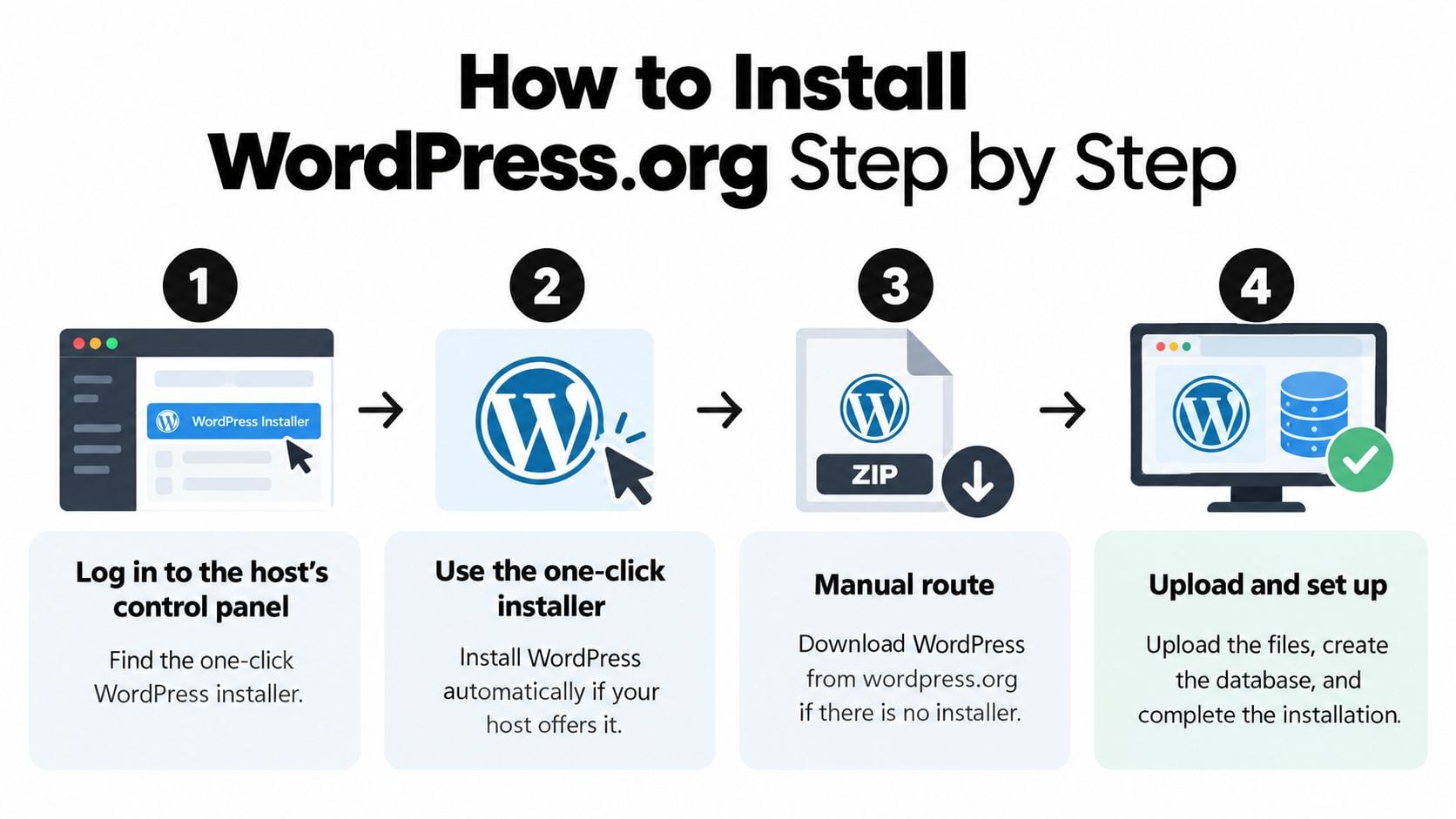
Most hosts hide the installer inside the control panel, often under a label such as Softaculous, Installatron, or WordPress. Log in, find that tool, and use it. If it isn't there, the manual route is still straightforward. Download WordPress from wordpress.org, create an empty database in the control panel, upload the files, and let the setup screen finish the job.
The install, one decision at a time
- Put the site at the root. Choose your domain and leave the install folder blank. A folder such as
/wordpresswould publish the site at an address customers won't type. The root means the homepage sits on the domain itself. - Don't use admin as the username. Login attacks try that name first. Pick something that isn't the business name either, and keep it out of public author pages if the theme shows authors.
- Store a strong, unique password in a password manager. Reusing the email password means one leaked login opens the website too. A manager removes the temptation to write it on a sticky note.
- Use an admin email someone checks. Password resets, update notices, and comment alerts all go there. A shared inbox such as office@yourdomain is safer than one person's personal address, in case they leave.
- Finish the installer, then sign in. Open your domain followed by
/wp-admin. If the login page doesn't appear, the install folder wasn't blank, or the domain isn't pointing at this host yet. Fix that before you add anything else. - Set the basics under Settings. In General, add the site title, a short tagline, and the London timezone so scheduled posts match UK office hours. In Permalinks, choose Post name so addresses read as words, not question marks and numbers.
- Delete the samples. Remove the Hello World post, the sample page, and any theme you won't use. Unused themes are extra code that still needs updates, and sample content can be indexed if you forget it.
- Check the padlock and a phone. The browser should show a padlock, and the homepage should be readable on a mobile screen without sideways scrolling. If the padlock is missing, turn SSL on in the host panel before you build pages.
A staging copy before plugins
If the host offers staging, make that copy now and try plugins there first. A staging site is a private duplicate. A broken plugin then fails somewhere customers can't see. Hosts without staging aren't unusable, but you'll want a backup you have already restored once before you experiment on the live site.
Leave the default theme in place until the next decision. Installing a page builder on top of a random theme is how sites pick up two design systems that fight each other.
Choosing a Theme and Page Builder You Will Not Regret
Pick one base theme and one editor, then stop. A second builder later will fight the first over fonts, spacing, and buttons, and pages get slower because both load their own code.
| Option | Cost | Learning curve | Best for |
|---|---|---|---|
| Block editor and full site editing | Free, built into WordPress | Moderate | Content-led sites, blogs and simple brochure pages |
| Elementor | Free core, Pro version is paid | Low to moderate | Drag-and-drop layouts and frequent landing page changes |
| Divi | Paid subscription or lifetime licence | Low to moderate | Design-led sites that benefit from a large template library |
The block editor with full site editing suits a solicitor, a membership group, or a blog where writing matters more than fancy sections. It is already in WordPress, so there is no extra licence to renew. The learning curve is moderate because you edit patterns and templates, not a separate canvas.
Elementor is the visual builder many owners find quickest. The free core covers straightforward pages. Pro adds theme building, pop-ups, and extra widgets, so budget for that if landing pages change every month. Divi bundles a theme and a builder with a large template library, which helps when you want a designed look on day one and you're happy with a subscription or a lifetime licence.
One analysis of 166,395 websites from the United Kingdom found content-management systems on 50.1% of the sites examined, with WordPress accounting for 85.8% of identifiable CMS installations, according to WMTips' UK CMS breakdown. That share is among sites where a CMS could be detected, not every UK website. It still explains why themes, developers, and hosting help are easier to find for WordPress than for rarer systems. A maintained responsive WordPress theme from a supplier who still answers support tickets beats a pretty demo that hasn't been updated in two years.
How to judge any theme
Look for an update in recent months, a public changelog, an accessibility statement, and a support forum with replies from this year. Skip nulled or pirated themes. They are a common way malware gets onto a new site, and you can't get updates without going back to the pirate.
A good theme still fails the day-to-day test if a simple text and image change takes half an hour.
Build the homepage in the editor you chose and time that small edit. That is the job you'll repeat for years. While you shape those pages, it helps to plan stronger site structures with SemDash so menus, service pages, and internal links stay clear before the design locks them in.
Essential Plugins and Day-One SEO Settings
Every plugin needs a job and a maintainer who still ships updates. If you can't name the job, don't install it.
A short list, each with a reason
- Backups. Use your host's backup tool or a backup plugin, with copies stored off the server, so a hacked site can be put back.
- Login security. A security plugin that limits failed logins slows password guessing. It doesn't replace strong passwords.
- SEO. Yoast SEO or Rank Math gives you titles, meta descriptions, and an XML sitemap without custom code.
- Caching. Add a caching plugin only if the host doesn't already cache. Two caches at once often break layouts.
- Contact form. A form plugin keeps enquiries on the site instead of exposing a personal email address to scrapers.
- Cookie consent. Add this if you run analytics. Don't add it "just in case" when no tracking is installed.
Before you click Install, check the last-updated date and the number of active installs. Deactivate and delete anything you don't use, because unused plugins still receive (or miss) security updates. Never install nulled plugins. For a brochure site, staying near ten plugins is a healthy ceiling, not a challenge to beat.
SEO settings for the same afternoon
Work through these in order, or search engines will meet a half-finished site.
- Under Settings, Reading, confirm you're not discouraging search engines. That box is sometimes ticked during building and then forgotten.
- Write a unique title and meta description for each main page. The homepage title should say what you do and where, not just the business name.
- Generate the XML sitemap from your SEO plugin and submit it in Google Search Console, so new pages can be found without waiting to be stumbled on.
- Use one H1 per page. Extra H1s confuse the outline that screen readers and search engines both rely on.
- Compress images before upload and write alt text that describes the picture. "Team photo outside the Weymouth studio" is useful. "IMG_2044" is not.
- Put your address and service area in the page content if you want Dorset customers, and connect the site to your Google Business Profile so the map listing and the website agree.
On-page settings won't replace links from other relevant sites. When you're ready for that later work, a vetted list of backlink building sites is a calmer place to start than buying links from a random email. For the launch week itself, walk through an SEO checklist for new websites and tick items off as you go, including Search Console and the sitemap.
Say a bakery adds a Saturday tasting page. The title names the town, the form works, and the image alt text says what is in the photo. That page can rank for a local search. The same page with "Home" as the title and a 4 MB photo will not.
Accessibility and Security Checks Before Launch
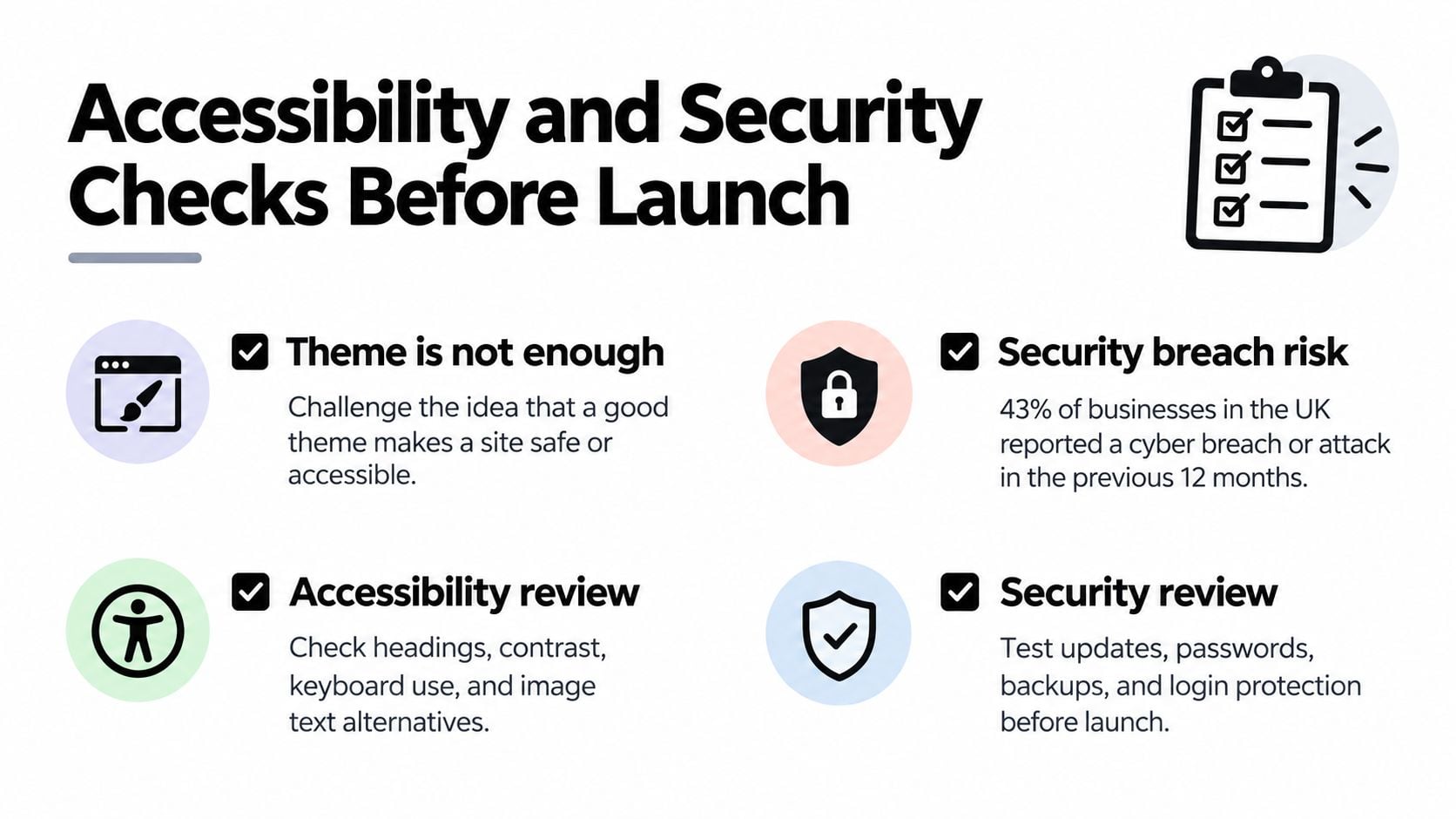
A well-reviewed theme doesn't make the site safe, and it doesn't make it usable for everyone. Themes ship with sample settings. Your colours, forms, plugins, and PDFs are what visitors encounter.
The UK Government's 2025 Cyber Security Breaches Survey found that 43% of businesses (approximately 612,000 organisations) identified a cyber breach or attack in the previous 12 months. Treat security as a routine, not as a plugin you install once and forget.
Security before you invite the public
- Current stack. Use managed hosting on a supported PHP version, with HTTPS already working.
- Less code. Delete unused themes and plugins, and keep a written list of what remains.
- Fewer admins. Give administrator rights only to people who change the site. Everyone else gets a lower role.
- MFA. Turn on multi-factor authentication for every administrator account.
- Backups you have restored. Daily copies, stored off the server, with one test restore done before launch.
- A look at the logs. Know where to see failed logins, file changes, and available updates.
For a WooCommerce or membership site, keep customer accounts separate from administrator accounts, store as little personal data as you can, and place a test order after every major update.
Accessibility checks you can run yourself
Priority Pixels' summary of the WebAIM Million 2025 report notes detectable WCAG failures on 94.8% of the world's one million most popular homepages, averaging 51 errors per page. Low-contrast text and missing alternative text show up again and again. UK public-sector organisations must meet WCAG AA. A private retailer, professional firm, membership group, or community site isn't under that same duty, but a site people can't use with a keyboard or a screen reader still turns customers away.
Run this before you announce the site.
- Complete the enquiry form using only the keyboard, with no mouse.
- Confirm a visible focus outline on every link and button.
- Check every form field has a proper label, not just placeholder text.
- Use link text that says where it goes. "Our opening hours" beats "click here".
- Test colour contrast, including buttons on photos.
- Check heading order, with a single H1 and no skipped levels.
- Zoom to 200% on a phone and confirm text reflows instead of overflowing.
Automated scans miss unclear links, poor focus, and badly structured content, so pair any scanner with that keyboard pass. A website accessibility audit is worth booking if the site takes bookings or payments, and it should be repeated after big content edits, not only at launch.
Keeping Your Site Running and Choosing Your Next Step
The build invoice is the first line, not the last. Domain renewals, hosting, off-server backup storage, plugin licences, update time, malware cleanup, speed work, and ordinary content edits all continue. Skip them and the quiet cost is missed enquiries, not a line on a spreadsheet.
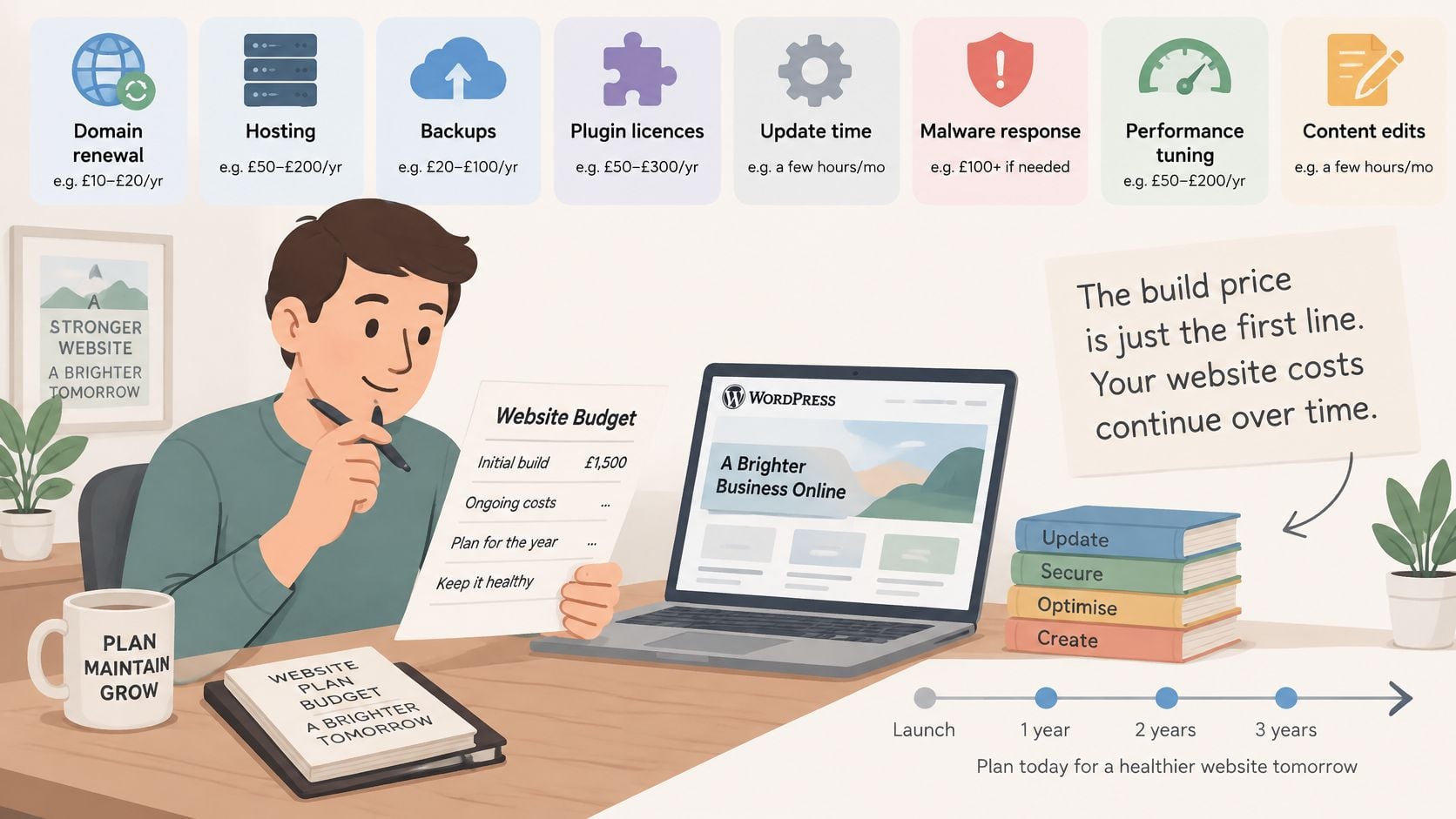
Retest mobile speed after every major change. A heavy new slider or an uncompressed hero image is what makes a phone visitor leave, even when the desktop view still looks fine.
A schedule with names on it
| Task | Frequency | Usual owner | Risk if skipped |
|---|---|---|---|
| Core, theme and plugin updates | Weekly check, security fixes within days | Site owner or managed host | Known vulnerabilities stay open |
| Backup restore test | Monthly | Host or developer | Backups exist but cannot be restored |
| Plugin inventory review | Quarterly | Site owner | Abandoned plugins keep running unpatched |
| Accessibility spot check | Quarterly and after major edits | Content editor and developer | New content breaks keyboard or contrast standards |
| Speed and uptime test | Monthly | Developer or host | Slow pages lose visitors on mobile |
| Domain and SSL renewal | Annual, set to auto-renew | Site owner | Site goes offline or browsers show a warning |
Put a name in the owner column. "The team" means nobody. If a plugin's developer has gone quiet, plan a replacement at the quarterly review rather than hoping the next security issue skips you.
Managed or unmanaged
This is the choice behind a WordPress.org website builder. Unmanaged ownership suits you if someone in the business can do the weekly check, read update notices, and call a developer when a restore is needed. Managed ownership means you pay a managed host or an agency to run updates, backups, and a short monthly report.
Either way, the agreement should say who restores the site when something breaks, and how fast. DesignStack, a Weymouth studio, can take that handover for WordPress sites, including hosting and a written note of post-launch updates. Ask any provider, local or not, for the same in writing. Ongoing WordPress website maintenance only helps if restore duties are named, not implied.
A short walk-through of the upkeep habits is easier to follow than a policy document.
This week, confirm three things. Your domain renewal date, where backups are stored, and the name of the person who approves each update.
DesignStack plans, designs, and looks after WordPress sites for Dorset and UK businesses, from the first structure through hosting and the checks that follow launch. If you'd rather hand the updates, backups, and accessibility regressions to a named team, talk to DesignStack about a build or a maintenance handover that spells out who restores the site when something breaks.