

Firewall Configuration a Guide for UK Businesses
You're probably dealing with one of these situations right now. A new website has just gone live. Staff need remote access. A developer has asked for “just one port opened”. Or your hosting dashboard, office router, and server all seem to have different security settings, and it isn't obvious which one matters.
That's where firewall configuration stops being a technical side task and becomes a business decision. If it's done badly, you can block legitimate users, expose services you didn't mean to publish, or leave old access rules in place long after the original need has gone. If it's done well, you get cleaner access, clearer accountability, and fewer nasty surprises when something changes.
For most UK small businesses, the hard part isn't learning that a firewall should block bad traffic. It's deciding where to configure it, how to keep rules understandable across platforms, and who checks that those rules still make sense six months later.
Table of Contents
- Why Your Firewall Is More Than Just an IT Checkbox
- Firewall Fundamentals for Business Owners
- Where Should You Configure Your Firewall
- Practical Configuration Walkthroughs
- Essential Rule Sets for Common Services
- Testing and Verifying Your Configuration
- Maintenance Logging and Emergency Plans
Why Your Firewall Is More Than Just an IT Checkbox
A firewall is the digital version of a front door with a strict person on it. It checks who's trying to get in, what they're asking for, and whether that request matches a rule you've already approved. That sounds technical, but the business logic is simple. If a service doesn't need to be reachable, it shouldn't be reachable.
The mistake many firms make is treating firewall configuration as a one-off setup done during a website launch, office move, or broadband install. That approach creates quiet risk. Services change, suppliers change, staff leave, and old rules remain.
Most advice online stops at the initial setup. But NCSC-aligned best practice in the UK treats firewall policy as an ongoing control tied to monitoring and regular review, not a one-time task, as outlined in these firewall best practices. That matters because rule sprawl is one of the easiest ways to lose control of your perimeter.
Practical rule: If nobody in the business can explain why a firewall rule exists, that rule should be reviewed.
A common real-world example is a small company launching a WordPress site, opening remote admin access for a freelancer, then forgetting to remove that access later. Another is a business with office staff, cloud hosting, and a managed router, where each layer has partial rules and nobody knows which one is authoritative. Security gets weaker when responsibility is split but not documented.
Good firewall configuration also sits inside broader data protection work. If you're thinking about practical steps for protecting your Sheffield business data, the same principle applies here. Restrict access, document decisions, and review them before they turn into blind spots.
If your business relies on a website to generate leads, there's another reason to care. Security settings can affect availability, admin access, staging workflows, and platform integrations. That's one reason technical choices like these often overlap with wider site planning, including technical SEO foundations, where uptime, crawl access, and clean infrastructure all matter.
What operational governance looks like
Operational governance doesn't need to be bureaucratic. For a small business, it usually means:
- A named owner: Someone must approve firewall changes, even if an outside provider implements them.
- A rule log: Keep a simple note of what was changed, when, and why.
- Regular review: Check whether old rules still match current systems, suppliers, and staff access needs.
- A rollback plan: Before changes go live, know how to undo them quickly.
That's what turns a firewall from a box you hope is working into a control you can manage.
Firewall Fundamentals for Business Owners
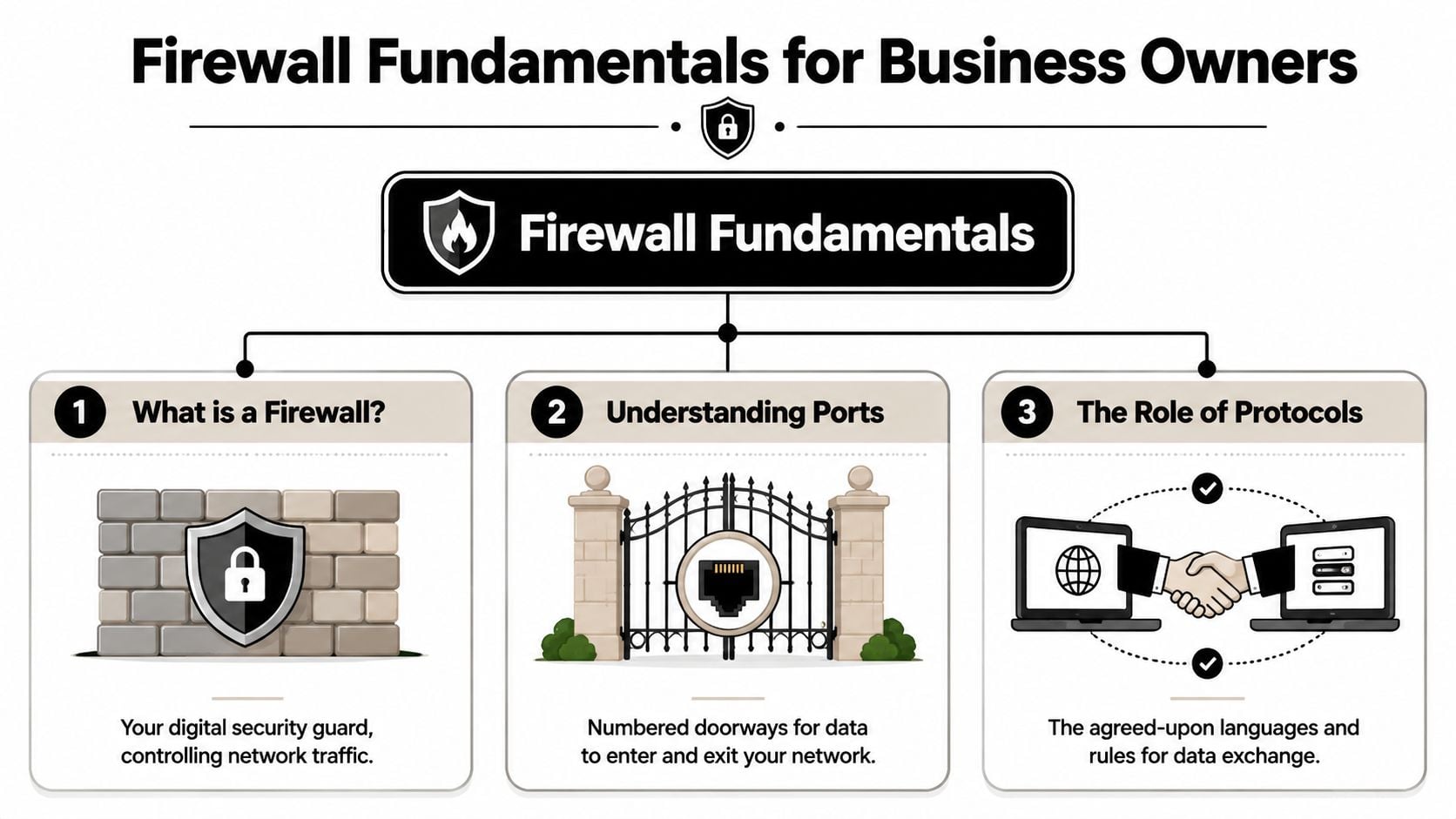
If firewall settings have always looked like a wall of acronyms, reduce them to three things. Ports, protocols, and rules. Once those are clear, most firewall decisions become a lot easier.
Ports protocols and rules in plain English
Think of your network like a block of flats.
A port is the flat number. It tells traffic which service it's trying to reach. Your website, email service, and remote admin tool each listen on different doors.
A protocol is the delivery method. It defines how that traffic is carried and understood. You don't need to memorise every protocol. You only need to know that the rule should match the service's expected way of communicating.
A rule is the instruction to the firewall. It says whether traffic is allowed or denied, from where, to where, and for which service.
That's why vague rules create trouble. “Allow traffic to the server” is sloppy. “Allow web traffic to the public website service” is controlled.
For business owners choosing infrastructure, this is also relevant when comparing hosting environments. A decent provider should make it clear which security controls live at server level, which sit in the platform, and which still need your input. That's one of the practical questions worth asking when you choose a web hosting provider.
Why default deny works better
The strongest baseline is default deny combined with least privilege. That means the firewall blocks everything unless there is a specific reason to allow it, and each rule grants only the minimum access needed.
According to this technical guide to configuring firewalls, effective firewalls operate on a default-deny, least-privilege model, with only specific, documented business traffic allowed and continuous monitoring used to detect configuration drift.
That approach is better than broad “temporary” exceptions because broad exceptions rarely stay temporary.
Keep the rule as narrow as the business need. Limit the source, destination, service, and purpose wherever you can.
Here's what that looks like in practice:
- Bad approach: Open remote access for anyone, from anywhere, because a supplier might need it.
- Better approach: Allow only the specific service, only for the approved users, and only where there is a clear business reason.
- Best approach: Add an expiry date or review note so the rule doesn't become permanent by accident.
A good firewall policy also pays attention to rule order, segmentation, and cleanup. If the broad allow rule sits above the carefully written restrictive one, the careful rule may never matter. If a decommissioned application still has an allow rule, you're carrying risk for no benefit.
Where Should You Configure Your Firewall
Many small businesses often struggle with this decision. They know they need firewall configuration, but they're not sure whether to do it on the office router, on the server itself, or inside a cloud platform or hosting panel. The right answer is often layered, but one layer should usually be your main control point.
Router or edge firewall
The edge firewall sits at the boundary of your office or main network. This is usually the router, UTM appliance, or dedicated firewall box.
Its main strength is scope. One policy can cover the whole site, guest networks, internal devices, and remote access pathways. If you have a physical office with staff devices, printers, phones, and local servers, the edge is normally the first place to enforce broad access control.
The trade-off is granularity. Edge devices are good at controlling traffic between zones and to the internet, but they may be less convenient for application-specific controls on a single server.
Hardware sizing matters here. Don't buy on headline speed alone. One commonly cited small business NGFW benchmark lists the FortiGate-60F at 1.0 Gbps NGFW throughput, support for up to 25 users, and 700,000 concurrent TCP connections, as noted in this firewall tech specs guide. Those practical limits are more useful than a vague promise of “fast security”.
Server level firewall
A host-based firewall runs on the server itself. On Linux, that might be UFW. On Windows, it's often Windows Defender Firewall.
This is the best place for fine control over a specific machine. If your web server only needs web traffic and tightly controlled admin access, host rules can lock that down even if another layer is misconfigured.
Server-level control is especially useful when:
- You host applications in the cloud: The office router won't protect a cloud server.
- Different servers need different policies: One database server shouldn't inherit the same openness as a public web server.
- You want defence in depth: If one layer fails, the host can still refuse traffic.
The downside is operational overhead. If you manage several servers, keeping local rules aligned can become messy without documentation and change control.
Cloud and hosting panel controls
Cloud firewalls and hosting panel controls sit between your hosted services and the internet. These are often easier to use than raw server rules, especially for businesses using managed hosting, VPS platforms, or cloud dashboards.
They're useful because they centralise access around hosted workloads. If your business is cloud-first, this may be your best primary layer. They also work well for hybrid setups where some systems are in the office and others are hosted elsewhere.
The weakness is visibility. Panels can make it easy to click “allow” without properly documenting the reason. That's how old access rules accumulate.
Pick one place as the source of truth. Use the other layers to support it, not to compete with it.
For many firms, the cleanest pattern is:
| Setup | Best primary control point | Supporting layer |
|---|---|---|
| Physical office with local devices | Edge firewall or router | Host firewall on important servers |
| Cloud-only website or app | Cloud firewall or hosting control panel | Host firewall on the server |
| Hybrid business | Edge firewall for office traffic | Cloud and host rules for hosted systems |
If your website, hosting, updates, and support are already handled together, firewall responsibility should be part of that conversation too. Businesses using website hosting and maintenance support should ask exactly where the firewall is managed, who approves changes, and how those changes are recorded.
Practical Configuration Walkthroughs
Theory helps, but knowing what to do on the actual platform in front of them is often essential. The goal isn't to create a perfect enterprise policy in one afternoon. It's to apply the basics cleanly, avoid broad exceptions, and document every change.
Linux server with UFW
UFW is often the simplest place to start on a Linux server. It gives you a readable front end for host firewall rules without forcing you into a more complex syntax.
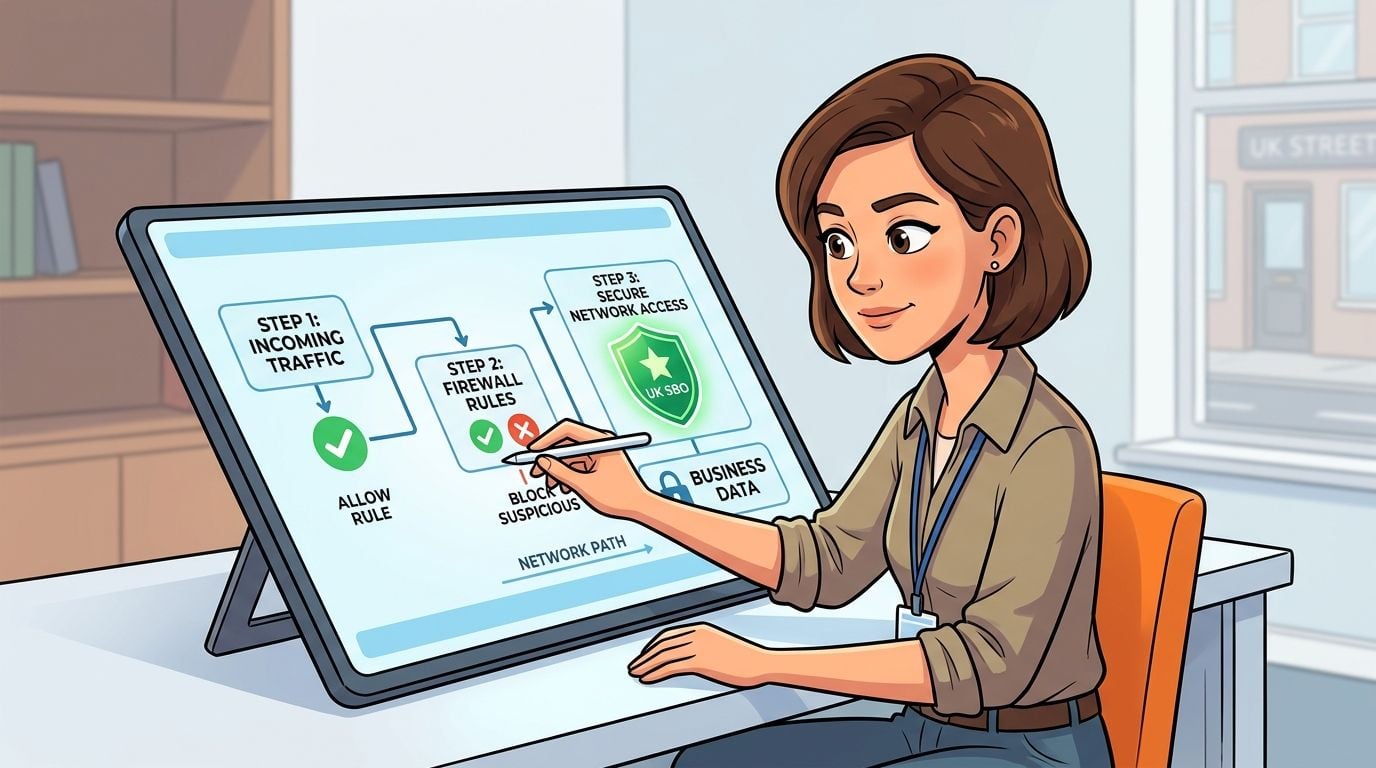
A sensible first pass looks like this:
- Check the current status: Confirm whether the firewall is already active and whether any rules already exist.
- Set your default stance: Deny incoming traffic by default. Allow outgoing traffic unless you have a reason to restrict it.
- Allow only required services: For a standard website, that usually means allowing web traffic. If you need remote admin access, allow that carefully and avoid making it broader than necessary.
- Enable logging: Basic logging helps you spot repeated blocks or accidental denials.
- Apply and test: Don't assume the service still works just because the rule saved.
A common mistake is enabling the firewall before allowing legitimate admin access. That can lock you out of the server. Another is leaving old one-off rules behind after maintenance is complete.
If you run a WordPress site, firewall rules should line up with the actual software and plugin stack you use. Admin tools, backups, staging systems, and security plugins can all affect access patterns, which is one reason it helps to review the wider platform setup alongside WordPress plugin choices.
Windows Defender Firewall
On Windows servers and office machines, Windows Defender Firewall is often underused because people assume it's only for advanced admins. In reality, it gives you solid control if you keep the rule set tidy.
Focus on these actions:
- Review inbound rules first: Look for anything enabled that no longer supports a real application or workflow.
- Create application-specific rules: Prefer rules tied to a named application or service over broad access where possible.
- Separate profile thinking: Domain, private, and public profiles shouldn't all be treated the same.
- Name rules clearly: “Temporary supplier remote access” is more useful than “new rule 7”.
Businesses often get into trouble with convenience features. A staff member enables discovery or remote access to “make things work”, and nobody revisits it.
If you're dealing with consumer routers or mixed home-office setups, it's also worth understanding how convenience protocols can expose devices more broadly than expected. This practical write-up on UPnP on or off in China is useful because it frames the trade-off between ease of setup and controlled exposure.
After you've worked through a first example, this walkthrough gives a helpful visual overview of the sequence and checks involved:
Router or UTM web interface
Most small business routers and UTM devices present firewall settings in a web interface. The labels vary, but the process is usually similar.
Start with the zones or interfaces. Identify what is public-facing, what is internal, and what should be more restricted. Then build rules around actual business needs, not around guesswork.
A clean order usually looks like this:
- Create network objects or aliases: Group services or device categories so rules stay readable.
- Define deny by default where the platform supports it: This keeps the policy intentional.
- Add explicit allow rules: Match source, destination, and service as tightly as possible.
- Check rule order: A broad allow above a restrictive rule will undermine the restrictive one.
- Review NAT and port forwarding separately: These settings often interact with firewall rules and are easy to misunderstand.
A port forward is not the same thing as a safe policy. It only creates a path. The firewall rule decides whether that path should really exist.
The biggest weakness in router interfaces is that they make unsafe shortcuts look tidy. A button labelled “expose host” or “allow all from WAN” may solve an immediate problem and create a larger one. Keep the rule tied to the application, the user need, and the smallest required exposure.
Essential Rule Sets for Common Services
Most businesses don't need a huge firewall policy. They need a small number of rules that match real services and don't overreach. The easiest way to think about this is by scenario.
A business launches a standard website. It should allow public web traffic, but not broad remote administration. A director wants remote access to an internal machine. That access should be restricted and justified, not left open because it was convenient during setup. A firm runs email services. Those rules should map to the exact role the server plays, not every mail-related port “just in case”.
The wider reason this matters in the UK is historical as well as practical. The Data Protection Act 1998, which came into force on 1 March 2000, was a key step in pushing organisations to implement “appropriate technical and organisational measures” to protect personal data, as discussed in this firewall configuration overview. In practice, that helped move rule-based traffic filtering from an IT extra into a governance issue.
Example Firewall Rules for Common SMB Services
| Service | Port | Protocol | Direction | Notes |
|---|---|---|---|---|
| Public website | HTTP | TCP | Inbound allow | Only if the site must be publicly reachable |
| Public website | HTTPS | TCP | Inbound allow | Standard for secure website traffic |
| WordPress admin server access | SSH | TCP | Inbound allow | Restrict to approved administrative use only |
| Windows remote administration | RDP | TCP | Inbound allow | Limit tightly and review often |
| Outbound email sending | SMTP | TCP | Outbound allow | Needed only if the server sends mail directly |
| Incoming email service | IMAP or POP3 | TCP | Inbound allow | Only for systems that actually host mail access |
| Internal database | Database service port | Relevant protocol | Deny public inbound | Keep internal unless there is a documented need |
A few principles matter more than memorising labels:
- Public web traffic is normal: A website has to be reachable if customers need it.
- Admin access is sensitive: SSH and RDP should never be treated like public website traffic.
- Mail roles differ: A server that sends mail isn't automatically the same as one that receives or stores it.
- Internal services should stay internal: Databases and management tools usually don't belong on the public internet.
These examples are starting points, not excuses to copy rules blindly. The useful question is always the same. What business function does this rule support, and is there a narrower version that still works?
Testing and Verifying Your Configuration
The risky moment in firewall configuration isn't planning the rule. It's clicking save and hoping you haven't blocked your own team or exposed the wrong service. Good testing removes that guesswork.
Before you change anything
Treat every firewall change like a pre-flight check.
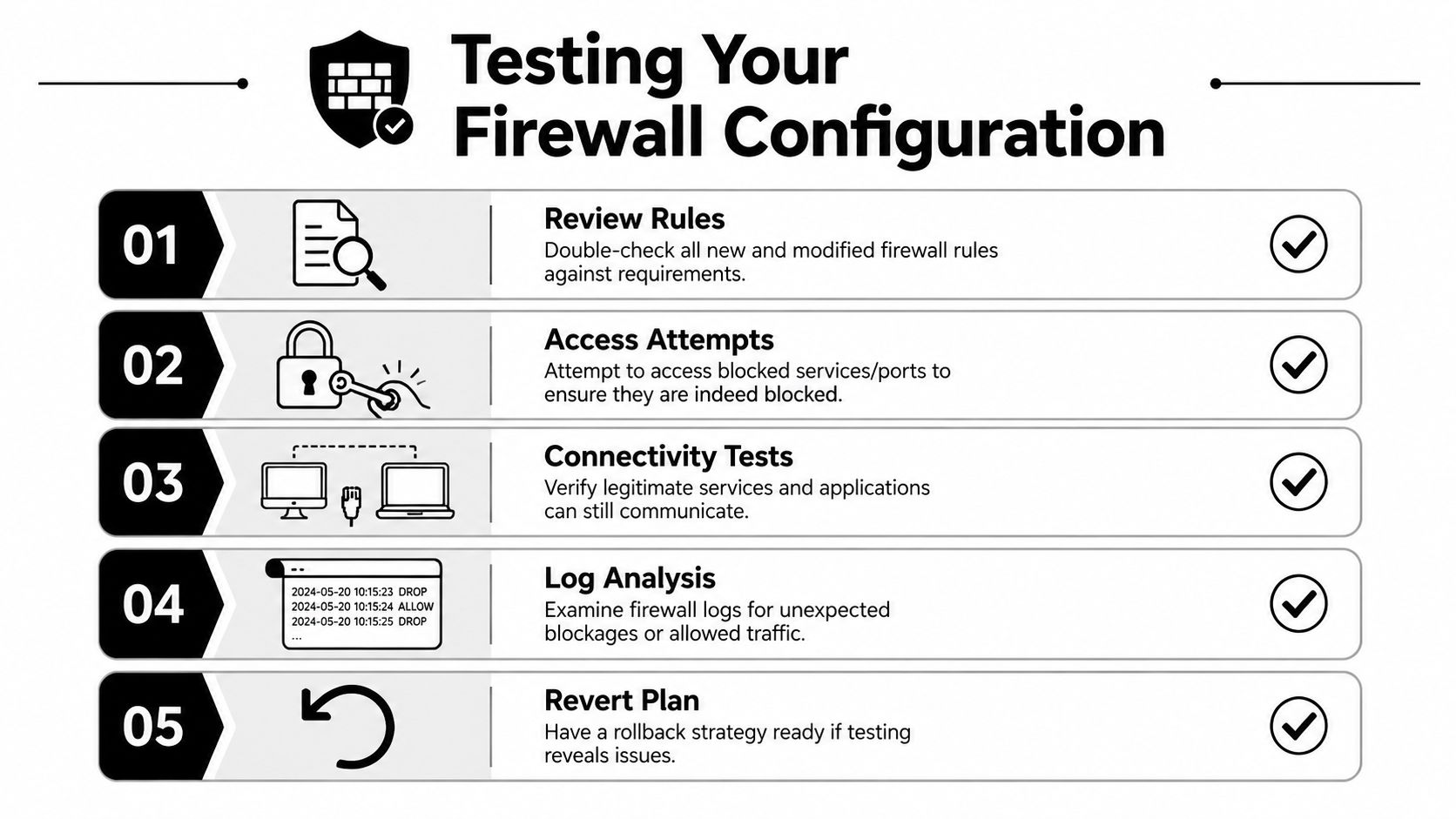
Start by writing down what should happen after the change. Which service should be reachable, by whom, from where, and what should remain blocked. If you can't describe the expected result clearly, the rule probably isn't ready.
Then prepare a simple rollback path. That might mean saving the current configuration, keeping console access available, or scheduling the change when someone can test immediately. Never make a live firewall change without a way back.
A practical launch process helps here. Teams already using a website launch checklist should include firewall verification alongside forms, redirects, backups, and SSL checks. Security controls shouldn't be bolted on after the site is already public.
Checklist before applying a rule:
- Confirm the requirement: What exact business need justifies this rule?
- Check for overlap: Is there already another rule or layer doing the same job?
- Review the scope: Can the rule be narrowed by service, origin, destination, or time?
- Set up a tester: Make sure someone can verify both allowed and blocked behaviour.
After the rule is live
Once the rule is active, test from the outside and from the user side.
First, confirm that legitimate access works. If the website should load, load it. If remote admin should work for an approved user, test that exact pathway. Then test what should fail. If a blocked service is still reachable, the firewall hasn't done its job.
Logs matter here. Check whether the firewall recorded allowed and denied attempts in the way you expected. Unexpected blocks often point to rule order problems, while unexpected allows usually point to rules that are too broad.
Test both sides of the rule. A successful business connection is only half the result. The blocked path matters just as much.
A short post-change review should answer these questions:
| Check | What you want to see |
|---|---|
| Legitimate service access | The intended service works normally |
| Unwanted access attempt | The firewall blocks it |
| Logs | Entries make sense and show the expected action |
| Admin access | You haven't locked out approved maintenance access |
| Rollback readiness | The previous state can still be restored if needed |
This kind of verification is what separates a functioning rule from a saved setting.
Maintenance Logging and Emergency Plans
The businesses that struggle with firewall configuration usually aren't the ones that never added rules. They're the ones that added many small exceptions over time and never cleaned them up. That's how a sensible setup turns into a brittle one.
A firewall policy needs maintenance because the business changes. Websites are rebuilt. Suppliers come and go. Staff roles shift. Temporary access gets forgotten. If nobody reviews those old allowances, the rulebase stops reflecting the business it's supposed to protect.
Rule reviews that stop slow drift
A useful review doesn't need to be complicated. Read each allow rule and ask three things. What does it support, who asked for it, and would the business notice if it were removed? If the answer is unclear, investigate before leaving it in place.
Keep a small operational record for every meaningful change. Date, reason, approver, affected service, and rollback note are usually enough. This makes future reviews far easier, especially when the person who created the rule is no longer involved.
The other maintenance job is watching for drift. Failed admin actions, repeated denied connections, and rules that nobody wants to touch are all signs that the firewall is becoming harder to govern.
Backups logs and rollback
Configuration backups are essential, but they're also sensitive. They can contain access rules, secrets, and management settings. If those files are stored loosely, they can create a serious exposure on their own.
That risk was highlighted in a SonicWall incident where attackers accessed backup files for about 5% of backup firewall preference files, as reported in this Quorum Cyber write-up. The lesson is straightforward. Your firewall backup deserves the same protection as the firewall.
That means:
- Store backups securely: Don't leave exported configuration files in casual shared folders.
- Control access to backups: Only the people who need them should have them.
- Review backup contents: Know whether they include credentials, VPN details, or admin settings.
- Rotate credentials after exposure: If a backup may have been accessed improperly, treat it as a live security event.
Logs matter just as much as backups. A firewall log tells you whether the policy still reflects reality. If a rule is constantly blocking a valid business app, the policy may be out of date. If nobody ever checks the logs, you lose the feedback loop that keeps the ruleset healthy.
Emergency planning is the final piece. Before changing anything important, decide who can approve a rollback, who can perform it, and how you'll regain access if the rule cuts off remote management. That discipline feels excessive right up until the day you need it.
If your business needs a secure website, reliable hosting, or help making the technical side of your online presence easier to manage, DesignStack can help you plan and build a setup that's clean, supportable, and ready for long-term growth.



Leave a Reply