How to Backup WordPress Website: The Essential Guide
You've just installed a plugin, updated your theme and published a new batch of pages. Then the site starts showing a blank screen, the checkout stops working or the homepage disappears. Your hosting provider may have a backup, but you don't know when it was taken, how long it's retained or whether you can restore it without opening a support ticket.
That uncertainty is the core issue. Learning how to backup a WordPress website isn't about collecting files and forgetting them. It's about building a recovery routine that gives you a known-good copy, stored away from the live site, and a tested method for bringing the business back online.
Table of Contents
- Understanding Why Your WordPress Site Needs Backup
- The Two Vital Parts of a Complete WordPress Backup
- Comparing Manual, Plugin, and Host Backup Methods
- Scheduling and Storing Your WordPress Backups Safely
- Testing Restores to Verify Your Backup Works
Understanding Why Your WordPress Site Needs Backup
A WordPress failure rarely arrives at a convenient time. It might follow a plugin update before an important campaign, a compromised administrator account or a simple mistake in the media library. A booking site can lose enquiries, an online shop can lose order information and a brochure site can lose years of carefully written content.
The painful part is often not the original error. It's discovering that the backup you assumed existed is incomplete, too old or impossible to restore. A host may keep snapshots, but access to those snapshots can depend on your hosting account, the provider's systems and the controls included in your plan. If the account is locked or the provider is unavailable, a backup that you can't reach won't help much.
Backups protect more than website files
Your website may contain more business value than its design suggests. WordPress can hold service pages, product descriptions, customer accounts, enquiries, bookings, comments and plugin settings. The media library may contain original photography, downloadable documents and images used across your marketing.
That's why I treat a backup as a business continuity control, not an occasional technical chore. Guidance for small organisations from the National Cyber Security Centre on backing up data includes websites within the operational data businesses need to protect.
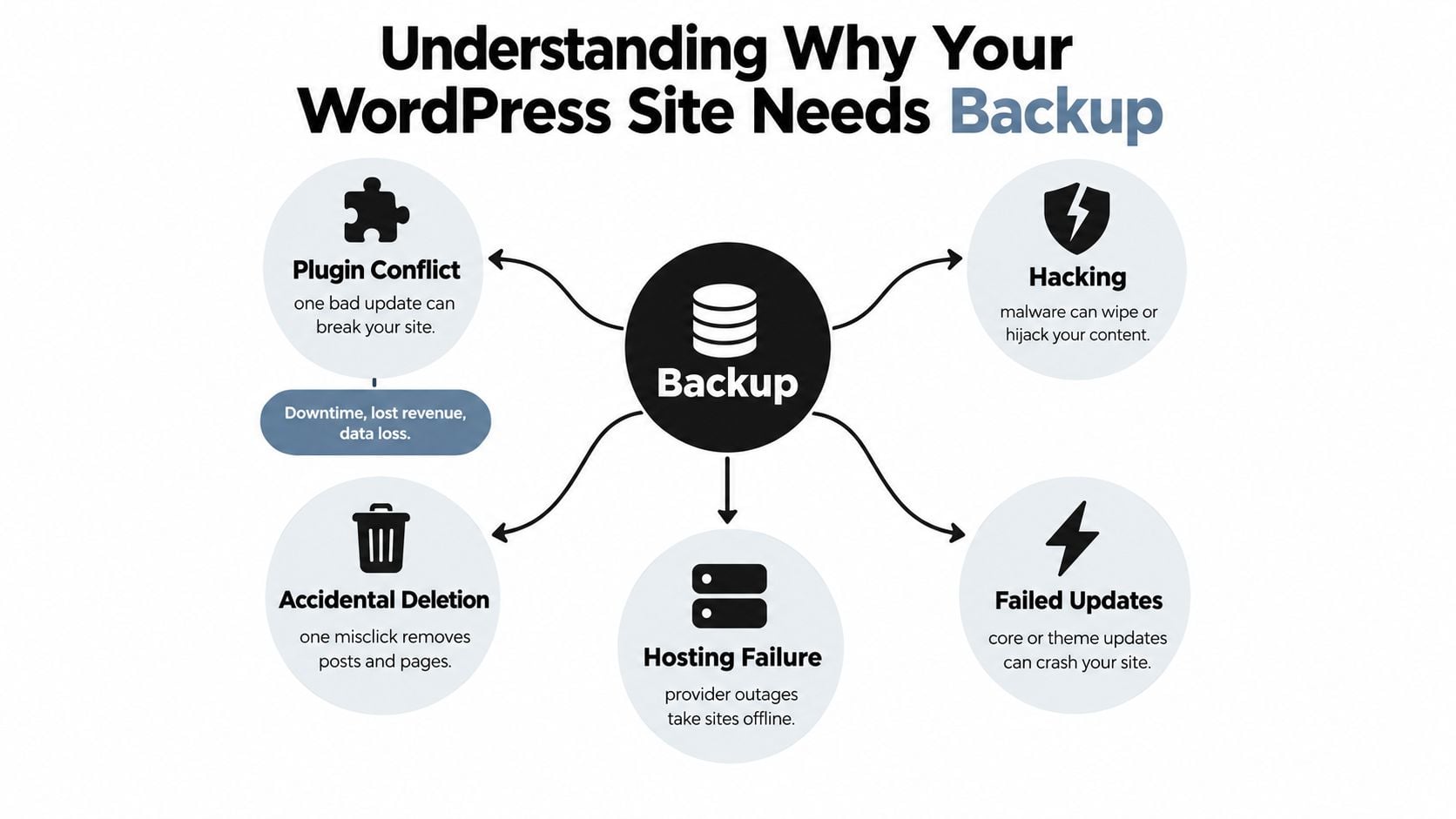
A solid routine helps you recover from several different situations:
- Plugin conflicts: A new release can interfere with your theme or another plugin.
- Hacking: An attacker may alter accounts, content or files.
- Accidental deletion: A mistaken click can remove pages, media or settings.
- Hosting failure: A provider outage can take your website offline.
- Failed updates: WordPress core, themes and plugins can break after changes.
The best disaster recovery for small businesses plans begin with a practical question: what would you need to restore first, and where would you get it? For WordPress, the answer starts with a complete copy of both the files and the database.
Build independence into your plan
Your host's backup service can be useful, and you shouldn't ignore it. It can provide a fast first option when a recent update causes trouble. It shouldn't be your only option, because a resilient plan keeps a separate copy under your control.
For UK small businesses, that may mean combining hosting snapshots with an off-site backup and a restore process you've personally checked. If you use a maintenance provider, confirm exactly what it backs up, how long it keeps restore points and whether it can restore to a different environment. You can also review how website hosting and maintenance are handled before choosing who will manage the site.
Practical rule: If you haven't successfully restored a backup, you have a backup file. You don't yet have a recovery plan.
The Two Vital Parts of a Complete WordPress Backup
A backup can look healthy in a storage folder and still fail when your site needs it. A WordPress recovery depends on two connected layers: the database, which stores the site's structured information, and the files, which provide the software, design and media. Both must come from a compatible recovery point.
The database usually contains posts, pages, products, users, comments, settings and data created by plugins. A database-only copy can preserve written content and configuration, but it may omit the images, theme templates and plugin code required to display that content correctly.
The files include WordPress core files, themes, plugins, uploads and configuration files. A files-only copy preserves the physical components of the website, but without its matching database it can create an empty, outdated or broken installation.
What a complete copy should contain
Check that your backup captures all of these parts:
- Database content: Posts, pages, products, users, settings and plugin data.
- Uploads: Images, documents, videos and other media in the uploads directory.
- Themes: The active theme and any child theme files.
- Plugins: The plugins that provide site functionality.
- Core and configuration files: The WordPress installation and relevant configuration.
WordPress's advanced backup guidance advises weekly backups for smaller sites and daily backups for high-activity sites. It also recommends keeping 3 to 5 recent backups in different locations. That gives you alternatives if the newest copy is corrupt or contains a problem that has already entered the site.
Restore order matters. WordPress recommends restoring the files first and then importing the database, so the two components can work together during recovery. This sequence cannot repair an incompatible or incomplete backup, but it provides a sensible starting point when rebuilding the installation.
Apply the NCSC resilience standard
The NCSC approach is commonly expressed as 3 copies, 2 different storage arrangements and 1 off-site copy. The NCSC guidance on implementing and testing backups connects this structure with resilience, not simple file storage.
A practical arrangement includes:
- The live WordPress site.
- A backup in separate cloud storage.
- Another copy on an external device or protected storage system.
Keep these copies independent. If every copy depends on the same server or stays connected to the same network, one incident can affect them all. The NCSC warns that connected backups can be targeted during a ransomware incident, so disconnect an external device when it is not being used.
Restore testing is the part many backup plans skip. Create a temporary staging site, restore the files and database, then check page layouts, images, forms, logins, checkout functions and plugin behaviour. Record the steps and the time required. A successful test proves that the backup is usable, not merely present.
If the database is large or regularly updated, database optimisation for WordPress can reduce unnecessary overhead before export and make backup handling easier. It does not replace a complete copy. For broader operational planning, the managed backup solutions guide can help you assign responsibilities between your team, host and external provider.
Comparing Manual, Plugin, and Host Backup Methods
There isn't one correct backup method for every WordPress site. The right choice depends on your technical confidence, how often the site changes and how quickly you need to recover.
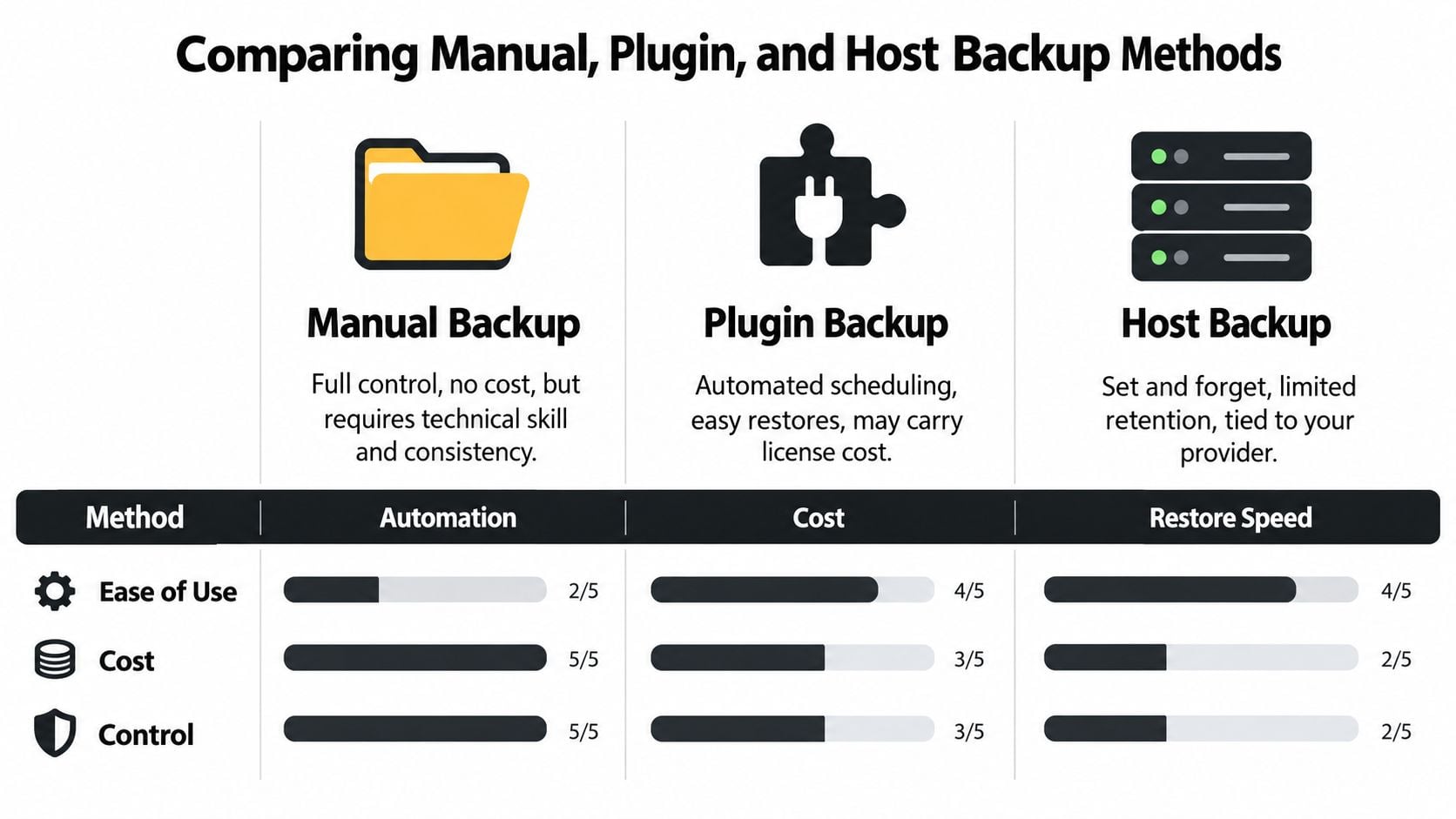
Manual backups give you visibility and control. Plugin backups reduce the amount of routine work. Host backups can provide a convenient safety net. The mistake is assuming convenience automatically means resilience.
Manual backups suit owners who want direct control
A manual process usually involves copying the WordPress files and exporting the database through your hosting control panel or database tool. You can then place those items in a separate storage location and label them clearly.
This method is transparent. You know which files you copied, which database export you created and where the resulting archive is stored. It can also be useful before a major migration or structural change.
The trade-off is consistency. Manual work depends on someone remembering the schedule, understanding the file structure and checking that the database export completed successfully. A rushed download can leave out the uploads directory or create a database copy without the corresponding files.
Plugins automate the routine
A reputable backup plugin can schedule file and database backups, send copies to cloud storage and provide a guided restore process. This is often the most practical option for a small business owner who doesn't want to use FTP or a database administration tool.
Check the plugin's behaviour before installing it on a production site. Important questions include:
- What does it include: Does it capture the database, uploads, themes, plugins and configuration files?
- Where does it store copies: Can it send backups away from the live hosting account?
- What can it restore: Can you restore the full site, selected files or the database separately?
- How does it handle failed jobs: Does it report errors clearly instead of skipping a backup without notice?
- Can you access the backups independently: Are you able to download a copy if the WordPress dashboard is unavailable?
Plugins introduce their own maintenance requirement. Keep them updated, monitor their backup notifications and avoid installing several tools that all schedule overlapping jobs. If the site handles sensitive user information, protect the storage account and restrict access to the backup files.
A managed WordPress hosting service may combine hosting support, update management and backups, but you should still ask how portable the backup is and whether restore testing is included.
Host backups are convenient, not complete by default
Hosting backups can be fast and simple. The provider may take snapshots automatically and offer a restore button inside the control panel. That's valuable when a recent update breaks the site and you want to roll back quickly.
The limitations vary. Retention can be short, restores may apply to the whole account rather than one page and the backup may remain tied to the provider. UK-facing WordPress guidance recommends keeping 30 days of separate daily restore points, storing backups off-site and testing restores periodically, as explained in Hostinger's WordPress backup guidance.
| Method | Main advantage | Main risk |
|---|---|---|
| Manual | Maximum visibility and control | Easy to forget or perform incompletely |
| Plugin | Scheduled backups and accessible automation | Requires plugin maintenance and careful configuration |
| Host | Convenient snapshots and fast rollback | Retention, portability and restore controls may be limited |
My recommendation is to use layers. Let the host provide its automatic recovery option, add an independent off-site backup and verify the result. A single method creates a single point of failure.
Scheduling and Storing Your WordPress Backups Safely
A backup schedule should match how quickly the site changes. An online shop processing orders, a membership site recording account activity and a publication adding content throughout the day need tighter protection than a brochure site that rarely changes. Set the schedule around the amount of data you could afford to lose.
WordPress guidance supports weekly backups for smaller sites and daily backups for high-activity sites, with several recent versions kept in different locations. Treat that as a starting point, not a fixed rule. Increase database protection during busy sales periods, launches or other times when new information arrives quickly.
Match the schedule to what the site does
Use a clear operating pattern:
- Active ecommerce or booking site: Schedule daily backups and create an extra copy before major updates.
- Content-heavy site: Use daily protection when new posts, comments or media arrive regularly.
- Low-change brochure site: Weekly backups may be suitable if you monitor the site and retain recent versions.
- Before significant changes: Create a fresh backup before updating WordPress core, a theme or a plugin.
The pre-update copy protects you from a common failure. A routine backup can run after an update and preserve the broken state. Give the manual copy a clear name, including its date and purpose, so you can identify it quickly during recovery.
Keep copies away from the live server
A backup stored only on the same hosting account shares many risks with the website. A server failure, compromised account or accidental deletion can affect both the live files and their backup.
Use storage separate from production. Suitable options include a cloud backup destination, a protected external device or another storage arrangement controlled by your business. Encrypt copies containing personal or customer information, and limit access to people who need it.
The NCSC resilience pattern fits this arrangement: keep 3 copies, use 2 different storage arrangements and place 1 copy off-site. Keep an external drive disconnected when it is not being used. A permanently connected backup can be reached by an attacker who gains control of the live machine.
Keep a record that someone else can follow
Document the backup location, schedule, login owner, retention policy and recovery steps. Store those instructions somewhere accessible even if the WordPress dashboard is unavailable. Include who can approve a restore and where the required credentials are held.
Review the arrangement when choosing or changing a host. Guidance on choosing a web hosting provider can help you assess backup access, support and portability before committing. Northpoint Web's latest posts offer further maintenance context.
Schedule a periodic restore check as part of the routine. A backup that has never been retrieved remains an assumption, so record the result and fix any access or storage problem immediately.
Testing Restores to Verify Your Backup Works
Most backup routines stop too early. The files are created, the notification says “complete” and everyone moves on. That proves only that a backup job ran, not that the site can be recovered.
A restore test turns an assumption into evidence. It can reveal missing uploads, incompatible database and file versions, incorrect permissions, broken plugin dependencies or a storage account nobody can access. You want to discover those problems during a controlled exercise, not while customers are waiting for the checkout to return.
Use a safe recovery environment
Never test by overwriting the live site unless you're dealing with an emergency and have professional support. Use a staging installation or a separate temporary environment that matches the production setup as closely as practical.
Start with a specific recovery scenario. For example, pretend that a plugin update has broken the front end, or that the live installation is unavailable after an intrusion. Select a backup from the storage location and follow the same instructions you'd use during a real incident.
The process should include:
- Retrieve the backup: Confirm that the account, storage location and credentials are available.
- Restore the files: Recreate the WordPress file tree, including themes, plugins, uploads and configuration files.
- Import the database: Load the database that belongs to that recovery point.
- Check the connection: Confirm that the restored files and database work together.
- Test the important journeys: Open key pages, submit a form, check the login process and test the shopping basket or booking flow if relevant.
- Record the result: Note what worked, what failed and which steps were unclear.
The NCSC small organisations guide emphasises that businesses should keep backups recent and test that they can be restored. The test doesn't need to be elaborate. It does need to be repeatable and honest.
Test the parts that matter to customers
A homepage loading successfully isn't enough. A WordPress site can look fine while its forms, payments, user accounts or integrations remain broken.
Check the functions that generate enquiries or revenue:
- Forms: Submit a test enquiry and confirm delivery.
- Commerce: Review products, add an item to the basket and check the checkout path without placing a live order.
- Accounts: Test a user login and password reset in the safe environment.
- Media: Open representative images, downloads and documents.
- Search and navigation: Confirm that important pages, menus and internal links work.
- Email and integrations: Check whether connected services still have the correct settings.
A restore test also improves your SEO recovery readiness. If you migrate or rebuild after a failure, the website migration SEO checklist can help you check redirects, indexable pages, metadata and tracking before sending the restored site back to users.
Test portability, not just rollback
A host rollback is useful, but it doesn't answer every resilience question. Ask whether your independent backup can be restored to a different hosting provider if your current host suffers an outage, locks the account or can't support the recovery.
Portable off-site backups earn their place here. A copy that exists outside the host gives you an alternative route, but only if you know how to retrieve it and have the information needed to rebuild the environment.
Set a recurring reminder for restore checks. Include someone other than the person who created the original backup, if possible. A recovery process that depends on one person's memory is fragile, especially when that person is unavailable during an incident.
The goal isn't technical perfection. It's confidence based on a demonstrated process. Create the backup, store it separately, restore it safely and record what you learned. Then repeat the cycle whenever the site, hosting arrangement or recovery requirements change.
DesignStack provides WordPress websites, hosting, maintenance and backup support for businesses that need a dependable site and a clear recovery routine. If you want help reviewing your current setup or building a more resilient WordPress website, visit DesignStack and discuss your requirements with the team.