

WordPress Website Audit: The Complete 2026 Checklist
Only 2.7% of UK small-business websites meet Google's mobile Core Web Vitals thresholds, so mobile performance can decide whether a WordPress site wins or loses leads. A proper audit must look beyond plugin updates and desktop scores to identify what real visitors experience on their phones.
That finding changes the meaning of a WordPress website audit. It isn't just a technical tidy-up inside the dashboard. It's a practical review of speed, security, search visibility, accessibility, content quality, and the points where those areas affect enquiries or sales.
A site can look polished on a large monitor while loading slowly on a mobile connection. It can have an SSL certificate while relying on abandoned plugins. It can rank for useful phrases while presenting confusing navigation or inaccessible forms. The audit needs to connect those details to business outcomes, then turn the findings into a sensible repair plan.
Table of Contents
- Why Most WordPress Audits Miss the Point
- The Five Pillars of a Complete Audit
- Auditing Performance and Security
- Reviewing SEO, Accessibility, and Content
- Prioritizing Fixes and Remediation
- DIY Audit vs Professional Assessment
Why Most WordPress Audits Miss the Point
A Dorset business owner once showed me a WordPress site that appeared healthy at first glance. WordPress and its plugins were updated, the padlock appeared in the browser, and a desktop Lighthouse test produced an impressive result. Yet mobile enquiries had fallen, particularly from people checking the service while travelling or standing in a queue.
The explanation wasn't hiding in the WordPress update screen. On a phone, the hero image arrived late, a large page-builder script delayed interaction, and a third-party booking widget shifted the form while it loaded. The site looked fine in a desktop test, but a potential customer in Weymouth or Weymouth Harbour experienced hesitation, movement, and uncertainty at precisely the point where they were deciding whether to get in touch.
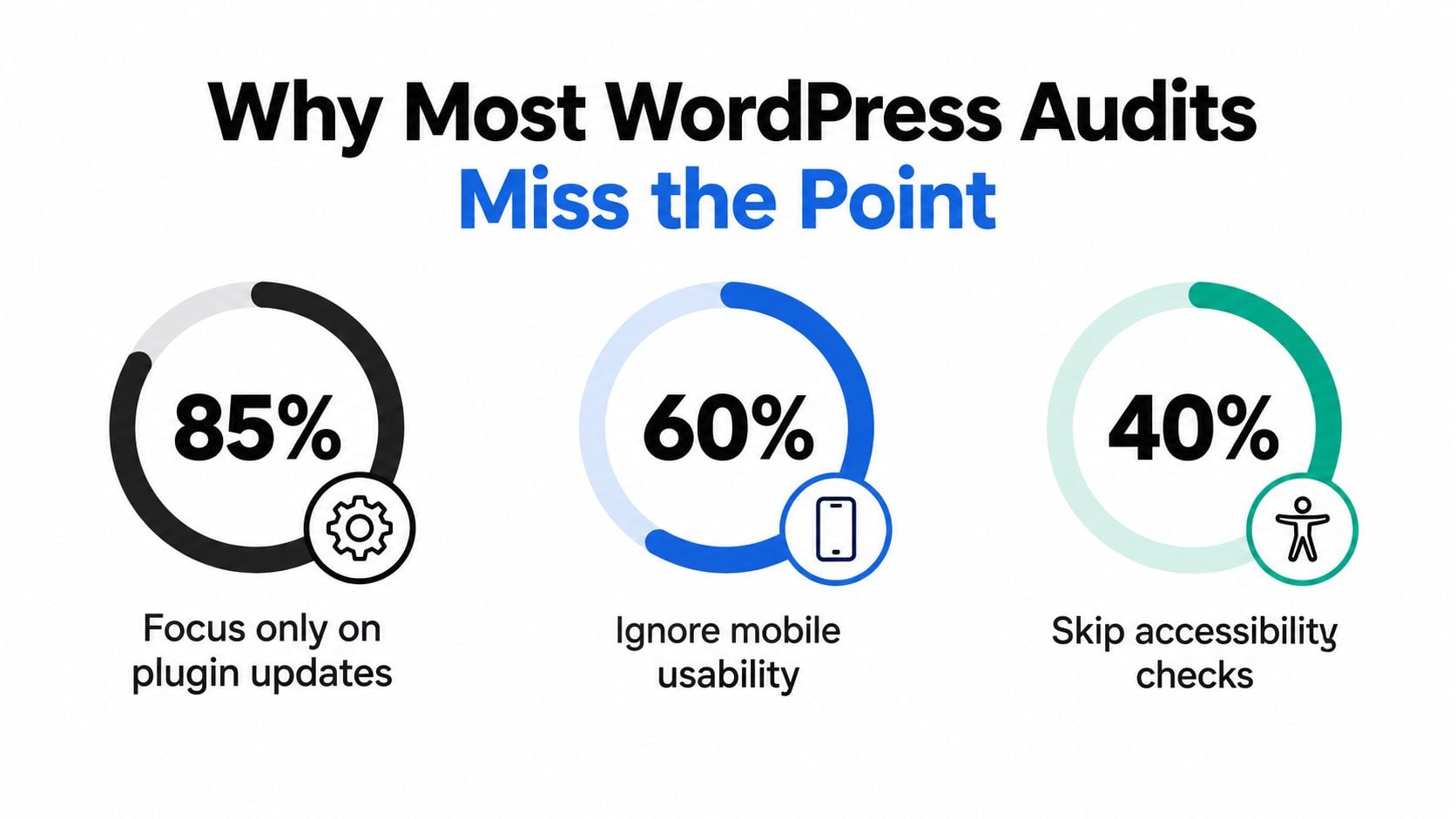
Across 4,324 UK small-business websites audited in 2026, only 2.7% met Google's lab thresholds for the two key Core Web Vitals on mobile. The same research recorded a median Lighthouse performance score of 45 on mobile versus 74 on desktop, showing why a desktop-only review can create false confidence. The UK small-business website health research provides the clearest warning here: the audit must reproduce the mobile experience, not just inspect the admin area.
What a dashboard check can't tell you
Checking plugin versions still matters. An outdated extension can create a security risk, break a form, or load unnecessary assets across every page. But the check only tells you whether software has been updated. It doesn't tell you whether the plugin is needed, whether it runs on pages where it has no role, or whether its JavaScript is delaying a visitor's next action.
A useful audit pairs administrative checks with observed behaviour:
- Mobile rendering: Test key landing pages on a phone-sized viewport, including menus, forms, pop-ups, tables, and checkout steps.
- Real bottlenecks: Use PageSpeed Insights, Lighthouse, or GTmetrix to identify oversized images, render-blocking resources, slow server responses, and layout movement.
- Business journeys: Follow the path from an advert or search result to a call, booking, purchase, or enquiry. A technically tidy page that obstructs that journey still needs attention.
A website success review should therefore ask what the site is helping people do, not just whether its settings appear green. The practical distinction is simple: a plugin audit inventories the ingredients, while a performance audit tastes the finished meal.
The Five Pillars of a Complete Audit
A complete WordPress website audit works best as one connected assessment rather than five unrelated checklists. The site is a system. A slow checkout can involve a plugin, an image, a hosting limitation, and a poorly structured template at the same time.
Performance
Performance covers server response, page weight, image delivery, caching, script execution, and the mobile Core Web Vitals experience. The right question isn't whether the homepage has a good desktop score. It's whether a prospective customer can read the offer, use the navigation, and submit an enquiry without waiting or losing their place.
Security
Security begins with the inventory. Review WordPress core, themes, plugins, administrator accounts, backups, login controls, and hosting arrangements. Remove anything unnecessary, because an extension that no longer serves the business can still add maintenance and exposure.
SEO
SEO examines crawlability and meaning. Broken internal links, redirect chains, weak page titles, duplicate metadata, poor heading structure, inaccessible content, and an incomplete sitemap can all make a site harder to understand. Technical SEO also needs to support the pages that matter commercially, not just produce a tidy report.
Accessibility
Accessibility asks whether people can perceive, move through, and operate the site with different needs and technologies. Menus, sliders, forms, keyboard focus, colour contrast, error messages, PDFs, and custom blocks deserve attention because a reusable component can reproduce one defect across many templates.
Content
Content is the reason someone visits. Review whether each important page answers a clear question, reflects the service accurately, has a distinct purpose, and guides the reader towards an appropriate next step. A fast, secure page with vague copy still struggles to earn trust.
These pillars reinforce one another. Improving user experience often requires changes across content, structure, accessibility, and speed, rather than a single plugin. A practical user experience improvement guide can help teams evaluate those connections from the visitor's point of view.
Auditing Performance and Security
Performance and security start with the same inventory: what the site runs, where it runs, and whether each component still earns its place. A long plugin list is not automatically a problem. Duplicated features, abandoned extensions, and scripts loaded across every page make it harder to identify the bottlenecks that affect mobile visitors and the controls that protect the site.
Start with the mobile journey
Begin with pages that generate enquiries or revenue. A local service firm might need the homepage, a service page, contact page, and booking form tested. An online shop should include category pages, a representative product page, cart, and checkout. Test each journey on a mobile device or through browser developer tools, then repeat the checks in PageSpeed Insights or GTmetrix.
A plugin scan can report that a site is technically tidy while the mobile journey still feels slow. Record when the first useful content appears, whether the layout shifts as assets load, and how long the page takes before a visitor can tap, scroll, submit, or complete a purchase. The headline performance score is useful for comparison, not a diagnosis.
Inspect the likely causes:
- Images: Resize files to their displayed dimensions, compress them, use modern formats where suitable, and delay below-the-fold media.
- Caching: Confirm that page and browser caching work for anonymous visitors. Check that cart, account, and personalised areas continue to show the correct content.
- Scripts: Identify analytics, chat tools, sliders, maps, forms, and page-builder assets that load before the visitor needs them.
- Plugins: Use Query Monitor or controlled staging tests to find extensions that create slow database queries or excessive requests.
- Hosting: Check server response time, PHP and database health, resource limits, and whether the hosting plan matches the workload.
A targeted loading-speed improvement plan prevents the trap of chasing every flagged resource. Fix the slowest business-critical template first, then retest the same journey. A booking plugin may be necessary for enquiries, while a decorative animation plugin may add little value. Removing functionality without checking the customer journey can produce a faster page that no longer takes bookings.
Treat security as operational maintenance
The UK government's Cyber Security Breaches Survey reported that 43% of British businesses experienced a cyber breach or attack in the previous 12 months, affecting about 612,000 organisations. Industry data notes that 31% of hacked WordPress sites were linked to outdated plugins UK WordPress security statistics, making plugin hygiene a business concern.
A security audit should confirm that:
- Updates have a process: Review core, themes, and plugins, then test important changes on staging where possible.
- Access is controlled: Remove unused accounts, require strong unique passwords, enable multi-factor authentication, and give administrators only the permissions they need.
- Login routes are protected: Review rate limiting, suspicious-login alerts, and web application firewall rules.
- Backups can be restored: A backup that has never been tested is an assumption, not a recovery plan. Confirm where copies are stored and whether restoration is practical.
- Headers and configuration are sensible: Check browser security headers, error disclosure, file access, and whether dashboard file editing is enabled.
- The inventory stays lean: Delete inactive and unnecessary plugins instead of leaving them installed indefinitely.
Speed and security often improve together. Removing redundant scripts can reduce page weight and the number of components exposed to attack. Security plugins still require configuration and monitoring. Several overlapping tools can conflict, duplicate scans, or create a false sense of protection.
Reviewing SEO, Accessibility, and Content
Once the technical foundation is understood, review what search engines and people can interpret. A page may load quickly and remain secure while still sending weak signals through broken links, unclear headings, missing context, or an awkward route to conversion.
SEO needs a route, not just metadata
Start by crawling the site and reviewing:
- Indexation signals: Check the robots directives, XML sitemap, canonical choices, noindex settings, and whether important pages are discoverable.
- Internal links: Find broken destinations, orphaned pages, redirect chains, and links that use vague text instead of describing the destination.
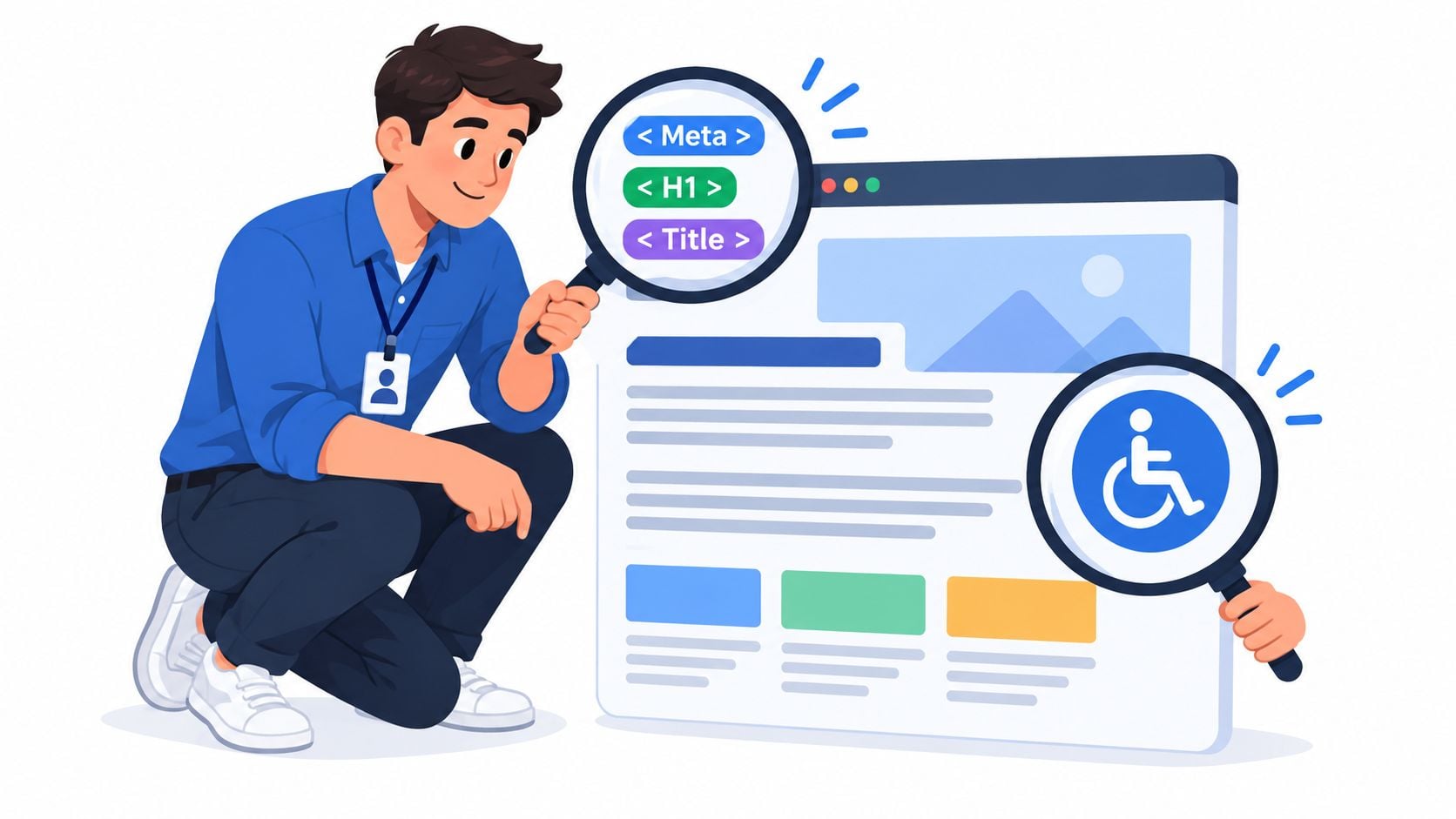
- Page structure: Review title tags, meta descriptions, one clear primary heading, subheadings, image alternatives, and structured data where appropriate.
- Templates: Check whether archive pages, author pages, search results, and thin service variations create unwanted duplication.
- Conversion alignment: Make sure pages attracting search demand answer the relevant question and offer a visible next action.
A technical SEO review should result in decisions, not a long list of warnings. A redirect chain may matter because it slows or confuses a valuable journey. A missing meta description may deserve less urgency if the page itself has a stronger commercial problem.
Accessibility requires human testing
GOV.UK requires accessibility audits to check a representative sample of pages against WCAG 2.2 AA, including testing with assistive technologies. Detailed audits test the full range of 55 success criteria, as explained in the GOV.UK accessibility audit guidance.
That approach is more rigorous than running an automated scanner on the homepage. Select representative templates and include text-heavy pages, forms, login areas, media, navigation, dynamic content, and downloadable documents where the site uses them. Automated tools can flag missing labels or contrast concerns, but they won't reliably explain whether keyboard focus makes sense, whether an error message reaches a screen-reader user, or whether a pop-up traps someone inside it.
Content should earn its place
Review content with the customer in mind. Remove or merge pages that repeat the same message, improve service pages that describe features without outcomes, and check that old offers, staff details, opening times, prices, and policies remain accurate. Then map each priority page to a search intent and a business action.
The best content audit isn't a hunt for arbitrary word counts. It asks whether the page is useful, credible, easy to scan, and specific enough to help a visitor choose the next step.
Prioritizing Fixes and Remediation
An audit report can contain more warnings than a small business can sensibly address at once. The answer isn't to chase the easiest technical score. Rank each issue by risk, reach, user impact, and commercial importance.
A useful triage model looks like this:
| Priority | Typical issue | First response |
|---|---|---|
| Critical | Active security exposure, broken checkout, lost form submissions, or severe mobile failure on a key landing page | Contain the risk and restore the journey before cosmetic work |
| Important | Slow templates, redirect problems, inaccessible forms, weak internal linking, or unreliable backups | Assign an owner, test the fix, and schedule the work |
| Nice to have | Minor styling inconsistencies, low-impact metadata gaps, or optional visual refinements | Add to the improvement backlog after higher-impact work |
This ranking needs context. A contrast problem in a reusable header may be more important than a similar issue on an isolated footer link because the component appears across the site. An unused plugin may be a quick removal, but it shouldn't distract from a compromised administrator account or a contact form that fails on mobile.
WordPress has a particularly large installed base in the UK. Independent market-share tracking estimates roughly 1.3 million to 1.4 million WordPress websites in the country, with WordPress accounting for about 85.8% of CMS-powered sites detected on UK domains, according to UK WordPress market-share data. That scale helps explain why plugin inventory and update discipline deserve a prominent place in a UK audit, but it doesn't make them the only priority.
Turn findings into a repair sequence
For every issue, record the affected URL or template, the evidence, the likely cause, the proposed fix, the owner, and the retest method. Group repeated problems by root cause. Fixing one reusable form block may resolve several accessibility and conversion issues, while replacing one oversized image may help only one page.
Avoid changing hosting, theme, caching, and plugins simultaneously. Make controlled changes, retest mobile journeys, and keep a record of what improved or regressed. That discipline prevents a familiar WordPress problem, where a quick fix creates a new failure that nobody can trace.
DIY Audit vs Professional Assessment
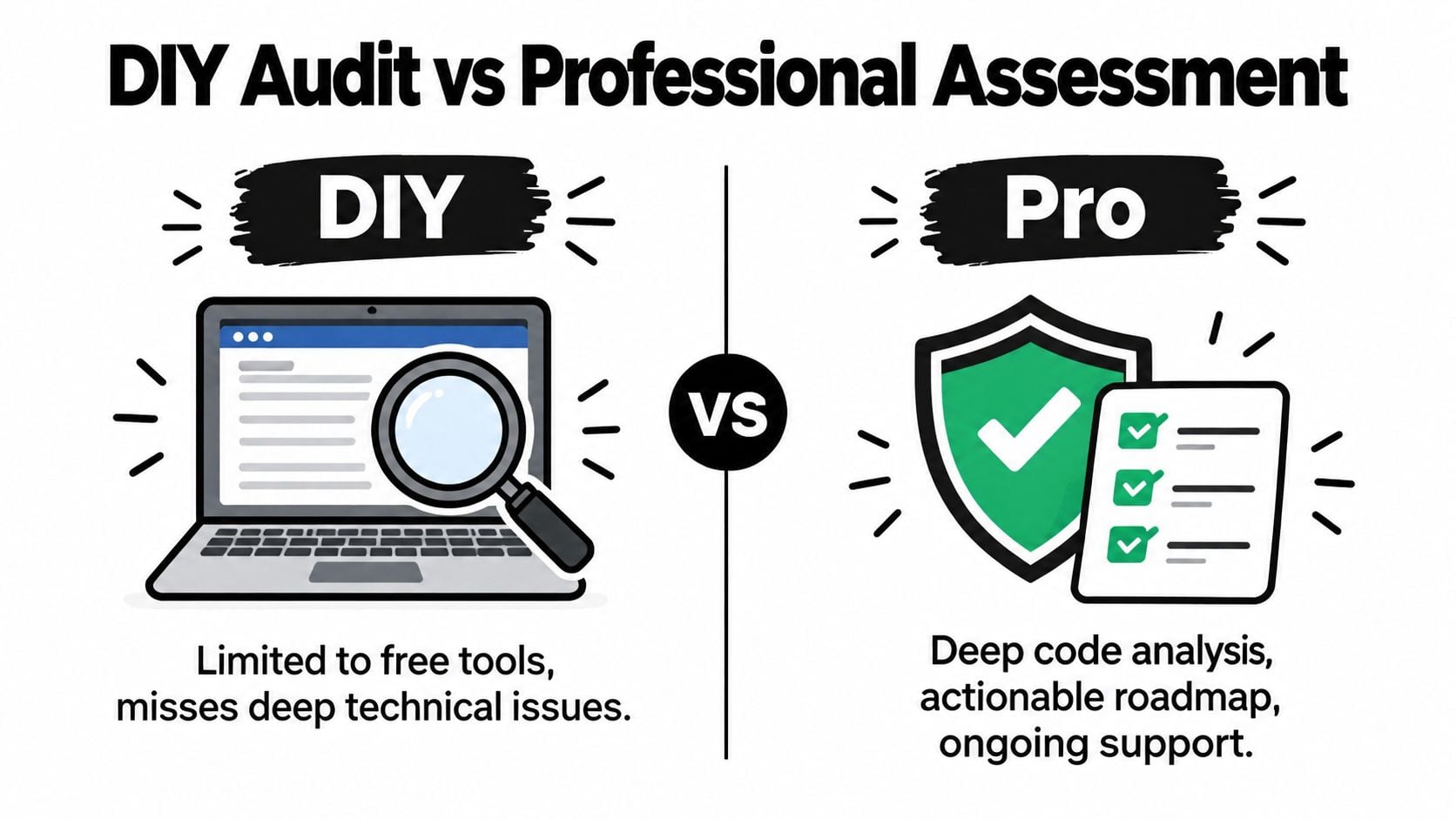
A DIY audit is useful when the site is small, stable, and familiar. A business owner or administrator can confirm that backups exist, remove unused plugins, test contact forms, check the main pages on a phone, and run a first pass through PageSpeed Insights. Those checks catch obvious problems and help maintain a clearer inventory.
Free tools become less useful when they produce symptoms without explaining the cause. A report may identify slow JavaScript, but it won't automatically tell you whether the script belongs to a vital booking system, an avoidable pop-up, or a theme component that needs replacing. It may flag accessibility errors without revealing that one Gutenberg block is repeating the same defect across a large set of pages.
Choose based on risk and complexity
DIY maintenance is often reasonable for:
- Simple brochure sites: A few stable pages, limited integrations, and a straightforward contact route.
- Routine checks: Plugin inventory, content accuracy, form testing, mobile viewing, and backup confirmation.
- Early diagnosis: A first look before commissioning development work.
Professional assessment is more appropriate when:
- Revenue depends on the site: Ecommerce, bookings, memberships, lead generation, or time-sensitive campaigns.
- The site has changed unexpectedly: Traffic declines, unexplained slowness, errors, redirects, or suspicious administrator activity.
- Several systems interact: WooCommerce, payment gateways, page builders, CRM integrations, multilingual plugins, or custom code.
- Compliance matters: Accessibility requires representative sampling, manual checks, and assistive technology testing rather than a single automated score.
A professional doesn't replace the tools. They interpret them against the business journey, test changes safely, and distinguish a symptom from its root cause. The trade-off is cost and access to someone who needs to understand the site, hosting, analytics, and priorities before recommending work.
A WordPress maintenance and support service can provide a repeatable process for backups, plugin inventory, core updates, form checks, mobile testing, speed checks, content freshness, and ownership access. WordPress maintenance and support is one route for businesses that want those checks managed rather than left to an occasional reminder.
For a Dorset SME, the sensible choice often depends on the value of one lost enquiry and the confidence of the person making changes. Start with a structured DIY review if the site is simple. Bring in an experienced WordPress developer when the audit uncovers mobile bottlenecks, security uncertainty, or a customer journey that needs careful testing.
DesignStack can audit WordPress performance, security, mobile journeys, accessibility, SEO structure, and content issues, then turn the findings into a practical remediation plan. Visit DesignStack to discuss an audit, maintenance support, or a conversion-focused WordPress improvement project.


Leave a Reply