

SSL Certificate Installation: A Guide for UK Businesses
You're probably here because something on your site has gone slightly wrong. Maybe Chrome is showing Not secure in the address bar. Maybe your host asked for a CSR and you're wondering what on earth that is. Or maybe you've installed a certificate already, yet the padlock still refuses to appear.
The good news is that SSL certificate installation is a solved problem. It can look technical because different hosts, control panels, and platforms use different labels, but the underlying job is straightforward. You prove you control the domain, install the certificate files correctly, switch the site to HTTPS, and then test it properly.
For a small business owner, this isn't really about cryptography. It's about trust, contact forms, checkout pages, customer confidence, and making sure visitors don't get warned away before they even read your homepage.
Table of Contents
- Why Your Website Needs the Padlock
- Choosing Your SSL Certificate Free vs Paid
- Preparing for Your SSL Certificate Installation
- Installation Guides for Common Platforms
- Validating Your Installation and Forcing HTTPS
- Troubleshooting Common SSL Installation Issues
- Automating Renewals and Long-Term Maintenance
Why Your Website Needs the Padlock
That browser warning is doing exactly what it's meant to do. It tells visitors that the connection between their browser and your website isn't properly protected. If someone fills in a contact form, signs in, or enters payment details, they expect that information to travel securely.
What the certificate actually does
An SSL/TLS certificate enables encryption between the visitor's browser and your server. In plain language, it stops information being sent as readable plain text. Once it's installed properly, your site can load over HTTPS instead of HTTP.
That matters far beyond online shops. A brochure site with a quote form still handles names, phone numbers, email addresses, and messages. A membership site handles logins. A booking site handles customer details. Even a simple contact page should be protected.
Practical rule: If your website accepts any information from a visitor, it should run on HTTPS everywhere, not just on one form page.
Why this matters to a small business
The wider web has already moved. The push for a secure web accelerated after Google Chrome started marking non-HTTPS sites as ‘Not secure’ in July 2018, and 87.6% of websites were using a valid SSL certificate by 2024, up from 18.5% six years earlier, according to industry SSL and TLS trend data.
For a business owner, the takeaway is simple. Visitors now treat the padlock as normal. If it's missing, your site feels outdated or unsafe, even if your business itself is perfectly legitimate.
There's also a search visibility angle. Google has spent years pushing the web towards HTTPS, and secure browsing sits alongside broader technical housekeeping. If you're trying to understand how site health connects with rankings, this guide to technical SEO basics gives useful background.
A secure site is also part of a wider security routine. If you want a practical overview beyond certificates alone, this resource on securing small business websites is worth reading.
- Trust first: Visitors are far more comfortable submitting forms or buying when the browser shows a secure connection.
- Professional presentation: The padlock is now basic website hygiene, not a premium extra.
- Baseline protection: HTTPS helps protect data moving between browser and server.
Choosing Your SSL Certificate Free vs Paid
Once you know you need a certificate, the next question is usually whether to pay for one or use a free option. Many articles become unclear on this point. The actual answer depends on your setup, your support needs, and how much identity checking you want attached to the certificate.
When a free certificate is enough
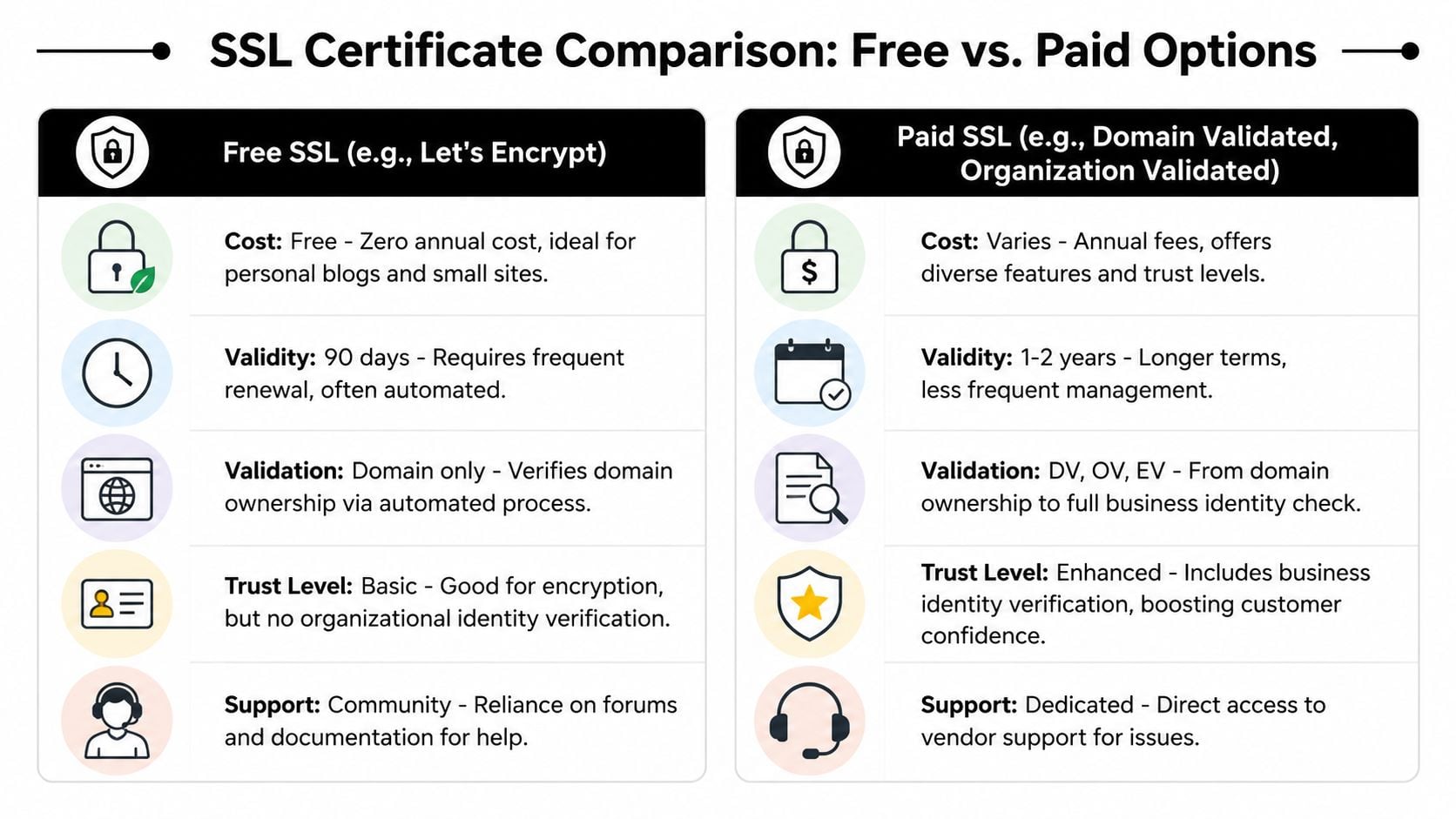
For many small businesses, a free certificate such as Let's Encrypt is perfectly adequate. It provides encryption, browsers trust it, and most mainstream hosts already support it through cPanel, Plesk, Cloudflare, or their own dashboard tools.
That's one reason SSL certificate installation has become easier. As of January 2025, there were over 299 million SSL certificates online, and Let's Encrypt held 63.7% market share, according to SSL market statistics. In practice, that means common hosting platforms now work with familiar certificate types and routine renewal workflows.
A free certificate is often the right fit when:
- You run a standard business site: brochure sites, blogs, portfolios, and many WordPress sites work well with free DV certificates.
- Your hosting includes automation: if the host issues and renews the certificate for you, the free route is hard to argue against.
- You want simplicity: fewer purchasing decisions, fewer moving parts, and no need to compare product tiers.
When a paid certificate makes sense
Paid certificates aren't “more encrypted” in the everyday sense people often assume. The main difference is usually validation level, support, and commercial extras, not whether the browser can encrypt traffic.
You might choose a paid option if your organisation wants stronger identity checks, direct vendor support, or a particular certificate type that fits an internal procurement or compliance process.
A free certificate is often enough for technical security. A paid certificate can make more sense for process, support, or organisational identity.
A simple comparison
| Option | Best for | Main advantage | Watch out for |
|---|---|---|---|
| Free DV certificate | Most small business sites | Low friction, easy automation | Support is usually limited to host docs or community help |
| Paid DV certificate | Businesses wanting vendor support | Extra support and sometimes easier hand-holding | You may pay for convenience rather than extra practical protection |
| OV certificate | Firms wanting organisation checks | Adds business identity validation | Usually involves more paperwork and setup steps |
| EV certificate | Organisations with formal trust requirements | Highest level of organisational vetting | More admin, more cost, and not necessary for most SMEs |
If you're also comparing hosting packages at the same time, it helps to look at what the host includes around SSL, renewals, support, and control panel tools, not just monthly price. This overview of website hosting costs is useful for that bigger-picture decision.
Preparing for Your SSL Certificate Installation
Most SSL problems start before the installation itself. The certificate is rarely the actual issue. The issue is usually a mismatch, a missing file, the wrong validation method, or a CSR created on the wrong server.
What a CSR is in plain English
A CSR, or Certificate Signing Request, is a file your server generates when you request a certificate. It contains the public key and identifying details the certificate authority needs in order to issue the certificate.
Think of it as the application form your server creates. If the details are wrong, the certificate can be delayed or fail to match your website correctly.
The most reliable workflow is to generate the CSR on the target server, submit it to the certificate authority for validation, install the issued certificate, force the HTTP to HTTPS redirect, and then verify the result with an external tool, as explained in this practical SSL workflow guide.
Your pre-install checklist
Before you click anything in cPanel, Plesk, Cloudflare, or your host dashboard, gather the basics.
Confirm the exact domain names
Decide whether the certificate covers just one hostname or several. Many problems start when the site runs on both the www and non-www version, but the certificate was requested for only one expected version.Generate the CSR on the right server
If your hosting platform handles this automatically, that's ideal. If you're doing it manually, create it on the server where the certificate will live.Choose a validation method you can access
Most providers validate domain ownership by email, DNS, or file-based checks. Use the one you can complete quickly and reliably.Keep the private key safe
The private key pairs with the certificate. Lose it, replace it carelessly, or mix it up with another site, and the installation can fail.
Don't treat the CSR step as admin paperwork. It's the foundation for the whole install.
A few common mistakes are worth avoiding:
- Wrong domain entered: the certificate gets issued, but not for the hostname your visitors use.
- CSR generated elsewhere: the files no longer pair up cleanly with the target environment.
- Validation email missed: issuance stalls and the install never really begins.
- No record of where files are stored: later renewals become messy.
If you're still choosing where the site should live, this guide on how to choose a web hosting provider helps you judge the practical differences between hosts, not just the marketing claims.
Installation Guides for Common Platforms
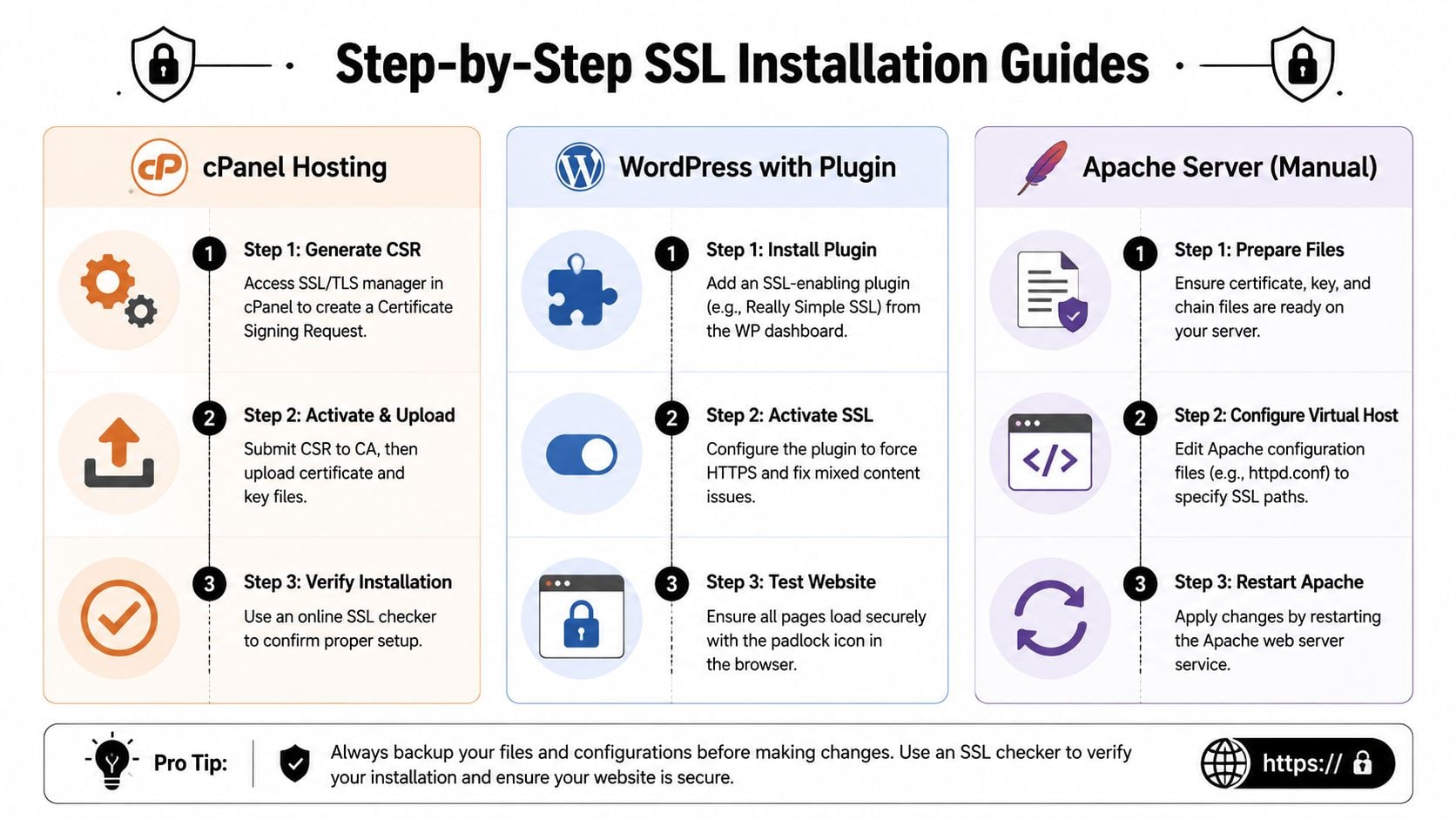
The exact screens vary, but SSL certificate installation usually follows the same broad pattern. You request or upload the certificate, make sure the full certificate chain is included, activate HTTPS, and then test from outside the site.
cPanel hosting
cPanel is common on shared and reseller hosting. In many cases, your host already integrates AutoSSL or Let's Encrypt, so the certificate may be one click away rather than a manual upload job.
A typical cPanel process looks like this:
- Find the SSL area: look for “SSL/TLS”, “Manage SSL Sites”, or an AutoSSL section.
- Generate or request the certificate: some hosts do this automatically. Others let you paste a CSR or request the certificate in-panel.
- Install the certificate files: if you're working manually, you'll usually need the certificate, private key, and CA bundle or intermediate certificates.
- Check the preferred domain setup: make sure your chosen version, usually www or non-www, is the one being forced consistently.
If cPanel feels cluttered, focus on the domain selection first. Many failed installs happen because the certificate lands on the hosting account, but not on the exact domain or subdomain you intended.
Plesk hosting
Plesk usually feels tidier than cPanel, but the logic is the same. You choose the domain, go into the hosting or security settings, then request or upload the certificate.
What matters in Plesk is that you assign the certificate to the correct domain after it's been issued. Uploading it isn't always the same thing as activating it.
A good quick check after installation is to load the site in a private browser window and test both the www and non-www version. If one version works and the other throws a warning, the issue is often assignment or redirect handling rather than the certificate itself.
WordPress websites
WordPress adds one extra layer. You don't just need the certificate installed on the server. You also need WordPress to stop calling insecure asset URLs.
That means checking:
- WordPress Address and Site Address: both should use HTTPS once the certificate is live.
- Theme and plugin asset links: older themes or hard-coded scripts may still reference HTTP files.
- Media and internal links: some builders and page templates store full URLs in the database.
Plugins such as Really Simple SSL can help tidy up redirects and common mixed content issues, especially on older sites. They're helpful, but they shouldn't be used as a substitute for getting the server-level setup right first.
If you're not sure how WordPress fits into the wider stack, this primer on what a content management system is explains why platforms like WordPress behave differently from static websites.
Cloudflare and managed platforms
Cloudflare can simplify SSL for many small businesses, especially if you want HTTPS enabled quickly across a site behind its network. Some managed website platforms and eCommerce platforms also issue certificates automatically.
The part people miss is that “enabled in Cloudflare” doesn't always mean “correct all the way through”. You still need the origin side configured properly so traffic remains secure between Cloudflare and the actual server.
If a platform says SSL is active, still test the live site yourself. Never assume the dashboard tells the whole story.
For managed platforms, read the labels carefully. Some offer automatic HTTPS, some manage redirects too, and some leave mixed content cleanup to you.
Apache or NGINX on a server
Manual server installs are where SSL certificate installation starts to look intimidating, but the moving parts are still familiar. You need the certificate file, private key, and chain file placed correctly, then the web server must be told where those files live.
After that, reload or restart the web server so the new certificate is served to visitors.
Manual environments need more discipline:
- Keep file paths consistent
- Use clear naming
- Restrict permissions
- Test immediately after reload
This is also where skipping verification becomes dangerous. A reliable workflow still ends with redirect enforcement and an external check. Uploading files alone doesn't prove the live website is secure.
Validating Your Installation and Forcing HTTPS
Installing the certificate is only half the job. A site can have a valid certificate on the server and still show warnings, split traffic between HTTP and HTTPS, or load insecure page elements.
Test the certificate from outside your network
The first thing I'd do after any SSL certificate installation is test the site using an external checker such as SSL Labs. That matters because your own browser can hide problems through cached redirects, saved trust decisions, or session history.
External testing helps you catch issues like:
- Missing intermediate certificates
- Certificate mismatch
- Old certificate still being served
- Weak redirect handling
- Hostname inconsistencies
A site can look fine on your machine and still fail for customers on another browser or device.
Force every page to use HTTPS
Once the certificate is working, visitors should be redirected automatically from HTTP to HTTPS. Without that step, people can still land on the insecure version of the site, and search engines may see two versions of the same pages.
Use a proper sitewide redirect at the server, platform, or CDN level. Don't rely only on a WordPress plugin if your hosting panel or server can enforce the redirect more cleanly.
A good final check is to test all of these manually:
- homepage on HTTP
- homepage on HTTPS
- www version
- non-www version
- a normal internal page
- a contact or checkout page
If they all end up on one clean HTTPS version, you're on the right track.
Fix mixed content properly
Mixed content means the page itself is loaded securely, but some assets on it, such as images, scripts, fonts, or stylesheets, still load over HTTP. That breaks the clean padlock and can cause browser warnings.
Common causes include:
| Problem | What it usually means | Typical fix |
|---|---|---|
| Image warnings | Old media links still use HTTP | Update image URLs in content or database |
| Script or stylesheet warnings | Theme or plugin files are called insecurely | Update theme settings or plugin configuration |
| Form or iframe issues | Third-party embeds still use old URLs | Replace with HTTPS versions or remove the embed |
WordPress sites often need a database cleanup if old absolute URLs were saved in page builders or theme settings. For brochure sites, the issue may just be one insecure logo image or hard-coded script.
Strengthen the final setup
Modern HTTPS setup goes beyond just “certificate installed”. Sectigo's guidance highlights OCSP stapling as a way to improve the TLS handshake and HSTS as a security measure that helps protect against downgrade attacks, as covered in this SSL installation guidance.
Those features aren't always the first thing a small business needs to think about, but they matter once the basics are stable. Get the certificate, redirects, and content cleanup right first. Then improve the setup further.
Troubleshooting Common SSL Installation Issues
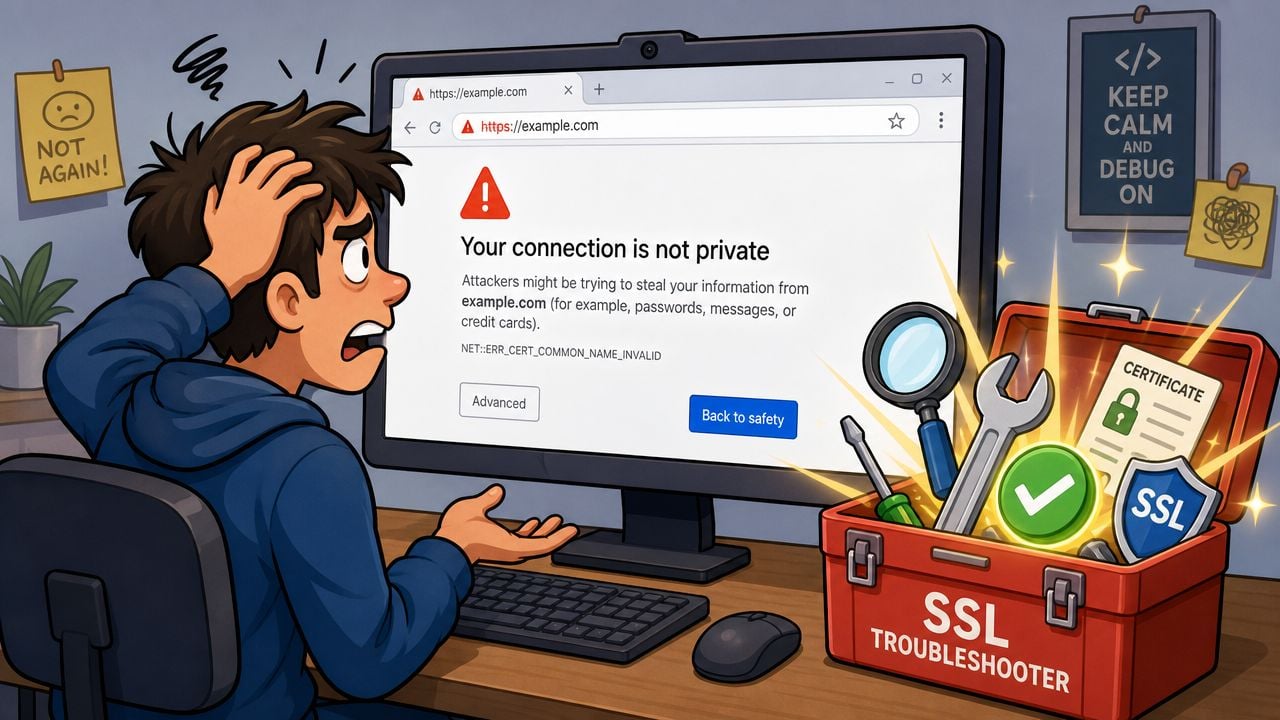
The most frustrating moment is when you've done the install, switched the site to HTTPS, and the browser still says something is wrong.
The certificate is installed but browsers still complain
One of the most common causes is a broken chain. That means the main certificate is present, but the intermediate certificates that help browsers trust it haven't been installed correctly.
SSL.com specifically notes that post-install browser errors are often caused by missing intermediate certificates, and recommends checking the full chain across different browsers and devices in this guide to installing intermediate certificates and avoiding trust errors.
If the site looks secure on your laptop but not on someone else's phone, chain problems should be high on your list.
Here are the first things to check:
- Full chain present: don't install only the leaf certificate if your platform expects the intermediate bundle as well.
- Correct domain covered: the certificate must match the hostname visitors use.
- No old certificate cached at the edge: CDNs and reverse proxies can keep serving an older state.
- Browser cache cleared: after changes, test in private browsing and on another device.
A green padlock on your own machine is not proof that the installation is correct for everyone else.
Redirect loops and strange platform conflicts
Another common failure is the redirect loop. You type the domain, the browser spins, then returns too many redirects or a similar error.
This usually happens when two layers both try to force HTTPS in slightly different ways. For example, the host may force secure URLs while a plugin also forces them, or a CDN mode may clash with the origin server configuration.
In practice, the fix is often to simplify:
- Turn off duplicate redirect rules.
- Keep one canonical domain version.
- Make sure the application, CDN, and server agree on whether HTTPS is already active.
- Test again before re-enabling extras.
If you want a visual walkthrough of common SSL browser problems, this short video is a useful companion while you troubleshoot:
When to stop guessing and test methodically
SSL issues feel chaotic when you change three things at once. They become manageable when you test one layer at a time.
A practical order is:
- Browser result: what exact warning appears?
- External SSL test: does it flag chain, hostname, or protocol issues?
- Redirect behaviour: does HTTP cleanly move to HTTPS?
- Page assets: are any files still loading over HTTP?
- Cross-device check: does the site behave the same on phone, tablet, and desktop?
That method saves time. Random clicking inside hosting dashboards usually doesn't.
Automating Renewals and Long-Term Maintenance
The easiest SSL certificate to manage is the one you don't have to remember manually. That's why automation matters so much.
Modern certificates have a maximum validity period of 398 days, and guidance on certificate operations strongly recommends automation because manual installation is labour-intensive and error-prone. Automated scripts can handle renewal, file placement, and web server reloads, reducing the risk of expired-certificate outages, according to this Sectigo automation paper hosted by PositiveSSL.
Why manual renewal causes problems
Manual renewals tend to fail for ordinary business reasons, not technical ones. Someone is on holiday. Access sits with one developer. The email reminder goes to an old inbox. A certificate gets renewed but never installed. Or it gets installed and the web server never reloads.
That's why a “we'll remember when it expires” approach is weak, even on a small site.
Free certificates often renew more frequently, so automation matters even more there. Paid certificates still expire, so the principle is exactly the same. If a system can renew and deploy safely without waiting for a human, that's the better system.
What to automate and what to check
The best long-term setup includes both automation and visibility.
- Auto-renewal enabled: confirm your host, platform, or certificate tooling is renewing the certificate.
- Post-renewal deployment: make sure the new certificate is being placed where the live server uses it.
- Server reload or restart: a renewed certificate isn't live until the web service picks it up.
- Expiry monitoring: keep alerts in place well before the certificate deadline.
- External verification: test after renewal, not just after the first installation.
The safest SSL setup is boring. It renews on time, reloads cleanly, and nobody notices because nothing breaks.
If you want that kind of reliability across hosting, updates, and routine site care, ongoing website hosting and maintenance support can take the day-to-day burden off your team.
If your website needs SSL certificate installation, cleanup after a failed setup, or a more reliable hosting arrangement, DesignStack can help you get it sorted clearly and properly. We build and support websites for UK businesses that want secure, dependable sites without the jargon.



Leave a Reply